Loading
No picture from a connected video device | 3·2·1® GS Series II DVD home entertainment system
3·2·1®-gs-series-ii-dvd-home-entertainment-system
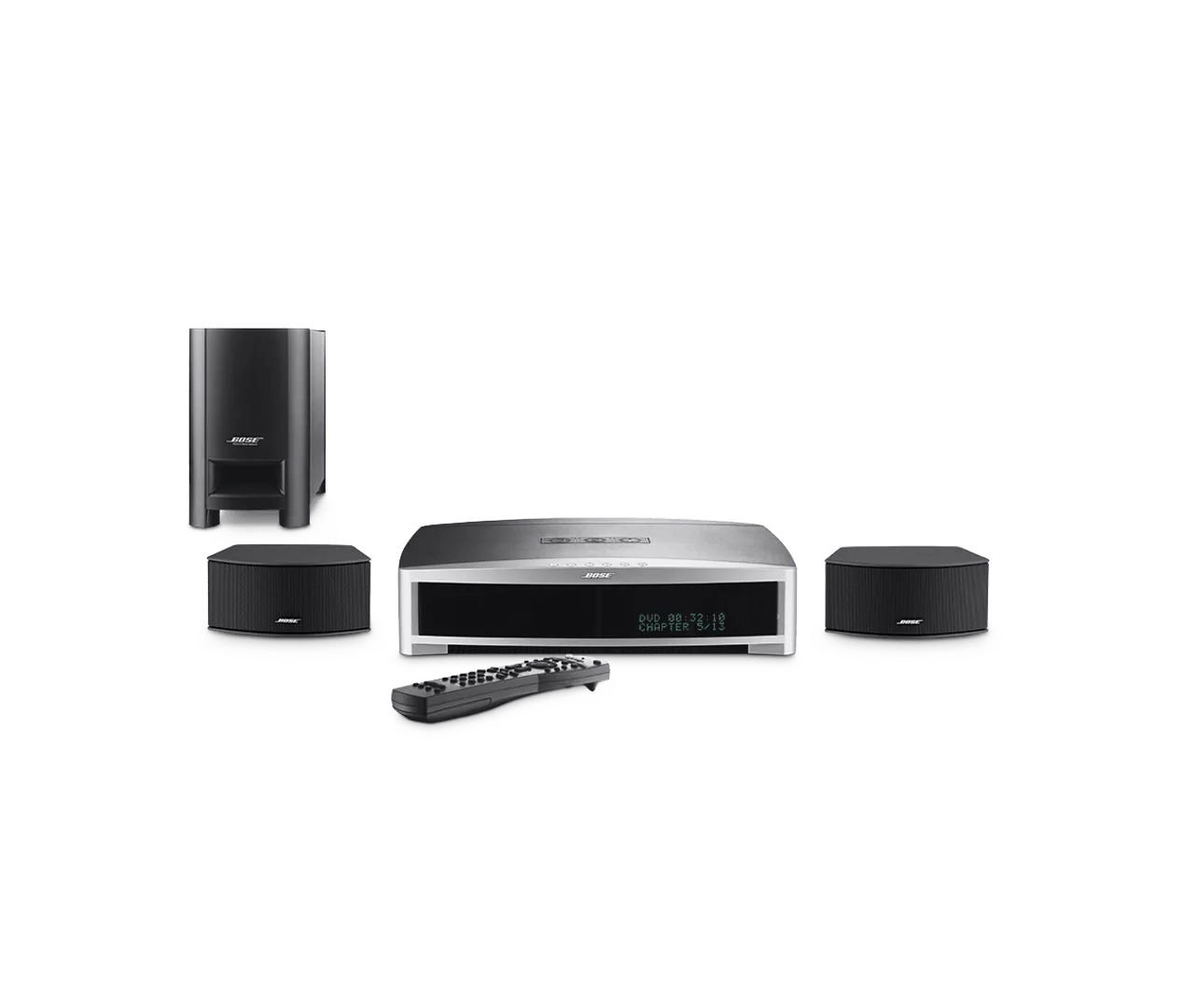
3·2·1® GS Series II DVD home entertainment systemSold from 2004 - 2008

No picture from a connected video device | 3·2·1® GS Series II DVD home entertainment system

Which device is being used?

Cable box

Try a different channel.

If the issue only occurs with one or certain channels, there could be an issue with those particular broadcasts.

Be sure the cable box is connected properly.

A connection may have come loose or may be incorrect. Check to see that all output connectors on the cable box and input connectors on the Bose system are firmly seated. For information on attaching other audio sources, see Connecting other devices to your system.

When using an RF modulator, be sure the correct TV channel is selected.

Check to see that the TV is set to the proper channel, which is usually channel 3 or 4.

Connect the video output of the source directly to the TV.

If the issue still exists, the problem is with the connected source, the TV or the cable being used.

Replace the video cable used to connect your product.

Try replacing the video cable that connects your product. If no issue occurs with the new cable, there was a problem with the original video cable.

Try connecting a different audio device.

If available, connect another audio device using the same cables and connections to determine if the issue is related to the first device or its settings.

Your media center may need service.

If the steps provided do not resolve your issue, your product may need service. Follow the link below for more information on how to service your product. Depending on your product and region, you will be provided a contact number or the ability to setup service online.

Click here to start service
DVD or Blu-ray player

Be sure the DVD or Blu-ray player is connected properly.

A connection may have come loose or may be incorrect. Check that all output connectors on the DVD or Blu-ray player and all input connectors on the system are firmly seated. For information on attaching other audio sources, see Connecting other devices to your system.

When using an RF modulator, be sure the correct TV channel is selected.

Check to see that the TV is set to the proper channel, which is usually channel 3 or 4.

Connect the video output of the source directly to the TV.

If the issue still exists, the problem is with the connected source, the TV or the cable being used.

Replace the video cable used to connect your product.

Try replacing the video cable that connects your product. If no issue occurs with the new cable, there was a problem with the original video cable.

Try connecting a different audio device.

If available, connect another audio device using the same cables and connections to determine if the issue is related to the first device or its settings.

Your media center may need service.

If the steps provided do not resolve your issue, your product may need service. Follow the link below for more information on how to service your product. Depending on your product and region, you will be provided a contact number or the ability to setup service online.

Click here to start service
DVR

Be sure the DVR is connected properly.

A connection may have come loose or may be incorrect. Check to see that all output connectors at the DVR and all input connectors on the Bose system are firmly seated. For information on attaching other audio sources, see Connecting other devices to your system.

When using an RF modulator, be sure the correct TV channel is selected.

Check to see that the TV is set to the proper channel, which is usually channel 3 or 4.

Connect the video output of the source directly to the TV.

If the issue still exists, the problem is with the connected source, the TV or the cable being used.

Replace the video cable used to connect your product.

Try replacing the video cable that connects your product. If no issue occurs with the new cable, there was a problem with the original video cable.

Try connecting a different audio device.

If available, connect another audio device using the same cables and connections to determine if the issue is related to the first device or its settings.

Your media center may need service.

If the steps provided do not resolve your issue, your product may need service. Follow the link below for more information on how to service your product. Depending on your product and region, you will be provided a contact number or the ability to setup service online.

Click here to start service
Game console

Be sure the game console is connected properly.

A connection may have come loose or may be incorrect. Check to see that all output connectors on the game console and all input connectors on the system are firmly seated. For information on attaching other audio sources, see Connecting other devices to your system.

When using an RF modulator, be sure the correct TV channel is selected.

Check to see that the TV is set to the proper channel, which is usually channel 3 or 4.

Connect the video output of the source directly to the TV.

If the issue still exists, the problem is with the connected source, the TV or the cable being used.

Replace the video cable used to connect your product.

Try replacing the video cable that connects your product. If no issue occurs with the new cable, there was a problem with the original video cable.

Try connecting a different audio device.

If available, connect another audio device using the same cables and connections to determine if the issue is related to the first device or its settings.

Your media center may need service.

If the steps provided do not resolve your issue, your product may need service. Follow the link below for more information on how to service your product. Depending on your product and region, you will be provided a contact number or the ability to setup service online.

Click here to start service
Satellite box

Try a different channel.

If the issue only occurs with one or certain channels, there could be an issue with those particular broadcasts.

Be sure the satellite box is connected properly.

A connection may have come loose or may be incorrect. Check to see that all output connectors on the satellite box and input connectors on the Bose system are firmly seated. For information on attaching other audio sources, see Connecting other devices to your system.

When using an RF modulator, be sure the correct TV channel is selected.

Check to see that the TV is set to the proper channel, which is usually channel 3 or 4.

Connect the video output of the source directly to the TV.

If the issue still exists, the problem is with the connected source, the TV or the cable being used.

Replace the video cable used to connect your product.

Try replacing the video cable that connects your product. If no issue occurs with the new cable, there was a problem with the original video cable.

Try connecting a different audio device.

If available, connect another audio device using the same cables and connections to determine if the issue is related to the first device or its settings.

Your media center may need service.

If the steps provided do not resolve your issue, your product may need service. Follow the link below for more information on how to service your product. Depending on your product and region, you will be provided a contact number or the ability to setup service online.

Click here to start service
VCR or DVD recorder

Be sure the VCR or DVD recorder is connected properly.

A connection may have come loose or may be incorrect. Check to see that all output connectors on the VCR or DVD recorder and all input connectors on the Bose system are firmly seated. For information on attaching other audio sources, see Connecting other devices to your system

When using an RF modulator, be sure the correct TV channel is selected.

Check to see that the TV is set to the proper channel, which is usually channel 3 or 4.

Connect the video output of the source directly to the TV.

If the issue still exists, the problem is with the connected source, the TV or the cable being used.

Replace the video cable used to connect your product.

Try replacing the video cable that connects your product. If no issue occurs with the new cable, there was a problem with the original video cable.

Try connecting a different audio device.

If available, connect another audio device using the same cables and connections to determine if the issue is related to the first device or its settings.

Your media center may need service.

If the steps provided do not resolve your issue, your product may need service. Follow the link below for more information on how to service your product. Depending on your product and region, you will be provided a contact number or the ability to setup service online.

Click here to start service
Other connected video device

When using an RF modulator, be sure the correct TV channel is selected.

Check to see that the TV is set to the proper channel, which is usually channel 3 or 4.

Connect the video output of the source directly to the TV.

If the issue still exists, the problem is with the connected source, the TV or the cable being used.

Replace the video cable used to connect your product.

Try replacing the video cable that connects your product. If no issue occurs with the new cable, there was a problem with the original video cable.

Try connecting a different audio device.

If available, connect another audio device using the same cables and connections to determine if the issue is related to the first device or its settings.

Your media center may need service.

If the steps provided do not resolve your issue, your product may need service. Follow the link below for more information on how to service your product. Depending on your product and region, you will be provided a contact number or the ability to setup service online.

Click here to start service

See if the issue is with connected devices or the built-in video player.

Try playing a DVD on the disc player built-in to the system console.

Confirm the TV is on and the proper input is selected.

Some TVs have a feature where input selections can be turned off or hidden from the on-screen menu. For help changing TV inputs and enabling TV inputs, refer to the TV owner's guide.

The system will not pass a signal through in DVD mode.

Be sure the desired source is selected

Check that that the correct audio input source is selected.

If multiple audio sources are available or connected, be sure the correct source is selected. For example, if the audio device you want to hear is connected to the an input labelled AUX, be sure that AUX input selected.

Was this article helpful?

YES
NO
START A REPAIR OR REPLACEMENT
Loading
No picture from a connected video device | 3·2·1® GS Series II DVD home entertainment system