Loading
3·2·1® Series II DVD home entertainment system | System menu does not appear on TV screen
3·2·1®-series-ii-dvd-home-entertainment-system
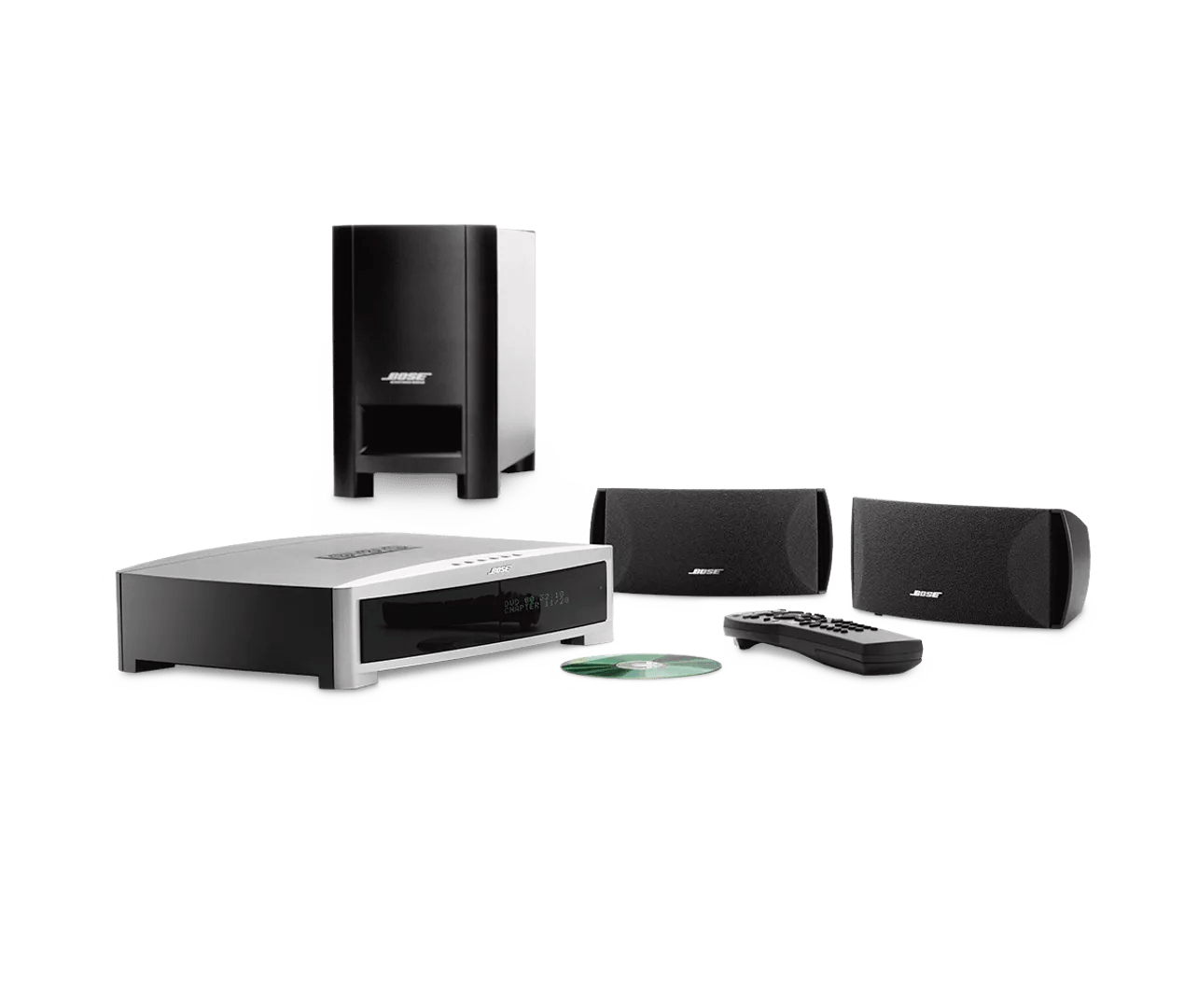
3·2·1® Series II DVD home entertainment systemSold from 2004 - 2008

3·2·1® Series II DVD home entertainment system | System menu does not appear on TV screen

Determine if only certain menu options will not display.

If only certain options in the menu are not displaying, see Certain Settings or System menu options unavailable

No video after reset.

If the system is set to progressive scan, a reset will change the format to standard component video. Depending on the TV, an interlaced signal may not work on certain TVs' progressive scan input. The customer will need to change the video output back to progressive scan on the system. For more information on how to turn progressive scan on, see Setting progressive scan for video.

Appears in: 010105
Resolved as of: 010300
TW#3250

For instructions on checking software, see Checking the software or firmware version.

Confirm the TV is on and the proper input is selected.

Some TVs have a feature where input selections can be turned off or hidden from the on-screen menu. For help changing TV inputs and enabling TV inputs, refer to the TV owner's guide.

Be sure the video format option is the correct setting: NTSC or PAL.

Most North and South American regions use NTSC; other regions use PAL. If the format is set incorrectly in the system, the video may be distorted or blank. For information on checking the TV video format, see Changing TV video format.

Be sure the Bose system is connected properly to the TV.

  1. Verify that the connectors of each end of the video cable(s) are in the correct jacks and are firmly connected with no bent or broken pins
  2. Do not connect both an S-Video and a composite cable to the same set of input jacks on the TV. The TV may not display a clear picture or the correct picture if both jacks are used
  3. Make sure the video output of the Bose system is connected directly to the television. Do not connect a composite cable from the Bose system video output to a VCR and then to the TV. The technology found in most VCRs, known as "Macrovision," may distort or cancel video signals

If your bass module was replaced with another unit, determine if it has a dual-voltage switch.

A dual-voltage bass module will have a red switch near the power jack indicating whether it is set to operate on 115 or 230 Volts. If your bass module has a dual-voltage switch, be sure the correct voltage setting is shown. If you need to change the switch setting, unplug the bass module power cord, change the setting, then reconnect the power cord.

Plug in to a different input on the TV.

Plug in to a different input section on the back of the TV using the same cable(s) to determine if the input is the issue. Whichever section you connect to, select the same input using the TV or remote control buttons to hear and/or see the device (e.g. if you connect to HDMI 3, select HDMI 3 using the TV or remote buttons).

When connecting the system to a TV/VCR combination, connect the video cable to the input jack on the front, if available.

This input jack may bypass Macrovision software in the VCR, providing a direct connection to the TV. If the picture is still distorted, connect the video cable from the system to an RF modulator and connect the modulator to the TV/VCR antenna input jack. You will need to purchase the RF modulator from an electronics store.

When using an RF modulator, be sure the correct TV channel is selected.

Check to see that the TV is set to the proper channel, which is usually channel 3 or 4.

Replace the video cable used to connect your product.

Try replacing the video cable that connects your product. If no issue occurs with the new cable, there was a problem with the original video cable.

Your media center may need service.

If the steps provided do not resolve your issue, your product may need service. Follow the link below for more information on how to service your product. Depending on your product and region, you will be provided a contact number or the ability to setup service online.

Click here to start service
Loading
3·2·1® Series II DVD home entertainment system | System menu does not appear on TV screen