Was this helpful?
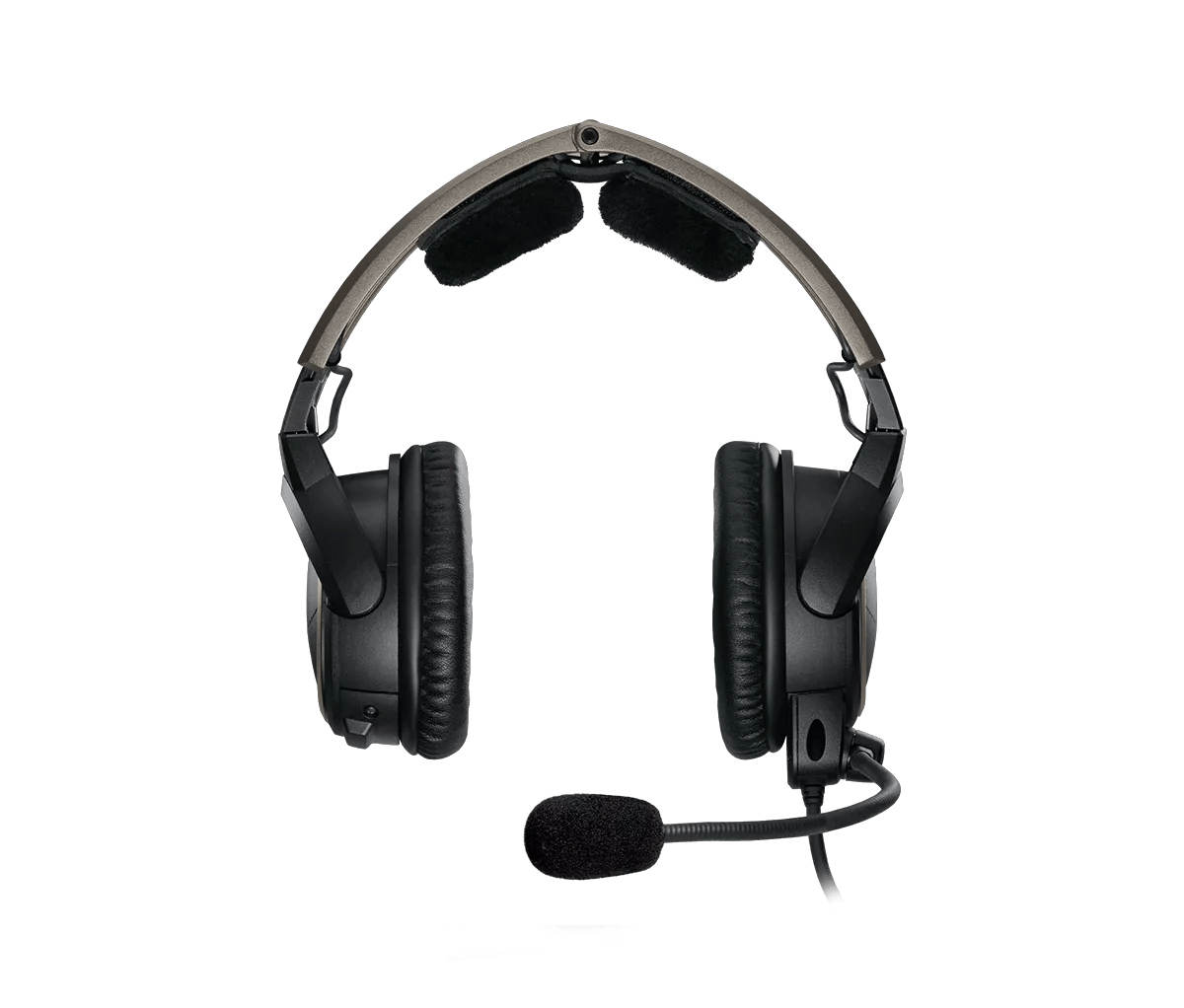
A20 Aviation Headset with Bluetooth | Noise cancellation is not working
Determine if any recent changes have been made to the headset or aircraft.
If any changes or modifications have been made to either the headset or the aircraft, look into whether or not those changes could have unexpectedly caused this issue.Check if the issue only occurs at certain altitudes.
In non-pressurized aircrafts, the effectiveness of noise-cancellation decreases as the alititude increases. The headset might also produce a whining sound in these situations. For info on maximum altitude for full noise cancellation, refer to the headset specifications.Avoid pressing the power button repeatedly when attempting to turn the headset on or off.
The headset can take up to 6 seconds to turn on or off. Each additional press of the power button will cause the headset to take longer to complete the desired action.See if the light is lit on the headset control module.
The LED light on the control module should light when powered on. Press the power button once to turn on the headset and see if the light is lit. For more info, see Understanding LED indicator status lights and information.If you have ever unplugged the microphone cable from the headset, disconnect it again and check for debris or damage at the connectors.
Make sure the connectors on the cable and at the headset are both free of debris (dirt, lint, dust, etc.) or damage, which could prevent a proper connection. For more info, see Attaching or moving the boom microphone on the headset.Be sure the access cover and the down cable are connected properly to the earcups.
Make sure the access cover has been installed correctly. It should sit flush with the earcup housing. Make sure no pins are bent inside the connector—this could prevent audio and ANR in that ear. Also, switch sides with the down cable and access cover. If the issue switches sides, try a new access cover.Re-insert the headset cable to the aircraft panel.
- Disconnect the down cable where it attaches to the panel
- Inspect the connections for damage or debris and remove any debris that is found. If there is damage to any the connections, they may need to be replaced
- Firmly reconnect the down cable to the panel
Be sure the headset is being worn properly.
Due to the angle of the earcups, proper left and right earcup placement is essential for the headset to fit around both ears. The headset's performance can be greatly reduced if the earcup fitment around the ears is poor. For more information, see Wearing and adjusting your product.Be sure the headphone openings are clean and free of debris.
Check for blockages in the headphone mesh grille and headphone opening. Excessive debris can result in low audio, poor sound quality or missing audio channels.Reset your product.
Much like rebooting a smartphone, your product might need to be reset on occasion to correct minor issues. For more info, see Resetting your product.Install new double-A alkaline batteries.
Remove the batteries from you product, then insert new batteries. Check that the + and – markings on the batteries match the markings in the battery compartment. (Note: Rechargeable batteries are not recommended. Use alkaline batteries when possible.)Replace the batteries.
Remove the batteries from you product, then insert new batteries. Check that the + and – markings on the batteries match the markings in the battery compartment. (Note: Rechargeable batteries are not recommended. Use alkaline batteries when possible.)Replace worn ear cushions.
The issue may be caused by the lack of a proper seal by the ear cushions around the ear. Also check to be sure the cushions are securely attached to the earcup. Replacing worn ear cushions will aid in comfort, the performance of the active noise reduction and battery lifePlug in a different headset.
If available, connect a different headset to the aircraft to determine if the issue is related to the aircraft panel or its settings.The Down Cable may need service.
If the steps provided do not resolve your issue, the Down Cable may need service. Follow the link for more information on how to service your product. Depending on your product and region, you will be provided a contact number or the ability to setup service online.Click here to start service