Loading
Updating the software or firmware of your product | Bose Bluetooth headset Series 2
bose-bluetooth-headset-series-2
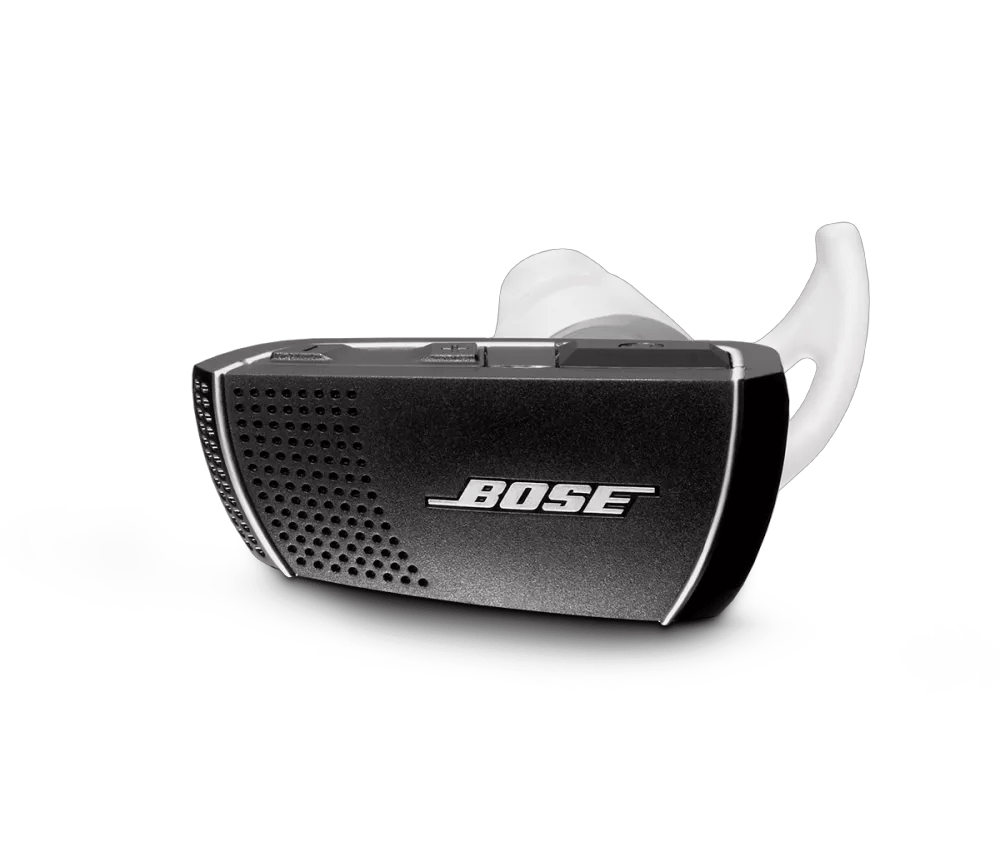
Bose Bluetooth headset Series 2Sold from 2011 - 2015

Updating the software or firmware of your product | Bose Bluetooth headset Series 2

To update your headset:

  • Your Bose Bluetooth Headset
  • A USB-A to USB-micro B cable
  • A computer running macOS or Windows with an active Internet connection

Will the update be downloaded to a Mac or Windows computer?

Download for Windows

Download the application and follow these steps.

  1. Click here to download the Windows update application.
  2. In the File Download window, click Run or Save. If you clicked Run, follow the prompts to perform the update. If you clicked Save, select a location for saving the file (Bose_BT_Headset_Update.exe). Then go to that location and start the application.
  3. Choose a language from the drop down menu.
  4. Read and accept the End-User Licence Agreement.
  5. Ensure that admin credentials are available for the computer.
  6. If applicable, install the needed drivers by clicking the "Install Driver" button.
  7. Once the driver installation is complete, as indicated by the green checkmark, click "Next" to continue.
  8. Turn the headset on and connect it directly to the computer using a USB-A to USB-micro B cable. Do not connect the headset to the computer through a USB hub as this can cause the update process to freeze.
  9. Prepare the headset for the update by pressing-and-holding the Volume Up, Volume Down, and Call buttons simultaneously for at least five seconds until the battery indicator blinks green.
    Wait a few moments to allow the program to detect the headset.
  10. Once communication has been established, click "Next" to continue.
    Do not disconnect or unplug the headset during the update process.
  11. Clear the pairing memory on the headset, and remove the Bose Headset listing in the pairing memory of your Bluetooth device.
  12. Pair the headset to a device. For instructions, see Connecting a Bluetooth device.
  13. The headset can be turned off once the update has been completed.
Download for Mac

Download the application and follow these steps.

  1. Click here to download the macOS update application.
  2. In the File Download window, click Save. Select a location for saving the file (Bose_BT_Headset_Update.dmg). Then go to that location and start the application.
  3. Choose a language from the drop down menu.
  4. Read and accept the End-User Licence Agreement.
  5. Depending on the security settings of the computer, a user name and password may be required to run this application.
  6. If applicable, install the needed drivers by clicking the "Install Driver" button.
  7. Once the driver installation is complete, as indicated by the green checkmark, click "Next" to continue.
  8. Turn the headset on and connect it directly to the computer using a USB-A to USB-micro B cable. Do not connect the headset to the computer through a USB hub as this can cause the update process to freeze.
  9. Prepare the headset for the update by pressing-and-holding the Volume Up, Volume Down, and Call buttons simultaneously for at least five seconds until the battery indicator blinks green.
    Wait a few moments to allow the program to detect the headset.
  10. Once communication has been established, the update will automatically start.
    Do not disconnect or unplug the headset during the update process.
  11. Clear the pairing memory on the headset, and remove the Bose Headset listing in the pairing memory of your Bluetooth device.
  12. Pair the headset to a device. For instructions, see Connecting a Bluetooth device.
  13. The headset can be turned off once the update has been completed.
Loading
Updating the software or firmware of your product | Bose Bluetooth headset Series 2