Loading
Dropped Bluetooth Connection | Bose QuietComfort Ultra Earbuds
bose-quietcomfort-ultra-earbuds
Bose QuietComfort Ultra EarbudsSold from 2023

Dropped Bluetooth Connection | Bose QuietComfort Ultra Earbuds

Keep your product within 33 feet (10 meters) of your personal device.

Distance and obstacles like walls, doors, or other electronics can weaken the Bluetooth signal. If you're having trouble, try moving your personal device and product closer together or relocating other devices that may cause interference.

Resync the earbud connection

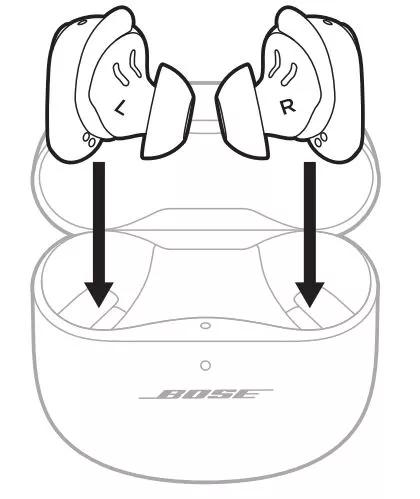
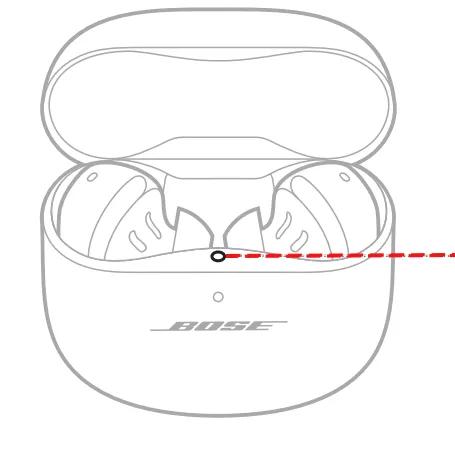
  1. Place both earbuds into the charging case. Keep the lid open. The earbud status light will illuminate when the earbuds are inserted into case. If the status light does not light up, press downward on the buds to ensure they are making a solid connection with the charging pins.

    place_earbuds_in_case_smalls.jfif status_light_smalls.png
  2. Close the lid on the case.
  3. When the status light on the front of the case stops flashing, open the lid, remove just the right earbud, and place it into your right ear.
    You should hear the welcome tone.
  4. Place the left earbud in your ear. You should hear the welcome tone and can continue using your product.
 

Reboot the Bluetooth® device.

Electronics, such as cell phones, tablets or computers, might need to be reset on occasion to correct minor issues. This is typically done by shutting down the device, then powering it on again.

Clear your Bose product memory of previously-connected Bluetooth® devices.

Your Bose product remembers the last several devices it connected to so it can quickly reconnect to them. In case there is an issue with the device memory, clear it and then try to reconnect the device. For more info, see Clearing the product memory of paired Bluetooth® devices and Connecting a Bluetooth® device.

Remove your product from the memory of the Bluetooth device, then try again.

In the Bluetooth settings menu of the Bluetooth device, find the list of previously connected products. Remove the Bose product from the list, including any duplicate listings labeled LE (Low Energy), then reconnect it to the device. For more info, see Connecting a Bluetooth device.

If connected to a Windows computer, check the power management setting for the Bluetooth adapter.

  1. On the computer, click the Start menu and begin typing device manager.
  2. Click Device Manager in the search results to open it.
  3. Click the > next to Bluetooth to expand it.
  4. Right-click your Bluetooth adapter and select Properties.
  5. Click the Power Management tab and uncheck Allow the computer to turn off this device to save power.
  6. Restart your computer and try again.

If using your product outdoors, check for differences when used indoors.

Since there are fewer boundaries and reflective surfaces outdoors, Bluetooth® signal might not reach as far. Check if the product functions better indoors to determine if the environment is the issue.

Try connecting a different Bluetooth device.

If your Bose product can connect to another device, Bluetooth functionality is working. In cases like this, the issue could be with the first device or its settings.

Reset your product.

Much like rebooting a smartphone, your product might need to be reset on occasion to correct minor issues. For more information, see Resetting your product.

Make sure your earbud's firmware is version 1.7.6 or later

Firmware update 1.7.6 introduced a number of Bluetooth connectivity and stability improvements that could help. For more information, see Updating the software or firmware of your product.

Was this article helpful?

YES
NO
START A REPAIR OR REPLACEMENT
Loading
Dropped Bluetooth Connection | Bose QuietComfort Ultra Earbuds