Loading
Setting the adjustable Active Noise Cancellation mode | Bose QuietComfort® Earbuds (2020)
bose-quietcomfort®-earbuds-(2020)
Bose QuietComfort® Earbuds (2020)Sold from 2020 - 2023

Setting the adjustable Active Noise Cancellation mode | Bose QuietComfort® Earbuds (2020)

Select which product version you have.

My earbuds and app are up-to-date.

Control the amount of noise cancellation.

Using Touch Control

You can double-tap the left earbud to change noise cancellation. For more info, see Using Touch Control.

Powering on to a selected noise cancellation

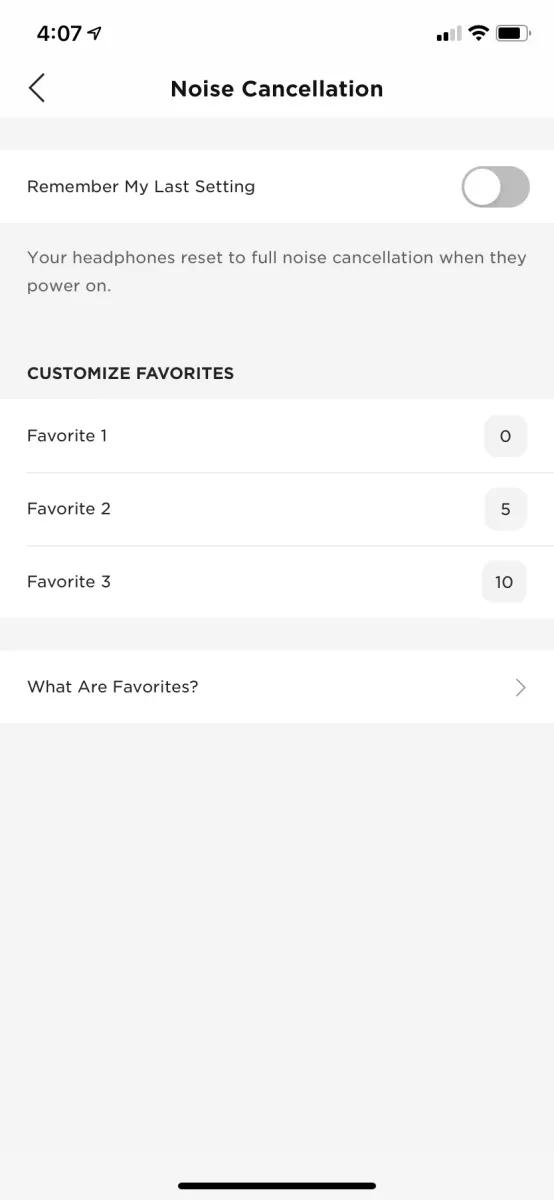
Noise cancellation reduces unwanted noise, providing a clearer, more lifelike audio performance. Each time you power on the earbuds, noise cancellation is fully enabled at the highest level. If you want to use the last set noise level when powering on, select your product in the Bose app and look for this option in the Settings > Noise Cancellation.

Adjusting noise cancelling in the Bose app

You can select and create different noise cancellation modes to quickly switch between. For more info, see Using Modes.
I am using an older version of software than listed above

Control the amount of noise cancellation.

Using Touch Control

You can double-tap the left earbud to change noise cancellation.

Powering on to a selected noise cancellation

Noise cancellation reduces unwanted noise, providing a clearer, more lifelike audio performance. Each time you power on the earbuds, noise cancellation is fully enabled at the highest level. If you want to use the last set noise level when powering on, select your product in the Bose app and look for this option in the Settings > Noise Cancellation.

Selecting Favorites

By default, have 3 noise cancellation levels set as favorites so you can quickly switch between them.
  • Full noise cancellation - Provides world-class noise cancellation to eliminate virtually all the exterior noise around you
  • Some awareness - Blocks most low frequency noises, like the rumble of a train or the hum of a vacuum cleaner, but still provides some awareness of your surroundings
  • Full transparency - Provides full transparency so that you can hear the world around you as if you're not wearing earbuds
To customize your favorite noise levels, select your product in the Bose app, then select Settings > Noise Cancellation


Adjusting noise cancelling in the Bose app

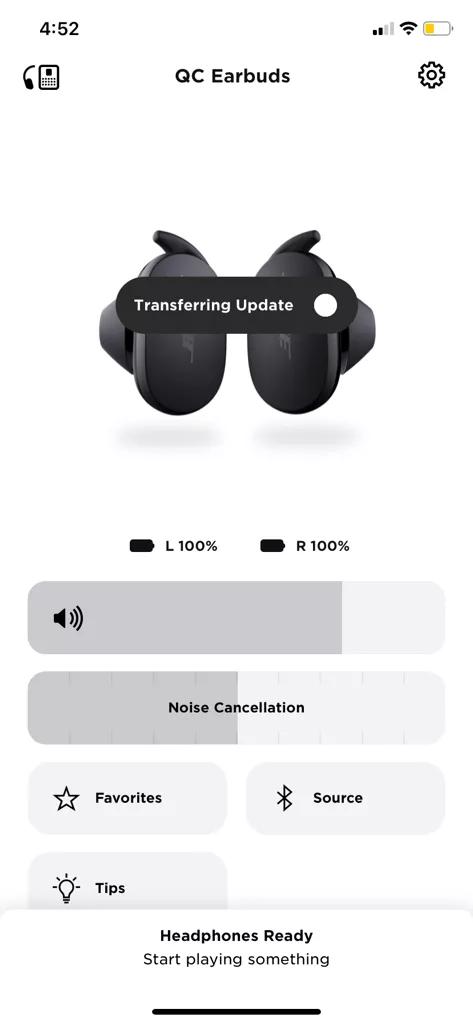
In the Bose app, select your product and then swipe the Noise Cancellation slider:
  • Swipe right to increase noise cancellation
  • Swipe left to decrease noise cancellation. When set all the way left, noise cancellation is not of; instead, it's at the setting, which makes the sound around you more noticeable.

Using Noise Cancelling Mode

Modes

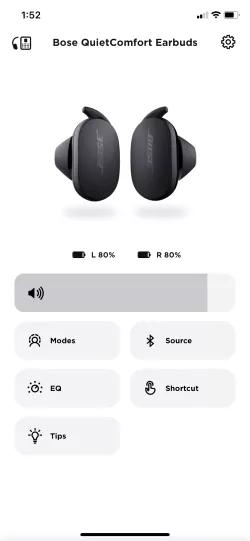
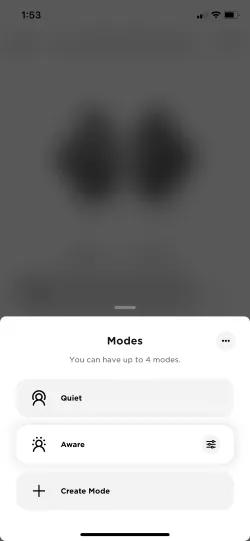
From the home screen, tap "Modes"

Image may be different than actual product. Functionality is the same

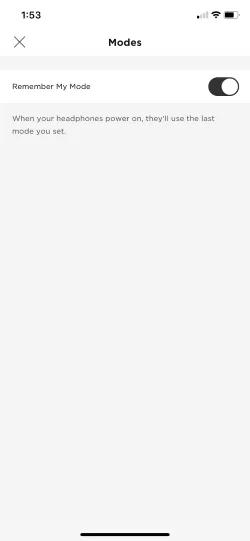
To remember your last used mode, tap the "Remember My Modes" button to enable this feature.


You can have up to 4 modes:
  • Full noise cancelling "Quiet mode"
  • Fully "Aware mode"
  • 2 Custom modes

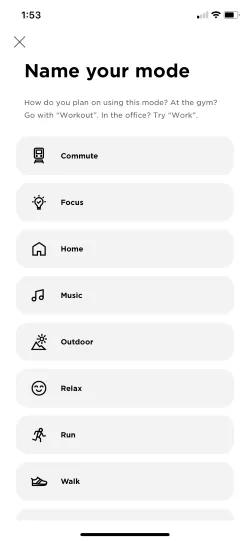
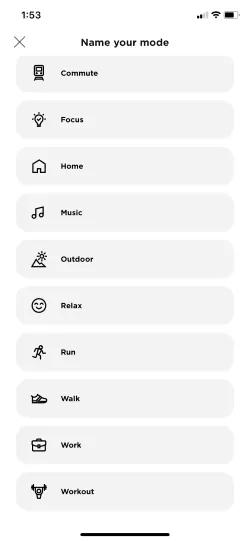
Tap "Create Mode" to name your modes.


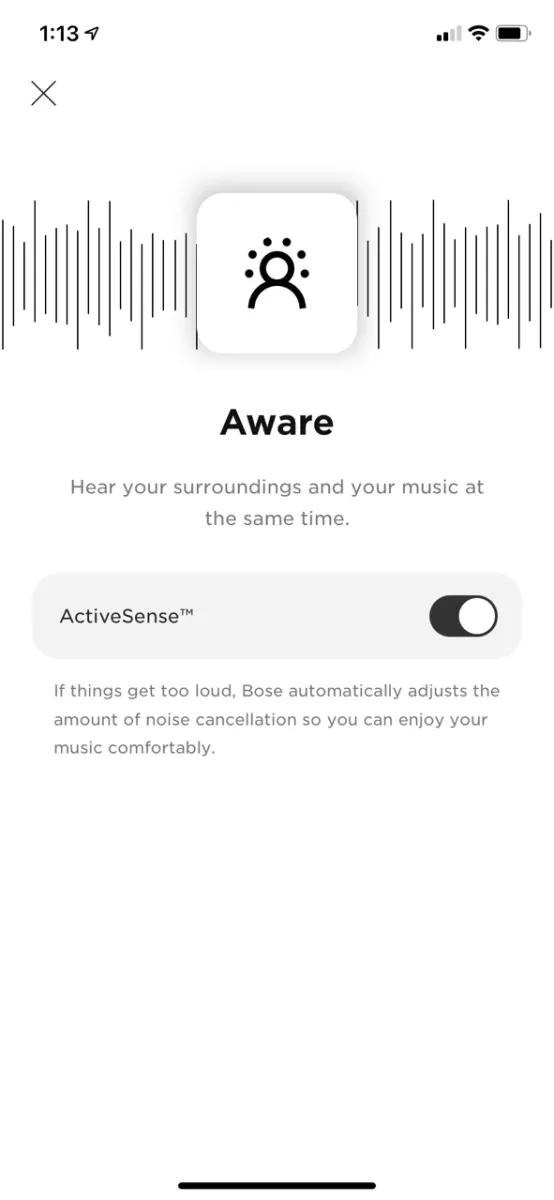
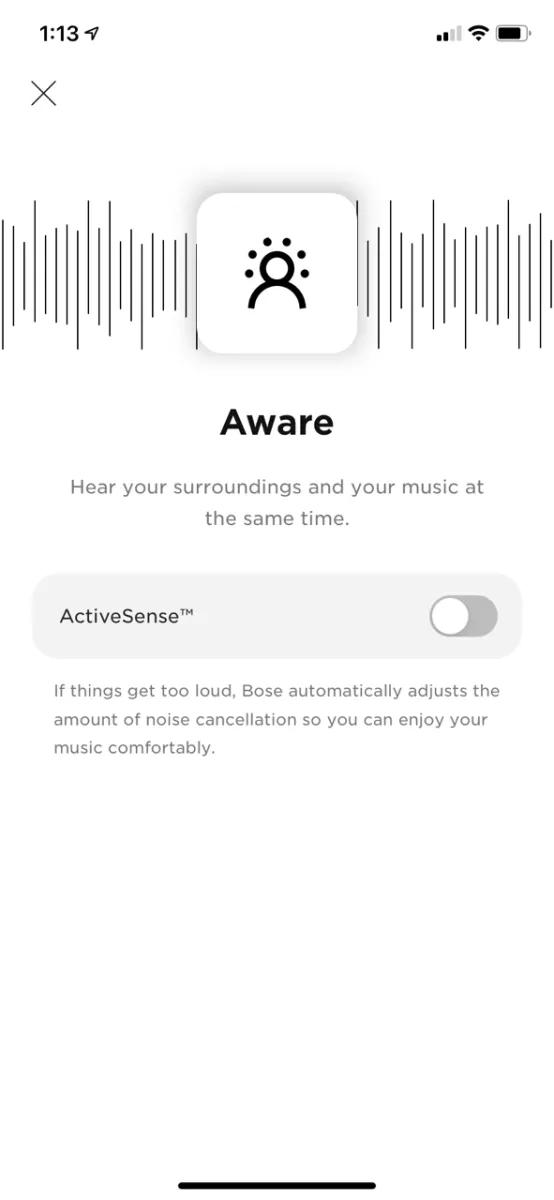
In Aware mode, the ActiveSense feature automatically adjusts the noise cancellation depending on your surroundings.
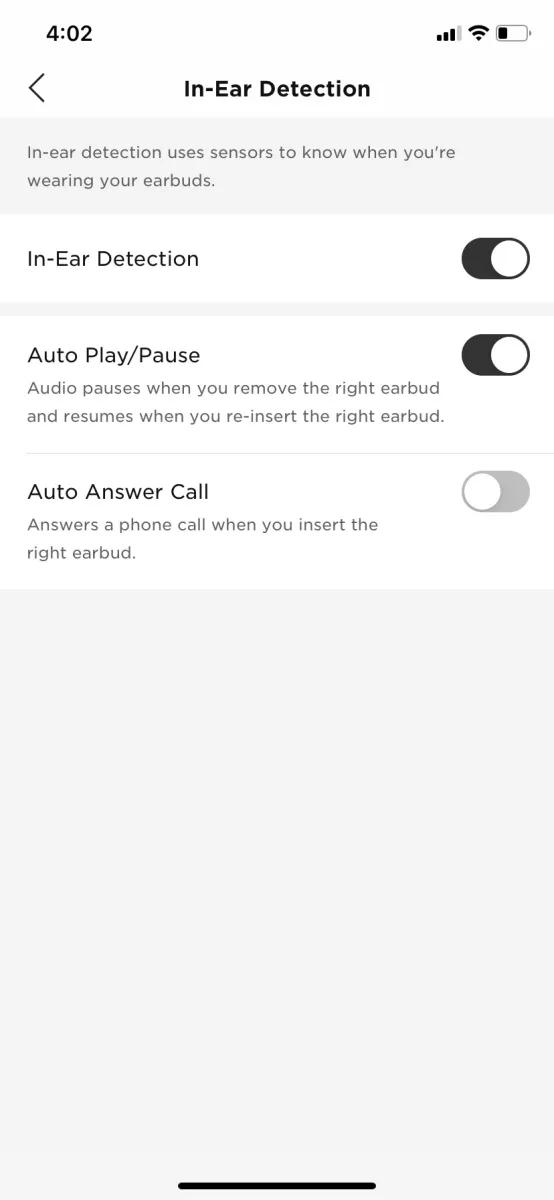
  • You must enable In-Ear Detection for this feature to work. You can do so in settings:
  • ActiveSense does not work while on a call
  • ActiveSense is only available in aware mode, not in custom modes created
  • This feature is enabled as a default. Tap the ActiveSense button to disable

To enable or disable ActiveSense:

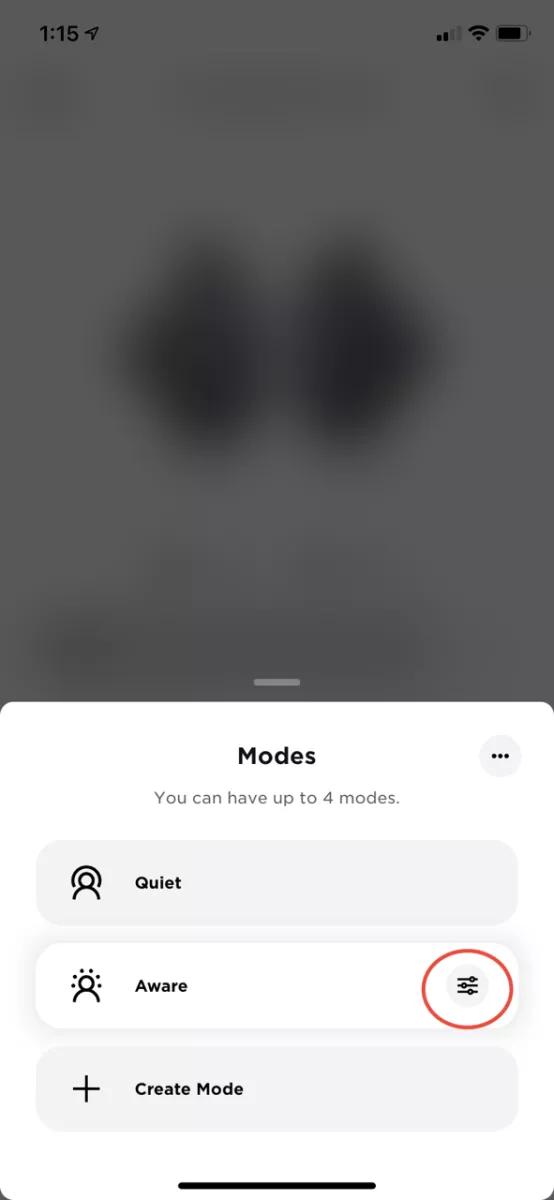
  1. On the Modes screen, tap the Aware Settings icon.

     
  2. Tap the ActiveSense button to disable or enable.

Using the Modes

  • QC Earbuds - Double-tap the left earbud to cycle through the modes
  • QC Ultra Earbuds and QC Earbuds II - Touch and hold an earbud to cycle through the modes
Loading
Setting the adjustable Active Noise Cancellation mode | Bose QuietComfort® Earbuds (2020)