Loading
Updating the software or firmware of your product | VideoWave® III entertainment system - 55''
videowave®-iii-entertainment-system---55''
VideoWave® III entertainment system - 55"Sold from 2013 - 2015

Updating the software or firmware of your product | VideoWave® III entertainment system - 55''

Select one of the update methods below:

Update using the SoundTouch app

Updating your SoundTouch system from the SoundTouch app.

The SoundTouch app alerts you when an update is available for a system. A update icon icon or message will appear for the system(s) needing an update:
Notes:
  • For SoundTouch-compatible Lifestyle systems using a SoundTouch adapter, both the console and adapter will update if the console software is 02.09.01 or newer
  • For SoundTouch compatible CineMate systems, both the console and adapter will update if the console software is 01.03.01 of newer
  • For systems with older console software, only the adapter / SoundTouch functionality is updated via the SoundTouch app update process
To update a system using the SoundTouch app:
  1. In the SoundTouch app, choose the menu icon in the upper-left corner.
  2. Choose Settings > Speaker Settings.
  3. Choose UPDATE SOFTWARE or UPDATE ALL if more than one system needs to updated
    (Tip: If no updates are available, the UPDATE SOFTWARE button is not selectable)
  4. Wait for the update to complete, which can take up to 20 minutes per system depending on update size and network speed. Once updated, the system will reboot.
Update using the wireless Setup mode

Update your system using the built-in setup network.

  1. Download the appropriate update file for your model of SoundTouch adapter. Refer to the model number located in the upper-right corner of the label on the bottom of the adapter.
    • If the model number is 412451-SM2, click here to download the update file.
    • If the model number is 412451, click here to download the update file.
      Do not rename the file.
  2. Put the adapter into Setup mode:
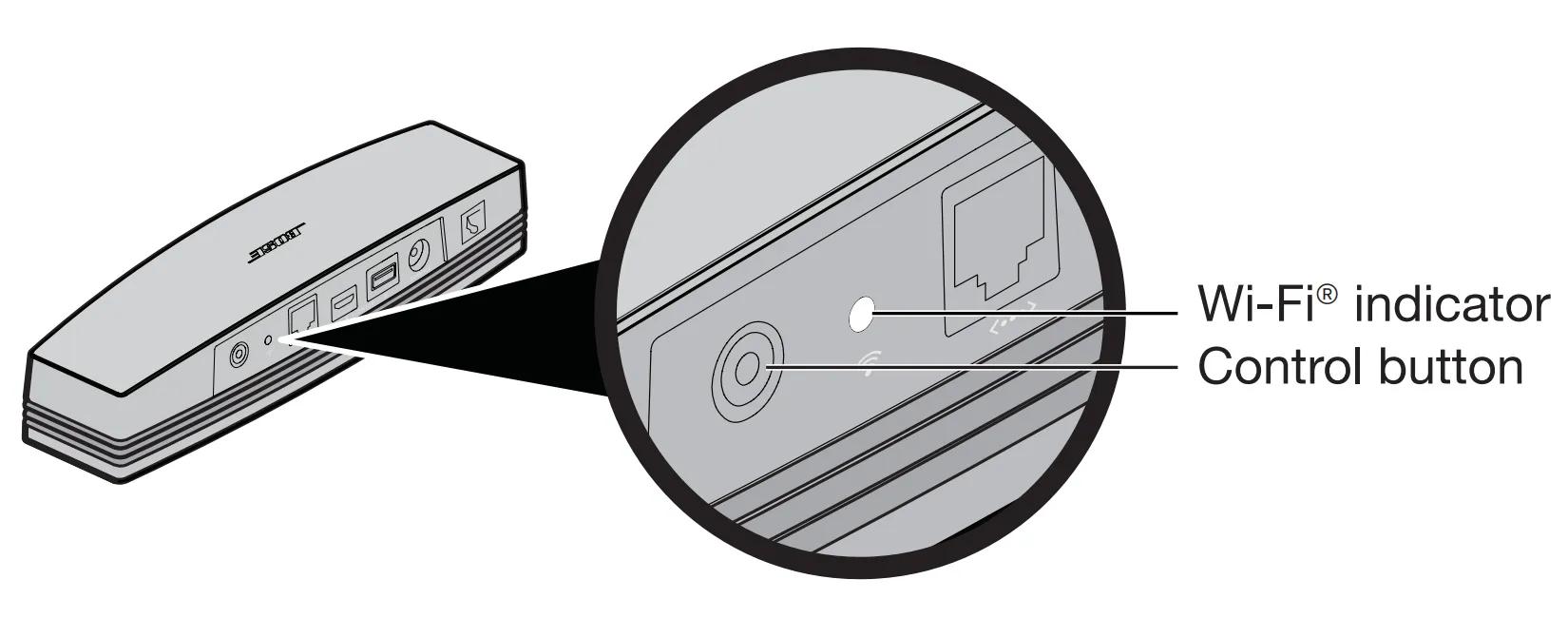
    • On the back of the adapter, press-and-hold the Control button for about 10 seconds, release the button when the Wi-Fi status indicator light next to the Control button flashes once then glows amber.
    adapter control button on rear, left side
    • The Wi-Fi status indicator light will glow amber while in Setup mode.
  3. Connect to the Wi-Fi setup network of the SoundTouch adapter. The network name typically starts with Bose (e.g. Bose SoundTouch) or the name you gave the system.
    If you're device tells you there is no Internet connection with this network, connect anyway.
  4. In a web browser, go to the update page:
    • If you are using a series I SoundTouch adapter (Model 412451), go to http://192.168.1.1:17008/update.html
    • If you are using a series II SoundTouch adapter (Model 412451-SM2), go to http://192.0.2.1:17008/update.html
      Tip: Series II adapters have Bluetooth and series I adapters do not.
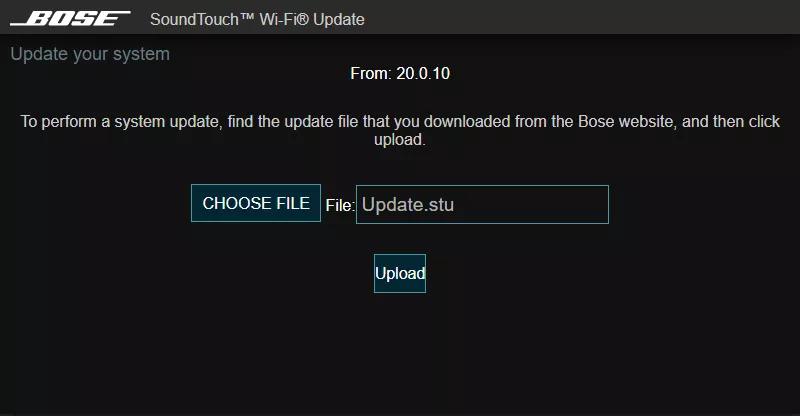
  5. Select Choose File, then select the update file you downloaded earlier to begin the update.
Updating using a computer and USB cable

To update your product:

  1. Download the appropriate update file for your model of SoundTouch adapter. Refer to the model number located in the upper-right corner of the label on the bottom of the adapter.
    • If the model number is 412451-SM2, click here to download the update file.
    • If the model number is 412451, click here to download the update file.
      Do not rename the file.
  2. Connect a USB cable from the computer to your system.
    Tip: If your system has two USB jacks, use the smaller jack on the system.
  3. Once connected, open an Internet browser on the computer and go to http://203.0.113.1:17008/update.html to open the updater.
    IMPORTANT: This address will not work until you connect your system to a computer with USB as described in the steps above.
  4. Click Choose File and select the update file downloaded in step 1.
  5. Click Upload to start the update.
    soundtouch wi-fi update page. choose file
     
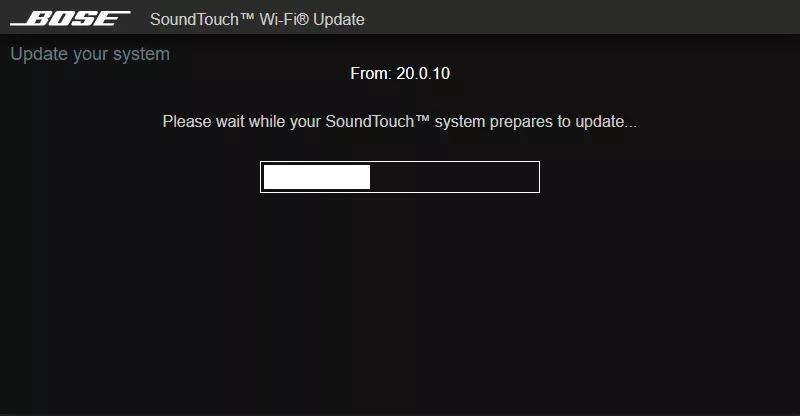
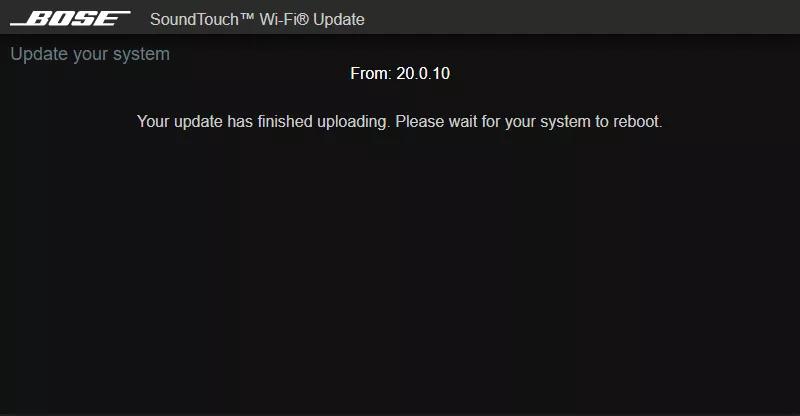
  6. Wait while the sytsem updates: A progress bar shows the download status then, once completete, your system reboots.
    soundtouch wi-fi update page. update progress bar soundtouch wi-fi update page. upload complete. rebooting
     
  7. Disconnect the USB cable and close the updater window.
    If your computer does not reconnect to your Wi-Fi network after updating your product, restart the computer.
Update the SoundTouch adapter using a USB drive

To update your SoundTouch adapter using a USB drive:

Note: This method will reset the SoundTouch adapter to its default out-of-box settings. You will need to reconnect the system to your network after updating.
  1. On a computer, download the appropriate update file for your model of SoundTouch adapter. Refer to the model number located in the upper-right corner of the label on the bottom of the adapter.
    • If the model number is 412451-SM2, click here to download the update file.
    • If the model number is 412451, click here to download the update file.
  2. When prompted, save the Update.stu file. Do not rename the file.
    If a download prompt does not appear, the file may have downloaded automatically. Look for file in a browser notification or in the Downloads folder.
  3. Connect a blank USB drive to your computer and copy the update file to it, then disconnect the USB drive.
  4. Turn the Bose system on.
  5. On the back of the control console, disconnect the Bose link cable which hard-wired to the SoundTouch adapter.
  6. On the back of the SoundTouch adapter, insert the USB drive into the SETUP B connector.
  7. Unplug the USB cable from the SETUP A connector.
  8. Simultaneously press-and-hold the Control button and reconnect the Bose link cable to the control console.
    adapter control button on rear, left side
  9. Three seconds after reconnecting the Bose link cable, release the Control button.
  10. Wait for the update to complete. The Wi-Fi indicator on the back of the adapter will blink during the update. This typically takes about five minutes.
  11. Once complete, disconnect the USB drive from the adapter.
  12. Reconnect the USB cable to the SETUP A connector.
  13. Reconnect the system to your network and Bose account. For more info, see Adding a system to your Bose SoundTouch account
Update the control console using a USB drive

To update the control console:

  1. On the control console, press the Setup button
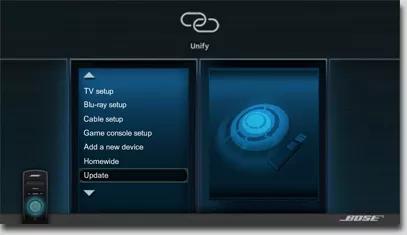
  2. Using the remote control, scroll down to Update, then press the OK button
    Selecting Update from system menu
     
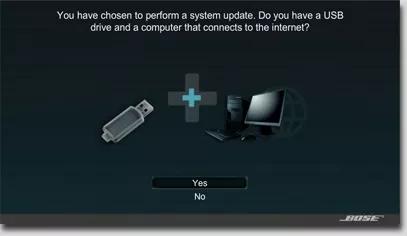
  3. Select Yes, then press the OK button
    System screen asking if you have a computer, Internet connection, and USB drive
     
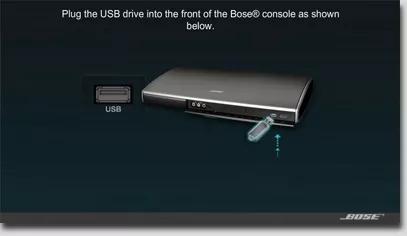
  4. On the front of the control console, connect a blank USB drive to the USB jack
    Connecting USB drive to the front of your system console
     
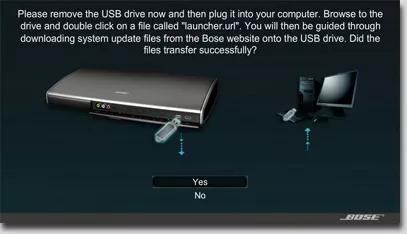
  5. When prompted, disconnect the USB drive from the console and connect it to a computer
    Moving the USB drive from your system to your computer
     
  6. On the computer, open the USB drive and double click on the launcher file to open the Home Entertainment System Download page
  7. Scroll to the Start downloading the software update section, then click the Download button for Windows of Mac and save the file to your computer
  8. Open the file and follow the instructions to complete the update

Get help if the update won't install.

If you have trouble installing the update for your product, see Software or firmware update will not install.

Check the firmware version of your product.

For instructions, see Checking the software or firmware version.
To determine if it is the latest version or if a newer version is available, refer to Software and firmware versions.

Loading
Updating the software or firmware of your product | VideoWave® III entertainment system - 55''