Loading
Bose app does not detect product | Bose Lifestyle Ultra Soundbar
bose-lifestyle-ultra-soundbar
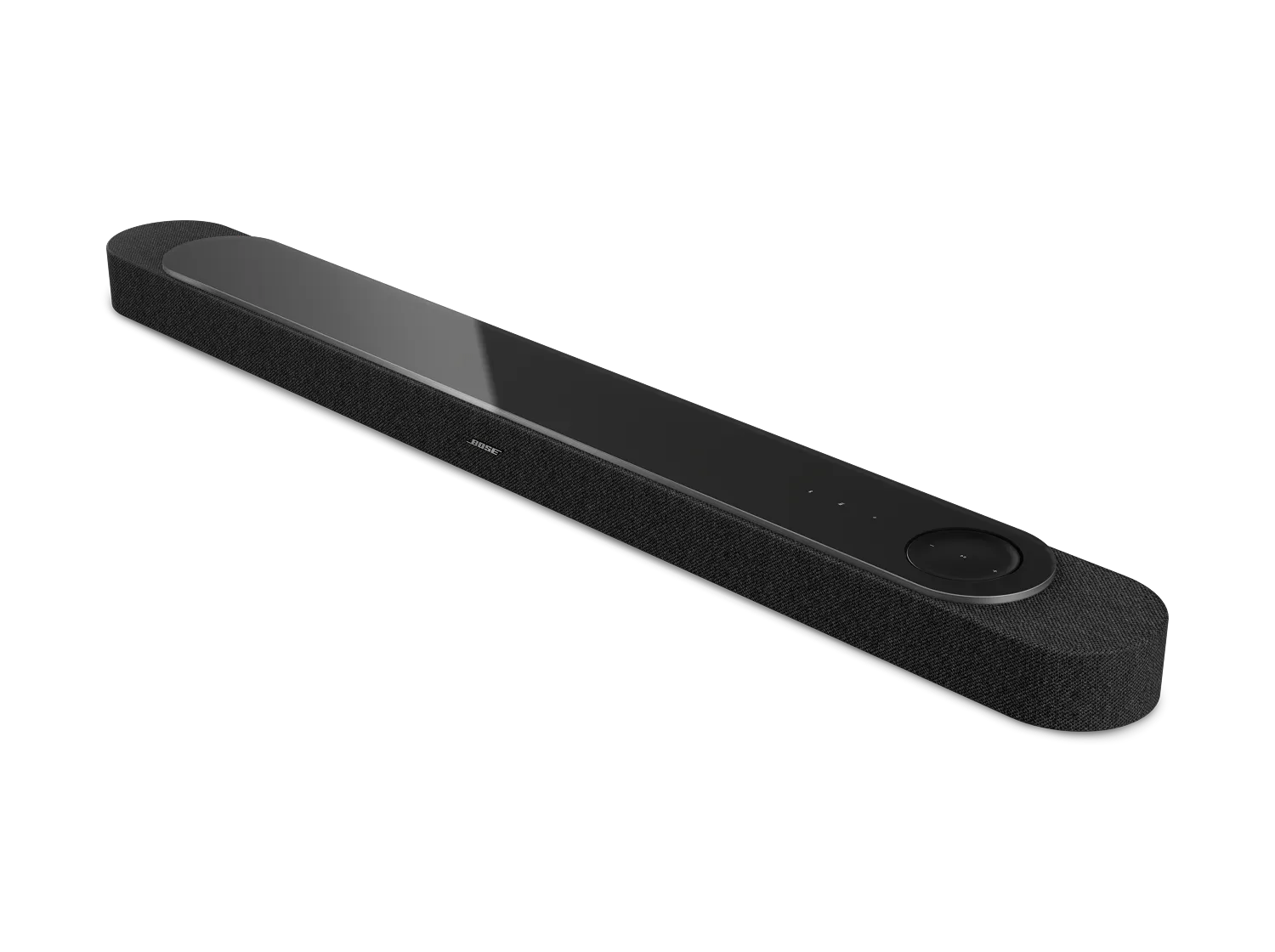
Bose Lifestyle Ultra SoundbarSold from 2026

Bose app does not detect product | Bose Lifestyle Ultra Soundbar

Remove your soundbar from the memory of the Bluetooth device being connected

  1. In the Bluetooth settings menu of your device, find the list of previously connected device.
  2. Remove the Bose soundbar listing that begins with "LE-".

On your device, turn Wi-Fi off and back on.

On the device running the Bose app, go to the Wi-Fi settings and turn Wi-Fi off and back on again.

Close and re-open the Bose app.

On an iOS device:
  1. Swipe up from the bottom center of the screen to view active apps.
  2. Swipe left or right to find the Bose app.
  3. Swipe up on the app to close it.
On an Android device:
  1. Locate the Bose app then press and hold on the app icon.
  2. Select App Info (or the circled "i" icon) from the pop-up that appears.
  3. On the App Info screen, select Force Stop.

After the Bose app has been closed, tap on the app icon to re-open it.

In your mobile device settings, be sure location and network permissions are turned on for the app.

Location permissions are used by the Bose app to detect and control your product. If location settings are disabled for the app, it will not work properly.
  • For iOS devices:
    1. Go to Settings > Privacy > Local Network and be sure it is not disabled for the Bose app.
    2. Go to Settings > Privacy > Location Services and be sure it is not disabled for the Bose app.
  • For Android devices, touch and hold the app icon, then tap App Info from the pop-up that appears. On the App Info screen, tap Permissions and be sure Your location is enabled.

Check that your mobile device and soundbar are connecting to the same wireless network.

On the device running the Bose app, go to the Wi-Fi settings and be sure the device is connected to the same network as your soundbar—which requires a connection to network broadcasting on the 2.4 GHz (Wireless-B or Wireless-G) frequency. If the device and soundbar are not on the same network, the app won't find the soundbar.

In the Bose app, sign out of your Bose account and then sign back in.

  1. To sign out, tap the products icon icon in upper-left corner.
  2. Tap the My Account icon icon in the upper-right corner.
  3. Scroll down to the bottom of the screen and tap Sign Out.

Once you sign out, sign back in by clicking on the Sign In / Sign Up button.

Reset your soundbar.

Much like rebooting a smartphone, your product might need to be reset on occasion to correct minor issues. For more information, see Resetting your soundbar.

Reboot the device running the Bose app.

Electronics might need to be rebooted from time to time to correct minor issues. This is typically done by powering off the device completely and then powering it back on again.

Uninstall and reinstall the Bose app.

In case an issue occurred with the app, uninstall it from your device, download and reinstall it, then try again.

In the Bose app, remove your soundbar and then re-add it.

Try the app on a different mobile device.

If available, download and install the Bose app on another device to determine if the issue is related to the first device or its settings.

Reboot your router.

Routers may need to be reset from time to time—much like rebooting a computer. Disconnect power from the router for 30 seconds, then wait for it to start up and connect. (Note: Any device connected to the Internet will be interrupted during the reset.)

Check to see if other devices on your network are using too much bandwidth.

When a device is active on your network, they use some of the available bandwidth of your router. Some tasks use more bandwidth than others—like video streaming, gaming, video calls, data backups, etc. If devices are performing these tasks, bandwidth can decrease for other devices. Turn off any device or app that might be using a lot of bandwidth, then check if performance improves. If possible, use an Ethernet cable instead of Wi-Fi to connect high-bandwidth devices to your network. This frees up wireless bandwidth for devices that need to be connected wirelessly.

If your Wi-Fi network uses an extender (like a Wi-Fi repeater, powerline adapter, or access point), try bypassing it.

Network extenders are used to extend the range of a network to cover a large area. Check if the issue is related to an extender by temporarily unplugging it. Since unplugging it might reduce the range of your network, move your system closer to the main router to test if the issue improves:
  • If it does not improve, the issue is not related to the extender.
  • If it does improve, try reconnecting the extender. Sometimes it can help to connect extenders after connecting to the main network.
  • If it does improve but returns after reconnecting the extender, the issue could be related to the extender, its settings or placement.

If your router broadcasts more than one network (i.e. 2.4 GHz, 5 GHz, Guest), give the networks different names.

Many routers broadcast multiple networks, like a 2.4 GHz network, a 5 GHz network, and a guest network. If you see multiple networks with the same name when connecting a device to Wi-Fi, some devices might not be connected to the expected network.

In your router settings, try temporarily disabling the 5 GHz network and guest network. If the issue is resolved by using only the 2.4 GHz network, rename he 5 GHz network and guest network to something different than the 2.4 GHz network (i.e. MyNetwork2G, MyNetwork5G. and MyNetworkGuest). This will help you and your devices identify the correct network. (Tip: If you rename a network, any devices that were connected to the previous network name will need to be reconnected to the new network name in the device settings menu.)

In the router settings, try disabling Wireless Isolation mode, Wireless AP mode, or Access Point mode.

Log in to your router and look for an option labeled Access Point / AP mode, Wireless Isolation mode, or Wireless AP mode. This might be located in the wireless settings menu. If enabled, try disabling the option. If there is no improvement, you can always switch back to the previous setting.

Check for sources of wireless interference.

It's possible that interference from other wireless devices are affecting the wireless functionality of your product. Check for other wireless devices in the area of your product (i.e. another router, cordless phone, wireless printer, smart TV, etc.). To determine if a device might be interfering, try unplugging its power cord or disabling Wi-Fi on the device. If the issue is resolved when a particular device is removed, try placing that device farther away from your product, if possible. Additionally, if the device has a wireless channel setting, try a different channel.

Restore the soundbar to its factory defaults and restart the setup process.

For more info, see Restoring Your Soundbar to Factory Settings. See Setting Up Your Soundbar to set it up again.

Loading
Bose app does not detect product | Bose Lifestyle Ultra Soundbar