
Was this helpful?
Setting Up Your Speaker | Bose Lifestyle Ultra Speaker
Connect the speaker to power.
- Connect the power cord to the POWER port on the back of the speaker.
- Plug the other end of the power cord into an AC (mains) power outlet.
- The speaker will automatically turn on when connected to power.
- During the initial product setup, the status light slowly pulses and cycles through various colors, then the speaker will play a tone.
- If reconnecting the speaker to power after the initial setup, the status light slowly pulses white, then turns off, and the speaker will be on.
Download and set up the speaker with the Bose app
Install the Bose app
Open the app
- On the mobile device, ensure Bluetooth is turned on.
- Open the Bose app and Click Sign In/Sign Up.
Enter your email address. If you already have an account, you’ll be prompted to enter your password. Otherwise, follow the prompts to create a new account.
Alternatively, you can continue using Google, Apple, or Facebook SSO.If the app prompts you to allow Location Services, Local Network Access, or Bluetooth permissions, allow them.
Tip: These permissions are required for the app to find and control your product. If they are not allowed, the app cannot detect the product.
- Tap Set Up New Product if this is your first Bose product, or tap + at the bottom of your product list to add another product.
Tip: If you don’t see these options, tap the My Bose icon in the upper-left corner, then tap + to add the speaker.
- When the app finishes searching nearby, it will display the detected product. Tap Add to continue.
If multiple products are found, swipe left or right to select the correct one.
- Connect to a home network: select the network name in the app, enter the network password, then tap Connect.
Tip: For hidden wireless networks, tap Manually Enter Wi-Fi, then enter the network info. - Your product will activate
- Select a name for the product or enter a custom name, then tap Next.
Frequently Asked Questions
What do I do if the app does not detect my speaker?
Check that your mobile device and Bose product are both connected to the same wireless network.
In your mobile device settings, be sure location and network permissions are turned on for the app.
- For iOS devices:
- Go to Settings > Privacy > Local Network and be sure it is not disabled for the Bose app.
- Go to Settings > Privacy > Location Services and be sure it is not disabled for the Bose app.
- For Android devices, touch and hold the app icon, then tap App Info from the pop-up that appears. On the App Info screen, tap Permissions and be sure Your location is enabled.
Reset your product.
Close and re-open the Bose app.
- Swipe up from the bottom center of the screen to view active apps.
- Swipe left or right to find the Bose app.
- Swipe up on the app to close it.
- Locate the Bose app then press and hold on the app icon.
- Select App Info (or the circled "i" icon) from the pop-up that appears.
- On the App Info screen, select Force Stop.
After the Bose app has been closed, tap on the app icon to re-open it.
Reboot the device running the Bose app.
If these steps do not help:
See Bose app does not detect product for more advanced troubleshooting
My product will not connect to my Wi-FI
View some common solutions in this help video.
If your network name, password or security type recently changed, update the network settings in the Bose app.
Reset your product.
Reboot your router.
If you are unable to connect to Wi-Fi using the Bose app, try an alternate connection method.
Restore the system to its factory defaults and restart the set up process.
What do I do if my product fails to activate?
"Product Activation Failed" appears in Bose app during set up
This error is usually caused by an issue or conflict between the speaker and our servers. Try the following:
Reset your product.
The issue may be temporary. Restarting the speaker can often resolve it.
Check your router.
Verify that the Internet connection indicator is solid or blinking green - It should not be amber or red.
The router may not be correctly routing activation traffic to our servers. Reboot the router by disconnecting its power, waiting 30 seconds, then reconnecting power.
Disconnect from any VPN being used.
Virtual Private Networks (VPNs) can redirect network traffic through locations or systems that may block access to our activation servers. Temporarily disable any VPNs and try again.
Restore the system to its factory defaults and restart the set up process.
This issue can occur if the product was previously activated on another Bose account. Performing a Factory Default ensures a clean setup before restarting the activation process.
Try connecting to another network.
There may be certain settings on your network preventing activation from completing successfully. Try connecting to a different network initially to complete activation. You can reconnect the device to your normal network afterwards.
Contact our support team
If none of these solutions help, our team are able to guide you through sending logs for further investigation
How do I connect to a different Wi-Fi Network?
Connecting to a different Wi-Fi Network
Use these steps if your Wi‑Fi name or password has changed, or if you want to connect the speaker to a new network.

- Put the speaker in setup mode
Touch and hold the Bluetooth buttonand Volume down button - at the same time.
Hold for 5 seconds, until the status light blinks white twice, then turns solid green.
The speaker is now ready to connect to a new Wi‑Fi network. - Open Wi‑Fi settings on your device
- Go to your device’s Wi‑Fi settings.
- Select the speaker
- Choose Bose LS Ultra Speaker.
- Note: If you named your speaker in the Bose app, look for that name. Otherwise, the default name appears.
- Finish setup in the Bose app
- Open the Bose app and follow the on‑screen instructions.
- Note: If the app doesn’t start setup automatically, go to the product list and add the speaker manually.
Connect to a different network if your network name or password has changed, or if you want to change or add another network.
- Touch and hold until the status light blinks white 2 times. The status light glows solid green. The soundbar is ready to connect to the new Wi-Fi network.
- On your device, access your Wi-Fi settings.
- Select Bose LS Ultra Speaker.
NOTE: Look for the name you entered for your speaker in the Bose app. If you didn’t name your speaker, the default name appears. - Open the Bose app and follow the app instructions.
NOTE: If the app doesn’t prompt you for setup, go to the product list screen and add the speaker.
What do I do if the update gets stuck?
Try Recovery mode:
- Disconnect the speaker from power and wait 30 seconds
- Reconnect the speaker to power
- When the status light illuminates, follow the steps below within ten seconds:
Tip: Do not rapidly alternate button presses. Wait one second between presses- On the speaker, tap the Action button once
- Tap the Bluetooth button once
- Tap the Action button a second time
- Tap the Bluetooth button a second time.
Things to know about this process
- The status light will blink green to indicate the speaker has entered recovery mode. The status light will slowly pulse white as the speaker tries to download and install the latest update. . This can take several minutes (often around 20 minutes). When the status light turns off, turn on the speaker, open the Bose app and add the speaker to your account
- If the status light does not blink green after the four button presses, restart the process and continue alternate taps of the Action and Bluetooth buttons for 30 seconds
- If the speaker has not previously connected to your Wi-Fi network, follow the steps above, then try connecting to Wi-Fi using the alternate method. For more info, see Connecting to a Wi-Fi network
- If the status light starts quickly blinking red, the speaker may need service
If the speaker was previously set up in a stereo pair, it may show “Searching” in the Bose app while it updates. During this time, settings for the other speaker in the pair cannot be adjusted.
How do I set up Alexa?
To add the Amazon Alexa voice assistant:
Note: If you have multiple products in your household, we recommend setting up the same Alexa account for each product.
- In the Bose app
, tap the Settings icon
in the upper-right corner.
Tip: If a different product is shown, tap the My Bose iconin upper-left corner then select the desired product.
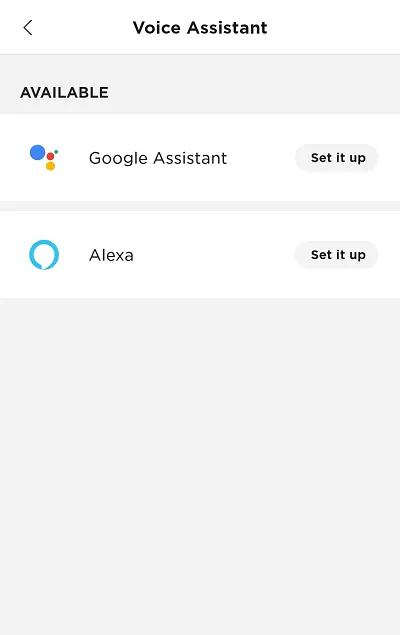
- Select Voice Assistant then select Alexa.
- Follow the app instructions to link your Alexa account.
- During setup, signing in to your Amazon account links your Alexa voice assistant to your Bose account for Alexa features (e.g. "Alexa, what's the weather?" or "Alexa, set a timer for 10 minutes")
- During setup, signing in to your Bose account links your Bose products to your Alexa voice assistant so it can control your products (i.e "Alexa, play jazz on [Bose product name]" or "Alexa, mute [Bose product name]")
- In the Amazon Alexa app, your Bose product appears twice under Alexa Devices. Do not remove either entry: One entry is for Alexa functionality and the other is for Bose product functionality. Additionally, if your product is renamed after initial setup, both entries will have different names in the Alexa app