Loading
Updating Your Speaker | Bose Lifestyle Ultra Speaker
bose-lifestyle-ultra-speaker
Bose Lifestyle Ultra SpeakerSold from 2026

Updating Your Speaker | Bose Lifestyle Ultra Speaker

When an update is available, the speaker updates itself automatically overnight when it is not in use.

Your speaker checks for updates every day. If an update is available and the speaker is connected to the Internet, it will automatically be downloaded and installed. This typically happens overnight or when your system is idle.

To check for an update:

  1. Be sure your speaker is connected to a network with a working Internet connection
    Tip: You can try streaming a music service or asking a voice assistant a question (if configured) to determine if there is a working Internet connection
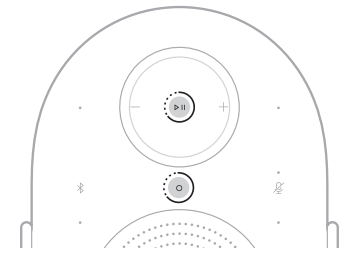
  2. On the top of the speaker, simultaneously press and hold the Action Button O  and Play/Pause buttons for 5 seconds until the status light blinks white 2 times:
    image
    • If an update is available, the software begins updating and the status light slowly pulses white. When the update is complete, the speaker reboots.

    • If no update is available, the product will reboot without any status light activity

The additional methods below can be used if the standard update methods do not work

The processes above are the easiest way to update your Bose Smart product. It does require that your Smart Product is connected to the internet and you are using the Bose app. If the standard system update methods are inaccessible or not working, you can try an alternative update method.

Additional Update Methods

Updating using the Direct IP method

To update your speaker using the Direct IP method:

  1. Go to support.bose.com/lu-speaker-fw to download the latest firmware update for your speaker.
  2. When prompted, save the product_update.zip file. Do not rename, open, or unzip the file.
    If a prompt to download the file does not appear, your browser may have downloaded the file automatically. Look for the file in a browser notification message or in the Downloads folder.
  3. Reboot the speaker by disconnecting its power cord for 30 seconds.
    • While waiting, verify it was unplugged by tapping the Microphone Off icon on the top of the speaker. No tone should be heard after tapping the icon.
    • After reconnecting the power cord, the light bar pulses white for about 30 seconds as the speaker reboots.
    • Once rebooted, the light bar turns off
  4. Once the speaker finishes rebooting, determine its IP address. For more info, see Determining the IP address.
    Be sure to check the IP address of the speaker after rebooting since your router might assign it a new address.
  5. In a web browser, type the IP address followed by :17008/update.html into the address bar (e.g. 10.0.0.6:17008/update.html) then press Enter.
  6. Select Choose File then select the update file downloaded earlier
  7. Click UPLOAD. The update file will begin to transfer and install.
    • "UPLOAD COMPLETE" will appear in the browser once the file has been transferred to your speaker.
    • While the speaker is updating, a white light scrolls across the light bar on the front of the speaker
    • The update is complete when the light bar stops scrolling.
What do I do if the update gets stuck?

Try Recovery mode:

If the update appears to get stuck and your speaker is unresponsive, Try the following:Note: Recovery mode only works if the speaker has already been connected to Wi-fi.
  1. Disconnect the speaker from power and wait 30 seconds
  2. Reconnect the speaker to power
  3. When the status light illuminates, follow the steps below within ten seconds:
    Tip: Do not rapidly alternate button presses. Wait one second between presses
    1. On the speaker, tap the Action button once
    2. Tap the Bluetooth button once
    3. Tap the Action button a second time
    4. Tap the Bluetooth button a second time.

Things to know about this process

  • The status light will blink green to indicate the speaker has entered recovery mode. The status light will slowly pulse white as the speaker tries to download and install the latest update. . This can take several minutes (often around 20 minutes). When the status light turns off, turn on the speaker, open the Bose app and add the speaker to your account
  • If the status light does not blink green after the four button presses, restart the process and continue alternate taps of the Action and Bluetooth buttons for 30 seconds
  • If the speaker has not previously connected to your Wi-Fi network, follow the steps above, then try connecting to Wi-Fi using the alternate method. For more info, see Connecting to a Wi-Fi network
  • If the status light starts quickly blinking red, the speaker may need service
  • If the speaker was previously set up in a stereo pair, it may show “Searching” in the Bose app while it updates. During this time, settings for the other speaker in the pair cannot be adjusted.

Additional support content

Software & Firmware Versions

Lifestyle Ultra Speaker Firmware Versions

20 July 2026

Version: 3.0.7

Release Notes: 

  • Fixes for stereo pairing on Lifestyle Ultra Speakers
  • General bug fixes and performance improvements

15 May 2026

Version: 2.0.21

Release Notes: Initial Release

Recent versions of the Bose App

Bose App Latest Releases

7 July 2026

iOS Version: 13.1.7
Android Version: 13.1.7
Release Notes:
  • Addressed and fixed key issues to help improve your overall experience.
Compatible OS Versions:
iOS: 17 and up (This release no longer supports iOS 16 or earlier)
Android: 13 and up (This release no longer supports Android 12 or earlier)

1 June 2026

iOS Version: 13.0.7
Release Notes:
  • Addressed and fixed key issues to help improve your overall experience.
Compatible OS Versions:
iOS: 17 and up (This release no longer supports iOS 16 or earlier)

18 May 2026

iOS Version: 13.0.6
Android Version: 13.0.7
Release Notes: 
  • Added support for the new Lifestyle Collection Wi‑Fi home audio products. Connect and control your new system directly in the app.
  • Faster, more seamless product setup. Improved onboarding makes it easier to get started.
Compatible OS Versions:
iOS: 17 and up (This release no longer supports iOS 16 or earlier)
Android: 13 and up (This release no longer supports Android 12 or earlier)

21 April 2026

iOS Version: 12.2.10
Android Version: 12.2.11
Release Notes: Addressed and fixed key issues to help improve your overall experience.
Compatible OS Versions:
iOS: 17 and up (This release no longer supports iOS 16 or earlier)
Android: 13 and up (This release no longer supports Android 12 or earlier)

3 February 2026

iOS Version: 12.1.7
Android Version: NA
Release Notes: Addressed and fixed key issues to help improve your overall experience.
Compatible OS Versions:
iOS: 17 and up (This release no longer supports iOS 16 or earlier)
Android: 13 and up (This release no longer supports Android 12 or earlier)

20 January 2026

iOS Version: 12.1.6
Android Version: 12.1.6
Release Notes: Addressed and fixed key issues to help improve your overall experience.
Compatible OS Versions:
iOS: 17 and up (This release no longer supports iOS 16 or earlier)
Android: 13 and up (This release no longer supports Android 12 or earlier)

10 December 2025

iOS Version: 12.0.50
Android Version: 12.0.50
Release Notes: Addressed and fixed key issues to help improve your overall experience.
Compatible OS Versions:
iOS: 17 and up (This release no longer supports iOS 16 or earlier)
Android: 13 and up (This release no longer supports Android 12 or earlier)

04 November 2025

iOS Version: 12.0.12
Android Version: 12.0.13
Release Notes: Addressed and fixed key issues to help improve your overall experience.
Compatible OS Versions:
iOS: 17 and up (This release no longer supports iOS 16 or earlier)
Android: 13 and up (This release no longer supports Android 12 or earlier)

Was this article helpful?

YES
NO
START A REPAIR OR REPLACEMENT
Loading
Updating Your Speaker | Bose Lifestyle Ultra Speaker