Loading
No picture from a connected video device | Lifestyle® 18 Series III DVD home entertainment system
lifestyle®-18-series-iii-dvd-home-entertainment-system
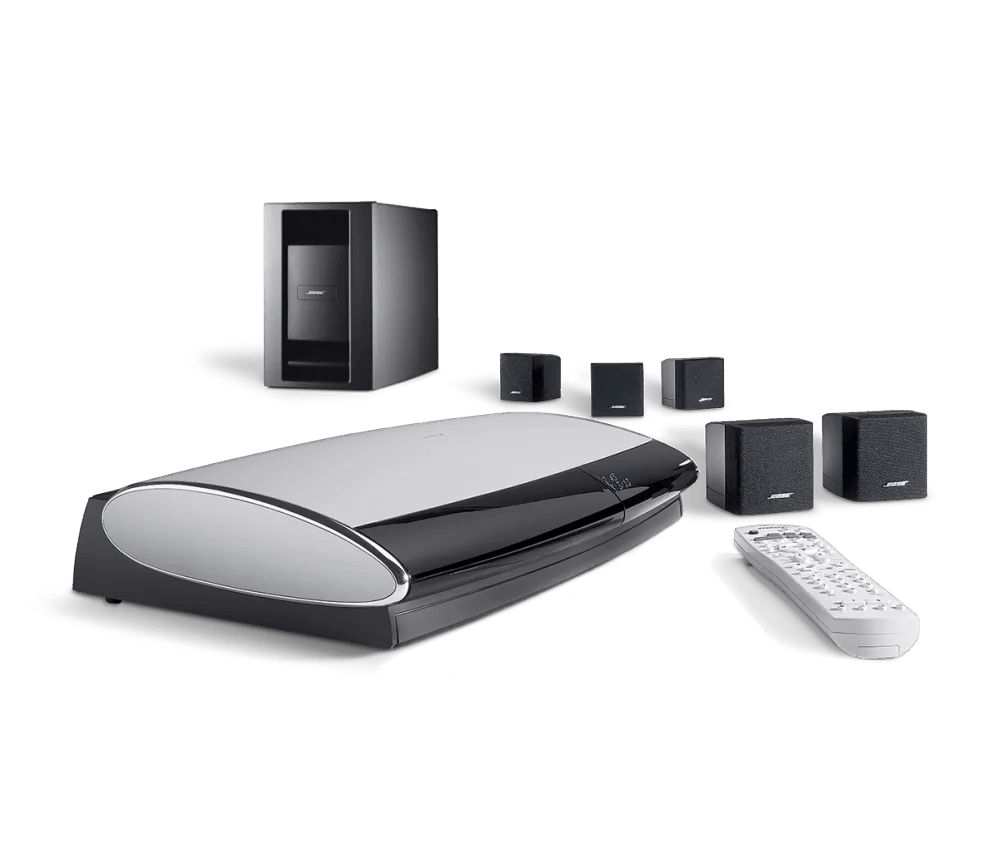
Lifestyle® 18 Series III DVD home entertainment systemSold from 2006 - 2009

No picture from a connected video device | Lifestyle® 18 Series III DVD home entertainment system

Which device is being used?

Cable box

Try a different channel.

If the issue only occurs with one or certain channels, there could be an issue with those particular broadcasts.

Be sure the cable box is connected properly.

A connection may have come loose or may be incorrect. Check to see that all output connectors on the cable box and input connectors on the Bose system are firmly seated. For information on attaching other audio sources, see Connecting other devices to your system.

When using a component video adapter, be sure the external device is connected properly to the media center.

If the component adapter is connected improperly, the video may be distorted or blank. Be sure the RCA connectors are seated firmly in the proper jacks. For more information, see Using component video cables with your system.

If using the component video adapter, be sure the correct adapter is connected.

Series 1 and series 2 Lifestyle systems use different component video adapters. Be sure to use a series 1 adapter with a series 1 system and a series 2 adapter with series 2 system. Check which adapter you have by looking at the male composite connector on the adatper (the connector that plugs into the yellow Video OUT jack on system console):
  • If this connector is black, follow it to the opposite female end: If the female end is red, it's a series 1 adapter; if the female end green, it's a series 2 adapter
  • If this connector is yellow, it's a series II adapter

When using an RF modulator, be sure the correct TV channel is selected.

Check to see that the TV is set to the proper channel, which is usually channel 3 or 4.

Connect the video output of the source directly to the TV.

If the issue still exists, the problem is with the connected source, the TV or the cable being used.

Replace the video cable used to connect your product.

Try replacing the video cable that connects your product. If no issue occurs with the new cable, there was a problem with the original video cable.

Try connecting a different audio device.

If available, connect another audio device using the same cables and connections to determine if the issue is related to the first device or its settings.

Your media center may need service.

If the steps provided do not resolve your issue, your product may need service. Follow the link below for more information on how to service your product. Depending on your product and region, you will be provided a contact number or the ability to setup service online.

Click here to start service
DVD or Blu-ray player

Be sure the DVD or Blu-ray player is connected properly.

A connection may have come loose or may be incorrect. Check that all output connectors on the DVD or Blu-ray player and all input connectors on the system are firmly seated. For information on attaching other audio sources, see Connecting other devices to your system.

When using a component video adapter, be sure the external device is connected properly to the media center.

If the component adapter is connected improperly, the video may be distorted or blank. Be sure the RCA connectors are seated firmly in the proper jacks. For more information, see Using component video cables with your system.

If using the component video adapter, be sure the correct adapter is connected.

Series 1 and series 2 Lifestyle systems use different component video adapters. Be sure to use a series 1 adapter with a series 1 system and a series 2 adapter with series 2 system. Check which adapter you have by looking at the male composite connector on the adatper (the connector that plugs into the yellow Video OUT jack on system console):
  • If this connector is black, follow it to the opposite female end: If the female end is red, it's a series 1 adapter; if the female end green, it's a series 2 adapter
  • If this connector is yellow, it's a series II adapter

When using an RF modulator, be sure the correct TV channel is selected.

Check to see that the TV is set to the proper channel, which is usually channel 3 or 4.

Connect the video output of the source directly to the TV.

If the issue still exists, the problem is with the connected source, the TV or the cable being used.

Replace the video cable used to connect your product.

Try replacing the video cable that connects your product. If no issue occurs with the new cable, there was a problem with the original video cable.

Try connecting a different audio device.

If available, connect another audio device using the same cables and connections to determine if the issue is related to the first device or its settings.

Your media center may need service.

If the steps provided do not resolve your issue, your product may need service. Follow the link below for more information on how to service your product. Depending on your product and region, you will be provided a contact number or the ability to setup service online.

Click here to start service
DVR

Be sure the DVR is connected properly.

A connection may have come loose or may be incorrect. Check to see that all output connectors at the DVR and all input connectors on the Bose system are firmly seated. For information on attaching other audio sources, see Connecting other devices to your system.

When using a component video adapter, be sure the external device is connected properly to the media center.

If the component adapter is connected improperly, the video may be distorted or blank. Be sure the RCA connectors are seated firmly in the proper jacks. For more information, see Using component video cables with your system.

If using the component video adapter, be sure the correct adapter is connected.

Series 1 and series 2 Lifestyle systems use different component video adapters. Be sure to use a series 1 adapter with a series 1 system and a series 2 adapter with series 2 system. Check which adapter you have by looking at the male composite connector on the adatper (the connector that plugs into the yellow Video OUT jack on system console):
  • If this connector is black, follow it to the opposite female end: If the female end is red, it's a series 1 adapter; if the female end green, it's a series 2 adapter
  • If this connector is yellow, it's a series II adapter

When using an RF modulator, be sure the correct TV channel is selected.

Check to see that the TV is set to the proper channel, which is usually channel 3 or 4.

Connect the video output of the source directly to the TV.

If the issue still exists, the problem is with the connected source, the TV or the cable being used.

Replace the video cable used to connect your product.

Try replacing the video cable that connects your product. If no issue occurs with the new cable, there was a problem with the original video cable.

Try connecting a different audio device.

If available, connect another audio device using the same cables and connections to determine if the issue is related to the first device or its settings.

Your media center may need service.

If the steps provided do not resolve your issue, your product may need service. Follow the link below for more information on how to service your product. Depending on your product and region, you will be provided a contact number or the ability to setup service online.

Click here to start service
Game console

Check the video resolution setting of the connected device.

Many Blu-ray players, game consoles and other video devices require certain menu setting adjustments to output video at a higher resolution. Refer to the owner's guide of the connected device for more information.

Be sure the game console is connected properly.

A connection may have come loose or may be incorrect. Check to see that all output connectors on the game console and all input connectors on the system are firmly seated. For information on attaching other audio sources, see Connecting other devices to your system.

When using a component video adapter, be sure the external device is connected properly to the media center.

If the component adapter is connected improperly, the video may be distorted or blank. Be sure the RCA connectors are seated firmly in the proper jacks. For more information, see Using component video cables with your system.

If using the component video adapter, be sure the correct adapter is connected.

Series 1 and series 2 Lifestyle systems use different component video adapters. Be sure to use a series 1 adapter with a series 1 system and a series 2 adapter with series 2 system. Check which adapter you have by looking at the male composite connector on the adatper (the connector that plugs into the yellow Video OUT jack on system console):
  • If this connector is black, follow it to the opposite female end: If the female end is red, it's a series 1 adapter; if the female end green, it's a series 2 adapter
  • If this connector is yellow, it's a series II adapter

When using an RF modulator, be sure the correct TV channel is selected.

Check to see that the TV is set to the proper channel, which is usually channel 3 or 4.

Connect the video output of the source directly to the TV.

If the issue still exists, the problem is with the connected source, the TV or the cable being used.

Replace the video cable used to connect your product.

Try replacing the video cable that connects your product. If no issue occurs with the new cable, there was a problem with the original video cable.

Try connecting a different audio device.

If available, connect another audio device using the same cables and connections to determine if the issue is related to the first device or its settings.

Your media center may need service.

If the steps provided do not resolve your issue, your product may need service. Follow the link below for more information on how to service your product. Depending on your product and region, you will be provided a contact number or the ability to setup service online.

Click here to start service
Satellite box

Try a different channel.

If the issue only occurs with one or certain channels, there could be an issue with those particular broadcasts.

Be sure the satellite box is connected properly.

A connection may have come loose or may be incorrect. Check to see that all output connectors on the satellite box and input connectors on the Bose system are firmly seated. For information on attaching other audio sources, see Connecting other devices to your system.

When using a component video adapter, be sure the external device is connected properly to the media center.

If the component adapter is connected improperly, the video may be distorted or blank. Be sure the RCA connectors are seated firmly in the proper jacks. For more information, see Using component video cables with your system.

If using the component video adapter, be sure the correct adapter is connected.

Series 1 and series 2 Lifestyle systems use different component video adapters. Be sure to use a series 1 adapter with a series 1 system and a series 2 adapter with series 2 system. Check which adapter you have by looking at the male composite connector on the adatper (the connector that plugs into the yellow Video OUT jack on system console):
  • If this connector is black, follow it to the opposite female end: If the female end is red, it's a series 1 adapter; if the female end green, it's a series 2 adapter
  • If this connector is yellow, it's a series II adapter

When using an RF modulator, be sure the correct TV channel is selected.

Check to see that the TV is set to the proper channel, which is usually channel 3 or 4.

Connect the video output of the source directly to the TV.

If the issue still exists, the problem is with the connected source, the TV or the cable being used.

Replace the video cable used to connect your product.

Try replacing the video cable that connects your product. If no issue occurs with the new cable, there was a problem with the original video cable.

Try connecting a different audio device.

If available, connect another audio device using the same cables and connections to determine if the issue is related to the first device or its settings.

Your media center may need service.

If the steps provided do not resolve your issue, your product may need service. Follow the link below for more information on how to service your product. Depending on your product and region, you will be provided a contact number or the ability to setup service online.

Click here to start service
VCR or DVD recorder

Be sure the VCR or DVD recorder is connected properly.

A connection may have come loose or may be incorrect. Check to see that all output connectors on the VCR or DVD recorder and all input connectors on the Bose system are firmly seated. For information on attaching other audio sources, see Connecting other devices to your system

When using a component video adapter, be sure the external device is connected properly to the media center.

If the component adapter is connected improperly, the video may be distorted or blank. Be sure the RCA connectors are seated firmly in the proper jacks. For more information, see Using component video cables with your system.

If using the component video adapter, be sure the correct adapter is connected.

Series 1 and series 2 Lifestyle systems use different component video adapters. Be sure to use a series 1 adapter with a series 1 system and a series 2 adapter with series 2 system. Check which adapter you have by looking at the male composite connector on the adatper (the connector that plugs into the yellow Video OUT jack on system console):
  • If this connector is black, follow it to the opposite female end: If the female end is red, it's a series 1 adapter; if the female end green, it's a series 2 adapter
  • If this connector is yellow, it's a series II adapter

When using an RF modulator, be sure the correct TV channel is selected.

Check to see that the TV is set to the proper channel, which is usually channel 3 or 4.

Connect the video output of the source directly to the TV.

If the issue still exists, the problem is with the connected source, the TV or the cable being used.

Replace the video cable used to connect your product.

Try replacing the video cable that connects your product. If no issue occurs with the new cable, there was a problem with the original video cable.

Try connecting a different audio device.

If available, connect another audio device using the same cables and connections to determine if the issue is related to the first device or its settings.

Your media center may need service.

If the steps provided do not resolve your issue, your product may need service. Follow the link below for more information on how to service your product. Depending on your product and region, you will be provided a contact number or the ability to setup service online.

Click here to start service

Check the connections of the VCR or DVD recorder.

Cable or satellite receivers can be used with a VCR and/or DVD recorder. Be sure the video connections between them are correct and secure
Other connected video device

Be sure the external video device is properly connected to the Bose system.

A connection may have come loose or may be incorrect. Check all connections. Be sure the external device output jacks are connected to available input jacks on the Bose system using the appropriate cable(s)

Note: Be sure the same type of video cable (composite cable, S-Video cable or the component adapter) is connected to both the Video IN and Video OUT jacks of the media center. The media center does not convert one type of video signal to another. For example, connect composite cables to both the Video IN and OUT jacks

When using a component video adapter, be sure the external device is connected properly to the media center.

If the component adapter is connected improperly, the video may be distorted or blank. Be sure the RCA connectors are seated firmly in the proper jacks. For more information, see Using component video cables with your system.

If using the component video adapter, be sure the correct adapter is connected.

Series 1 and series 2 Lifestyle systems use different component video adapters. Be sure to use a series 1 adapter with a series 1 system and a series 2 adapter with series 2 system. Check which adapter you have by looking at the male composite connector on the adatper (the connector that plugs into the yellow Video OUT jack on system console):
  • If this connector is black, follow it to the opposite female end: If the female end is red, it's a series 1 adapter; if the female end green, it's a series 2 adapter
  • If this connector is yellow, it's a series II adapter

When using an RF modulator, be sure the correct TV channel is selected.

Check to see that the TV is set to the proper channel, which is usually channel 3 or 4.

Connect the video output of the source directly to the TV.

If the issue still exists, the problem is with the connected source, the TV or the cable being used.

Replace the video cable used to connect your product.

Try replacing the video cable that connects your product. If no issue occurs with the new cable, there was a problem with the original video cable.

Try connecting a different audio device.

If available, connect another audio device using the same cables and connections to determine if the issue is related to the first device or its settings.

Your media center may need service.

If the steps provided do not resolve your issue, your product may need service. Follow the link below for more information on how to service your product. Depending on your product and region, you will be provided a contact number or the ability to setup service online.

Click here to start service

See if the issue is with connected devices or the built-in video player.

Try playing a DVD on the disc player built-in to the system console.

Confirm the TV is on and the proper input is selected.

Some TVs have a feature where input selections can be turned off or hidden from the on-screen menu. For help changing TV inputs and enabling TV inputs, refer to the TV owner's guide.

The system will not pass a signal through in DVD mode.

Be sure the desired source is selected

Reset the connected audio or video device.

Electronics may need to be reset from time to time—much like rebooting a computer. Disconnect power from the device for 30 seconds, then wait for it to start up.

Check that that the correct audio input source is selected.

If multiple audio sources are available or connected, be sure the correct source is selected. For example, if the audio device you want to hear is connected to the an input labelled AUX, be sure that AUX input selected.

Verify that the remote device type is not set to Music Player.

If the remote device type is set to Music Player in the remote setup screen, video connected to that device input is disabled. For more info on setting the remote device type, see Programming your remote.

In the menu of the connected device, try disabling HDMI-CEC.

CEC (Consumer Electronics Control) allows devices to send control information (e.g. power, input switching, remote control, etc.) back and forth over HDMI. CEC implementation and capabilities can vary among different brands, which can cause various control issues. Try disabling CEC in the menu of the connected device, then try again. Depending on the brand, CEC may be labelled differently in the device menu. For more info, see Names used by different brands for CEC.
Loading
No picture from a connected video device | Lifestyle® 18 Series III DVD home entertainment system