Loading
Programming your remote | Lifestyle® 35 Series II DVD home entertainment system
lifestyle®-35-series-ii-dvd-home-entertainment-system
Lifestyle® 35 Series II DVD home entertainment systemSold from 2005 - 2006

Programming your remote | Lifestyle® 35 Series II DVD home entertainment system

Use the remote code lookup tool to find a compatible code for the device.

The Remote Code Lookup allows for users to search for a compatible device code based on the device type, brand and model number entered. Use this tool to lookup compatible device codes only.

To program your remote:

  1. On the remote control, press the System button
    Tip: If the system menu does not appear on your TV, be sure the correct TV input is selected
  2. Scroll right to select Remote Control, then press the Enter button
  3. Scroll down to select IR Control and confirm it is (or set it to) Off
  4. Scroll down to select TV Tuner or TV Control, then press the Enter button
  5. Scroll up or down to select the source used to change TV channels, then press the Enter button. (For example, if you have a cable box connected to CBL-SAT on the system console, select CBL-SAT)
  6. Scroll up to select TV Brand, press the Enter button
  7. Scroll to select the TV brand, then press the Enter button
  8. Scroll down to select TV Code, then press the Enter button
  9. Test the remote:
    • If it controls your device, press the Enter button to finish
    • If it does not control your device or has limited functionality, repeat these steps with the next code for the brand.
Repeat steps 6 through 8 to program your remote for each device connected to your system, but select [source] Brand and [source] Code instead of TV Brand and TV Code. (For example, to control a cable box connected to CBL-SAT on the system console, select CBL-SAT Brand and CBL-SAT Code in steps 6 through 8.)

Note: Since the remote does not have an AUX power button, a device connected to AUX cannot be powered on and off using the Bose remote.

Tip: Your system console controls other devices, not your remote. If you have difficultly controlling a device, connect an IR emitter. A maximum of three emitters can be used with your system.
  1. Plug in the emitter to the IR Emitter jack on the system console
  2. Place the flat side of the IR emitter on or near the remote sensor of the device(s) to be controlled.
    Tip: The remote sensor on the device is often a small translucent plastic on the front of the device.

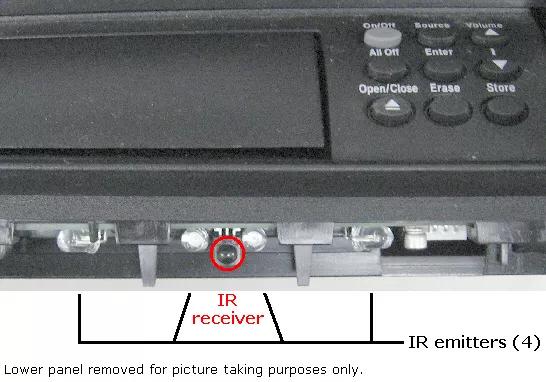
    Lifestyle DVD media center built-in IR emitter and receiver location.

    The Lifestyle DVD media center houses four IR emitters positioned at various angles below the disc tray behind the plastic panel. An IR receiver is also located in the same area. The plastic panel does not impede with the IR signals passing to and from this location

    To connect an IR emitter:

    Note: A maximum of three emitters can be used with the system (the original emitter plus up to two chained accessory emitters).
    1. Plug in the emitter to the IR Emitter jack on the system console
    2. Place the flat side of the IR emitter on or near the remote sensor of the device(s) to be controlled

    To use the TV sensor, follow these steps:

    1. Connect the TV sensor to the TV Sensor jack on the media center connection panel. (On the panel, the TV Sensor jack is immediately above two other jacks of the same type: the IR Emitter, and Serial Data jacks)
    2. Turn the TV on and select the correct input
    3. Press the System button on the remote
    4. Press the right arrow until the Video icon is selected, and press Enter
    5. Press the down arrow until "TV Power Status" is selected
    6. Move the flat side of the TV sensor slowly around the back of the TV until TV Power Status indicates: "TV On"
    7. Attach the TV sensor to this location with the adhesive strip provided
    8. Press the up arrow until "TV Power" is selected, and press Enter
    9. Press the down arrow until "Automatic" is selected, and press Enter
    10. Press the Exit button to leave the System menu
    Note: An "OFF" command will only be sent to the TV if the Bose system automatically turned on the TV and detects that the TV is, in fact, on. If the TV is turned on manually or the Bose system cannot detect that the TV is on, it will not send an "OFF" command.

    Information regarding Transport Controls.

    Extended IR Database remote (button below key #9 labeled "Previous"):
    1. The transport controls (play,pause, stop, etc.) for this remote are modal. Transport controls work for the source that is selected using the remote
    Pre-Extended IR Database remote (button below key #9 labeled "Last"):
    1. The transport controls for this remote are not modal. Transport functions work for the device that is setup as VCR. However, in AUX mode, the transport controls work for a designated AUX device

    Third party control information for installers.

    We can assist with the set up and use of the Bose system but not with the programming or the operation of any third party devices. Installers can be provided with the following information:

    Five items are needed in order to control a Lifestyle without using the Bose remote:
    1. A home Wi-Fi network
    2. An Android or iOS smartphone or tablet
    3. The MyURemote app (~US$40)
    4. The Global Cache iTach IP2SL TCP/IP to Serial (RS232) Controller. (~US$100 on Amazon) This unit is not wireless, though a Wi-Fi enabled version is available
    5. A serial data cable with a female DE9 connector to male 3.5mm TRS connector (~US$13)
    The iTach controller will need to be connected to power, to the home network via Ethernet and to the Lifestyle console Serial Data connection using the serial data cable. The MyURemote app will need to be configured to connect to the network and operate the main room of the Lifestyle system. Bose link expansion rooms can also be controlled (room codes apply).

    The iTach controller is compatible with Lifestyle systems using any of the following consoles:
    1. AVM, AVM v2, AVM STCH (VideoWave)
    2. AV18
    3. AV28
    4. AV20, AV20 v2
    5. AV35, AV35 STCH
    6. AV38
    7. AV48
    8. MC1
    Loading
    Programming your remote | Lifestyle® 35 Series II DVD home entertainment system