Loading
"Format Unsupported" message displayed when loading a DVD | Lifestyle® 48 DVD home entertainment system
lifestyle®-48-dvd-home-entertainment-system
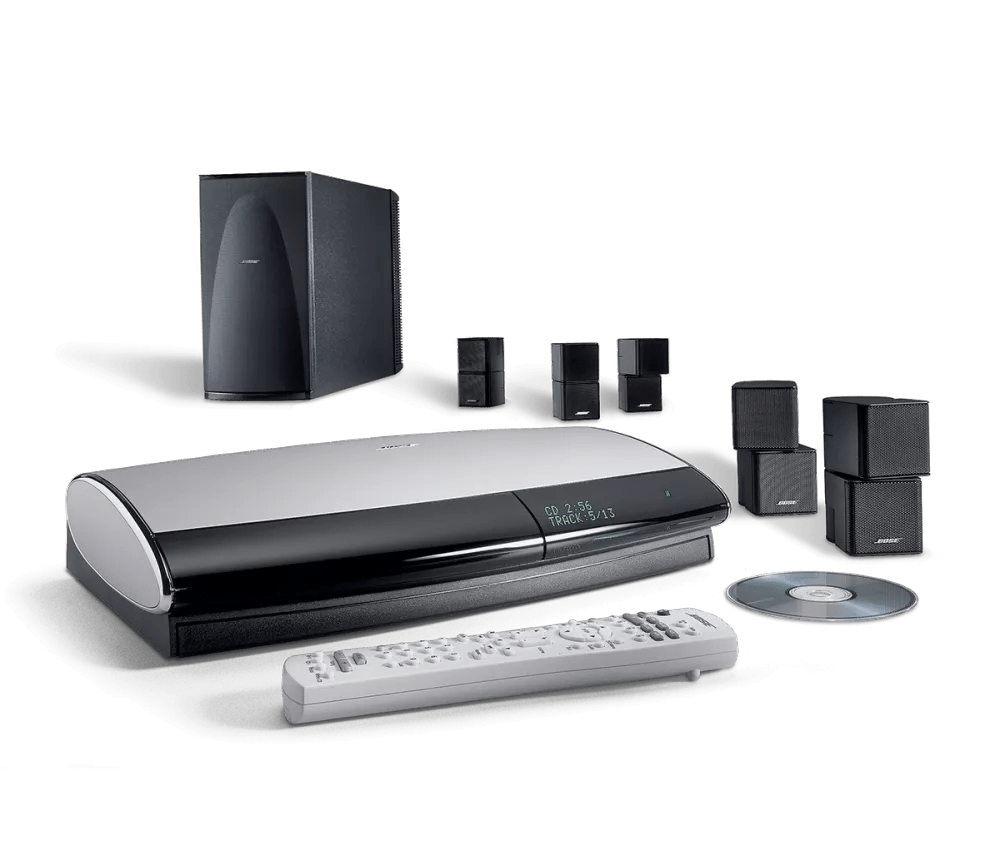
Lifestyle® 48 DVD home entertainment systemSold from 2004 - 2006

"Format Unsupported" message displayed when loading a DVD | Lifestyle® 48 DVD home entertainment system

When does the message display

Displays on all DVDs

Determine if sound can be heard when playing a disc in internal DVD player.

If there is video but no audio, see No audio from product.

Determine if there is sound but no picture when playing a disc in internal DVD player.

If there is audio but no video, see No video from the built-in DVD player.

Be sure the disc is inserted with the label facing up.

Place the disc in your system with labelled side of the disc facing upward. If there is no label, try the other side.

Be sure the region code of the DVD discs being played match the system's region code.

If the DVD region code of the disc is different than the system, the disc will not play. The DVD region code is located on the back of the DVD packaging. Look for one of these logos:


DVD players and discs produced by major manufacturers are coded to one of six regions. The list below indicates countries by region code number.
  1. Canada and United States
  2. European countries, United Kindgom, Japan, and United Arab Emirates
  3. Hong Kong, Phillipines, Singapore, and Taiwan
  4. Australia, New Zealand, Mexico, Central and South American countries
  5. India
  6. Mainland China

Check for sources of interference.

Electronics can pick up interference from other electronics connected to the same power circuit or connected within close proximity. Try disconnecting the power cord from any such nearby electronics (i.e. laptop/phone charger, TV, cable box, seasonal lights, microwave, etc.). If the issue is resolved, try connecting the device or your product to a different power circuit or farther away.

Your media center may need service.

If the steps provided do not resolve your issue, your product may need service. Follow the link below for more information on how to service your product. Depending on your product and region, you will be provided a contact number or the ability to setup service online.

Click here to start service
Displays on certain DVDs

Be sure the disc is inserted with the label facing up.

Place the disc in your system with labelled side of the disc facing upward. If there is no label, try the other side.

Be sure the region code of the DVD discs being played match the system's region code.

If the DVD region code of the disc is different than the system, the disc will not play. The DVD region code is located on the back of the DVD packaging. Look for one of these logos:


DVD players and discs produced by major manufacturers are coded to one of six regions. The list below indicates countries by region code number.
  1. Canada and United States
  2. European countries, United Kindgom, Japan, and United Arab Emirates
  3. Hong Kong, Phillipines, Singapore, and Taiwan
  4. Australia, New Zealand, Mexico, Central and South American countries
  5. India
  6. Mainland China

Check for sources of interference.

Electronics can pick up interference from other electronics connected to the same power circuit or connected within close proximity. Try disconnecting the power cord from any such nearby electronics (i.e. laptop/phone charger, TV, cable box, seasonal lights, microwave, etc.). If the issue is resolved, try connecting the device or your product to a different power circuit or farther away.

Your media center may need service.

If the steps provided do not resolve your issue, your product may need service. Follow the link below for more information on how to service your product. Depending on your product and region, you will be provided a contact number or the ability to setup service online.

Click here to start service
Displays on home-made DVDs

For homemade media, try a different brand of disc, different software or different burning settings.

Different disc players can respond differently to burned media. If you have trouble playing burned discs, try burning a different brand of disc. You can also try different disc burning software. In the software settings, try selecting a slower burning speed (e.g. 4x or 8x). Additionally, if the software has an option to finalize the disc, select that also before burning.

In the disc burning software, reduce the disc burning speed.

Burning discs at slower speeds (i.e. 2x or 4x) can help to reduce errors while the disc is being created. In the options of the disc burning software, look for and reduce the burning or write speed.

See if the same message appears when playing CDs.

If neither CDs nor DVDs play in your system, there may be an issue with the disc drive.

Check for scratches, fingerprints or other physical damage.

The disc may be scratched or damaged which may prevent it from playing properly.

Check if the disc works in a different disc player.

If available, try playing the disc in a different disc player. If the same issue occurs, the issue is with the disc.

Was this article helpful?

YES
NO
START A REPAIR OR REPLACEMENT
Loading
"Format Unsupported" message displayed when loading a DVD | Lifestyle® 48 DVD home entertainment system