Loading
Unable to add a music library in the SoundTouch app | Lifestyle® 525 series III home entertainment system
lifestyle®-525-series-iii-home-entertainment-system
Lifestyle® 525 series III home entertainment systemSold from 2014 - 2015

Unable to add a music library in the SoundTouch app | Lifestyle® 525 series III home entertainment system

Which error code or message appears?

Unable to add your music library. (1608) — NAS library - server not found. Music server is undetectable or unreachable

If your music is on a USB drive, add it to your iTunes or Windows Media Player library, or move the files to the computer hard drive.

The SoundTouch app cannot directly access music libraries stored on a USB drive. However, if you add the files on the USB drive to the Windows Media Player or iTunes library that is connected to the SoundTouch app, the files might be accessible in the app. If not—and if storage is available—move the files to the internal hard drive of the computer.

Close the SoundTouch App and Music Server, then reopen the app.

Restarting the app may resolve connection and performance issues. Closing the music server is a separate action from closing the app; For these instructions, see Closing the SoundTouch Music Server

If the music server is not running, restart the app which will also restart the SoundTouch Music Server.

On the computer hosting the music library, verify the SoundTouch app is up to date.

If the app version in use on the computer is less than the PC/Mac SoundTouch App version listed in Software and firmware versions, download and install the latest version of the app from www.bose.com/soundtouch_app ("soundtouchapp" or "soundtouch-app" work in place of "soundtouch_app"). For info determining app version, see Checking the software or firmware version.
Computer Music library server shutdown. (4201) — Computer library - Server shutdown (i.e. crashed or got turned off) during playback

On Mac computers, disable the option to put the hard drive to sleep.

If the computer puts to sleep the hard drive that contains your music library, your SoundTouch app and products will not be able to access the library.

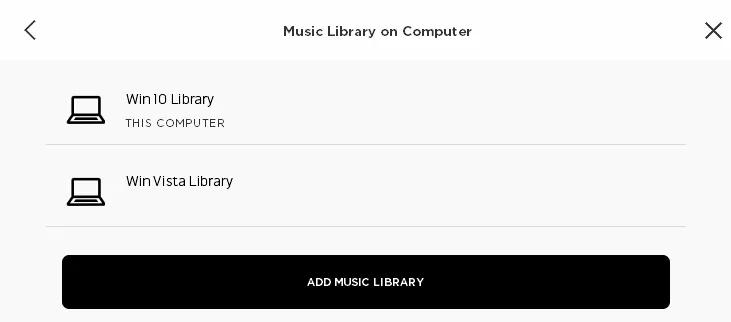
Determine if the music library is listed as being on "This computer".

Click Settings > Music Services > Music Library on Computer to view all music libraries on this SoundTouch account


  1. If only one library appears, "This computer" should appear under the library name. If it doesn't, the library has been set up on another computer; Be sure that computer is on and not in a hibernation mode
  2. If more than on one library appears, be sure the one indicated as "This computer" is the one being selected. If any other library is being selected, that library has been set up on another computer; Be sure that computer is on and not in a hibernation mode
Note: In the example shown above, the library names happens to match the operating system of the computer the library is installed on. The music library does not know and will not indicate the OS of its host computer.

On the computer hosting the music library, verify the SoundTouch app is up to date.

If the app version in use on the computer is less than the PC/Mac SoundTouch App version listed in Software and firmware versions, download and install the latest version of the app from www.bose.com/soundtouch_app ("soundtouchapp" or "soundtouch-app" work in place of "soundtouch_app"). For info determining app version, see Checking the software or firmware version.

Close the SoundTouch App and Music Server, then reopen the app.

Restarting the app may resolve connection and performance issues. Closing the music server is a separate action from closing the app; For these instructions, see Closing the SoundTouch Music Server

If the music server is not running, restart the app which will also restart the SoundTouch Music Server.

Reboot the computer.

Reboot your computer by powering it off completely and then powering it back on again. This can help to resolve minor processing issues with the computer.

Check to make sure the computer hosting the music library is connected to the same network as the system.

To stream audio from the computer's music library to the SoundTouch system, both the system and the computer must be connected to the same network. A 'Guest' network would not be the same network as the host network, even when the two are being transmitted by the same router or access point
  1. Determine the name of the network that the SoundTouch system is connected to by viewing menu item 2.3 in the System Information Screen. For more information, see Accessing the System Information Screen
  2. Determine if the computer is connected to the network of the same name follow the instructions found in Connecting a computer to a Wi-Fi network to determine what network it is connected to
  3. If the computer and system are on different networks, the network settings of one of these devices will need to be updated.

If using the PC/Mac app or a music library stored on a computer, determine if the issue is related to the computer security configuration.

IMPORTANT: You computer security software provides protection between your network and the Internet. Before trying this suggestion, consider whether or not it is safe to temporarily disable the security software. If there are no concerns, try the following.
On your computer, temporarily disable any firewalls or security software one-by-one. If performance improves when one is disabled, the issue could be related to the configuration of that software. Re-enable all security software you disabled. Then, in the settings of the software affecting performance, add the SoundTouch app and SoundTouch music server as programs that the software should not block.

If using the PC/Mac app, add exceptions for SoundTouch in any antivirus or firewall software.

If the firewall or security software on your computer prompts you to allow access to SoundTouch, allow access. If you deny access, SoundTouch system and software functaionality will be limited. If you already denied access, you can try uninstalling the SoundTouch app, reinstalling it, and then allowing accessing when prompted after opening the app again. If you are not prompted, go to the settings of your security software and add the SoundTouch app and SoundTouch music server as programs that the software should not block.

For Windows computers, enable Network Discovery or use the Private network profile.

When you connect to a network, Windows asks if the network type is Public or Private. If Public is selected, certain securities are applied that can prevent some apps from operating properly. On the computer, go to Network and Sharing and click Change Advanced Settings. Expand your network type (i.e. Public or Private) and set select Turn on network discovery. If it is already selected or you want to change the network type to Private, see Determining and changing the Windows network type.

For Windows computers, be sure Media Streaming is allowed for the SoundTouch system.

For Windows 10 devices, use Groove instead of Windows Media Player.

Groove music player is included in Windows 10 and, like Windows Media Player, it scans files in the Windows music library, On the computer, go to Settings > System > Default apps > Music Player. Select Grrove as the default player, then try again.

Determine if the product is making a reliable connection to the router.

In the SoundTouch app, go to Menu > Settings > About, then select your product to view product info. Check the RSSI Signal Strength. This number can range from -30 dBm (best signal) to -90 dBm (poor signal). If the connection is poor, consider relocating the router, your product or reducing sources of interference to improve signal.

Tip: You can also check the signal strength of a customer's product by viewing their account in Fenestra.

For iTunes libraries, go to the iTunes preferences and enable sharing your library with other applications.

Open iTunes and go to Preferences > Advanced, then check Share iTunes Library XML with other applications. If this option is not checked, other applications—like SoundTouch—will not find your iTunes library. (Note: This option is available in iTunes version 12.2 or later.)

Reboot your router.

Routers may need to be reset from time to time—much like rebooting a computer. Disconnect power from the router for 30 seconds, then wait for it to start up and connect. (Note: Any device connected to the Internet will be interrupted during the reset.)

If connected to the computer, disconnect any devices with networking.

If a device with Wi-Fi or 3G/4G capability (i.e. smartphone, tablet, hotspot, etc.) is connected to the computer, it might take over the computer network connection. Disconnected any such devices and try again.

Disconnect any Internet-ready devices (if connected) from the computer.

If, for example, a USB device that can connected to the Internet is connected to the computer, disconnect the device and check if the issue is resolved. Some Internet-ready devices might take over the network connection of the computer. Similarly, if an Ethernet cable is plugged in to the network port on the computer, try disconnecting it.

If the device running the app is using a VPN or remote desktop connection, disconnect it.

If the computer or device running the SoundTouch app or SoundTouch music server is using a VPN (Virtual Private Network) or remote desktop service, your product will not connect to the device. VPN and remote desktop software essentially put the device on a network within a network. So, wireless devices, like your product, will not find the device. Disconnect the dveice from the VPN or remote desktop and try again.

Log out of any virtual machine or virtual connections running on the computer.

If the computer is being used to connect to the desktop of another computer, virtual machine or server, be sure to log out/disconnect from the session. Such network activity can affect the availabilty of computer and network resources. Check the network or network adapter settings on the computer to see if virtual connections are enabled.

On Windows systems, check for enabled hidden virtual connections. In "Device Manager," select "View Hidden Devices" from the "View" menu. Hidden devices will appear grayed. Right-click them an choose "Disable."

On the compter, disabled any Link Aggregation functionality if it has been enabled.

Link Aggregation (also known as port bonding, bundling or teaming) will need to be disabled in order for a system to access the music server as this creates a virtual network connection that the SoundTouch app and systems cannot communicate through.

Determine if the product is making a reliable connection to the router.

In the SoundTouch app, go to Menu > Settings > About, then select your product to view product info. Check the RSSI Signal Strength. This number can range from -30 dBm (best signal) to -90 dBm (poor signal). If the connection is poor, consider relocating the router, your product or reducing sources of interference to improve signal.

Tip: You can also check the signal strength of a customer's product by viewing their account in Fenestra.

Determine if the issue is related to the router firewall configuration.

IMPORTANT: Firewalls provide protection between a network and the Internet. Before trying this suggestion, consider whether or not it is safe to temporarily disable the firewall. If there are no concerns, try the following.
Log in to your router and, in the router settings, disable the router firewall. If performance improves while the firewall is disabled, the issue could be related to the firewall configuration. Re-enable the firewall, then review the available firewall settings in your router menu.

Be sure Internet Connection Sharing is disabled.

For information on accessing and updating this setting, see Disabling Internet Connection Sharing.

Try adding the music library after disabling this setting.

Try logging in with a different user account on your computer, then try the app again.

If you have multiple accounts on your computer, try using another account—preferably the admin account. If the issue does not occur on another account, uninstall the SoundTouch app, then download and install the latest version from www.bose.com/soundtouch_app.

Remove and re-add the music library.

Computer music library server error. (4202) — Computer library - Unable to retrieve music from SoundTouch computer music server

On the computer hosting the music library, verify the SoundTouch app is up to date.

If the app version in use on the computer is less than the PC/Mac SoundTouch App version listed in Software and firmware versions, download and install the latest version of the app from www.bose.com/soundtouch_app ("soundtouchapp" or "soundtouch-app" work in place of "soundtouch_app"). For info determining app version, see Checking the software or firmware version.

Close the SoundTouch App and Music Server, then reopen the app.

Restarting the app may resolve connection and performance issues. Closing the music server is a separate action from closing the app; For these instructions, see Closing the SoundTouch Music Server

If the music server is not running, restart the app which will also restart the SoundTouch Music Server.

If using the PC/Mac app or a music library stored on a computer, determine if the issue is related to the computer security configuration.

IMPORTANT: You computer security software provides protection between your network and the Internet. Before trying this suggestion, consider whether or not it is safe to temporarily disable the security software. If there are no concerns, try the following.
On your computer, temporarily disable any firewalls or security software one-by-one. If performance improves when one is disabled, the issue could be related to the configuration of that software. Re-enable all security software you disabled. Then, in the settings of the software affecting performance, add the SoundTouch app and SoundTouch music server as programs that the software should not block.

If using the PC/Mac app, add exceptions for SoundTouch in any antivirus or firewall software.

If the firewall or security software on your computer prompts you to allow access to SoundTouch, allow access. If you deny access, SoundTouch system and software functaionality will be limited. If you already denied access, you can try uninstalling the SoundTouch app, reinstalling it, and then allowing accessing when prompted after opening the app again. If you are not prompted, go to the settings of your security software and add the SoundTouch app and SoundTouch music server as programs that the software should not block.

For Windows computers, be sure Media Streaming is allowed for the SoundTouch system.

Reboot your router.

Routers may need to be reset from time to time—much like rebooting a computer. Disconnect power from the router for 30 seconds, then wait for it to start up and connect. (Note: Any device connected to the Internet will be interrupted during the reset.)

If the device running the app is using a VPN or remote desktop connection, disconnect it.

If the computer or device running the SoundTouch app or SoundTouch music server is using a VPN (Virtual Private Network) or remote desktop service, your product will not connect to the device. VPN and remote desktop software essentially put the device on a network within a network. So, wireless devices, like your product, will not find the device. Disconnect the dveice from the VPN or remote desktop and try again.

Remove and re-add the music library.

Music library is unavailable. (4203, 6151) — Computer library - Unable to retrieve music from SoundTouch computer music server

On the computer hosting the music library, verify the SoundTouch app is up to date.

If the app version in use on the computer is less than the PC/Mac SoundTouch App version listed in Software and firmware versions, download and install the latest version of the app from www.bose.com/soundtouch_app ("soundtouchapp" or "soundtouch-app" work in place of "soundtouch_app"). For info determining app version, see Checking the software or firmware version.

Close the SoundTouch App and Music Server, then reopen the app.

Restarting the app may resolve connection and performance issues. Closing the music server is a separate action from closing the app; For these instructions, see Closing the SoundTouch Music Server

If the music server is not running, restart the app which will also restart the SoundTouch Music Server.

If using the PC/Mac app or a music library stored on a computer, determine if the issue is related to the computer security configuration.

IMPORTANT: You computer security software provides protection between your network and the Internet. Before trying this suggestion, consider whether or not it is safe to temporarily disable the security software. If there are no concerns, try the following.
On your computer, temporarily disable any firewalls or security software one-by-one. If performance improves when one is disabled, the issue could be related to the configuration of that software. Re-enable all security software you disabled. Then, in the settings of the software affecting performance, add the SoundTouch app and SoundTouch music server as programs that the software should not block.

If using the PC/Mac app, add exceptions for SoundTouch in any antivirus or firewall software.

If the firewall or security software on your computer prompts you to allow access to SoundTouch, allow access. If you deny access, SoundTouch system and software functaionality will be limited. If you already denied access, you can try uninstalling the SoundTouch app, reinstalling it, and then allowing accessing when prompted after opening the app again. If you are not prompted, go to the settings of your security software and add the SoundTouch app and SoundTouch music server as programs that the software should not block.

For Windows computers, be sure Media Streaming is allowed for the SoundTouch system.

Reboot your router.

Routers may need to be reset from time to time—much like rebooting a computer. Disconnect power from the router for 30 seconds, then wait for it to start up and connect. (Note: Any device connected to the Internet will be interrupted during the reset.)

If the device running the app is using a VPN or remote desktop connection, disconnect it.

If the computer or device running the SoundTouch app or SoundTouch music server is using a VPN (Virtual Private Network) or remote desktop service, your product will not connect to the device. VPN and remote desktop software essentially put the device on a network within a network. So, wireless devices, like your product, will not find the device. Disconnect the dveice from the VPN or remote desktop and try again.

Remove and re-add the music library.

For Windows users, download the iTunes app from the Apple website.

If the iTunes app is installed from the Windows app store, the SoundTouch app might not detect iTunes as a music library source. Instead, download and install the iTunes from the Apple website, the add the music library:
  1. Go to www.apple.com/itunes.
  2. Scroll down to Looking for other versions? and click Windows.
  3. Download and install either the 64-bit or 32-bit version.
  4. Adding a music library stored on a computer or NAS drive to your SoundTouch account.

If using macOS 10.15 (Catalina) or later, music libraries are not supported.

As of macOS 10.15, iTunes is no longer included in macOS. Since the SoundTouch app only supports music libraries from iTunes or Windows Media Player, a music library cannot be added from a computer running macOS 10.15. If a library was already added on a computer with a previous macOS version and, after, that computer was updated to Catalina, the library on that computer will still work but the contents of the library cannot be updated.

For iTunes libraries, go to the iTunes preferences and enable sharing your library with other applications.

Open iTunes and go to Preferences > Advanced, then check Share iTunes Library XML with other applications. If this option is not checked, other applications—like SoundTouch—will not find your iTunes library. (Note: This option is available in iTunes version 12.2 or later.)

If using iTunes 12.5.1 on a Windows computer, the "iTunes Music Library" XML file must be located in the default iTunes folder.

If using iTunes 12.5.1 on a Windows computer, the SoundTouch app will not access the library if the iTunes XML file (iTunes Music Library.xml) is not located in the default iTunes location. Verify the file is located as shown below. If it is not, find the file and move it here:
  1. For Windows Vista and newer: C:\Users\[username]\Music\iTunes
  2. For Windows XP: C:\Documents and Settings\[username]\My Documents\My Music\iTunes
More information on folders from Apple.com
Loading
Unable to add a music library in the SoundTouch app | Lifestyle® 525 series III home entertainment system