Was this helpful?
Lifestyle® SoundTouch® 535 system | Adding a music library stored on a computer or NAS drive
Is the product connected to your network?
Music Library on a Computer running macOS 10.15 (Catalina) or newer
iTunes libraries are not supported with macOS 10.15 (Catalina)
As of macOS 10.15, iTunes is no longer included in macOS. Since the SoundTouch app only supports music libraries from iTunes or Windows Media Player, a music library cannot be added from a computer running macOS 10.15.Music Library on a Computer
Create a computer music library.
Note: The music library must be managed by either iTunes or Windows Media Player- Open the SoundTouch app on the same computer that contains the music library
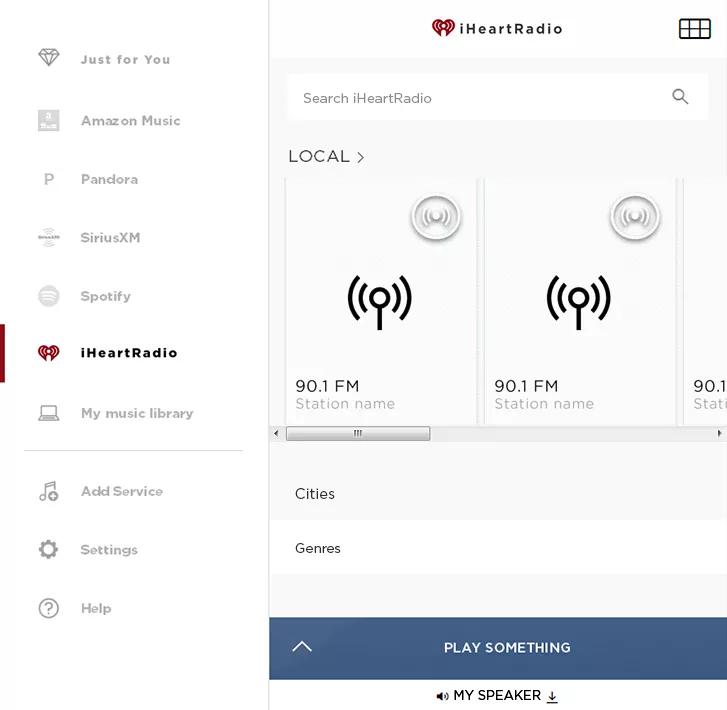
- In the app, choose "Add Service" on the left
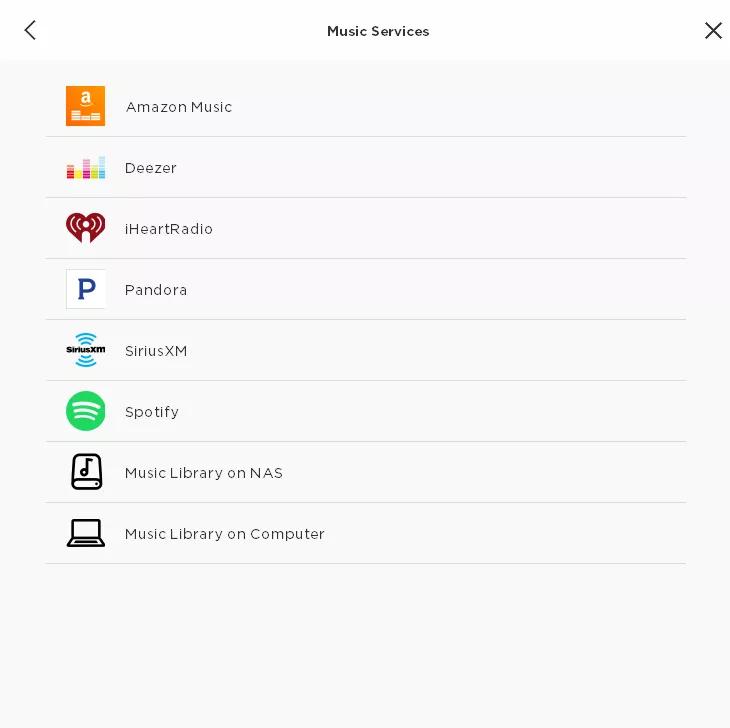
- Choose "Music Library on Computer" (Note: Only one music library can be added per computer. "This computer" will appear below the name of a library already linked from this computer to the SoundTouch account)
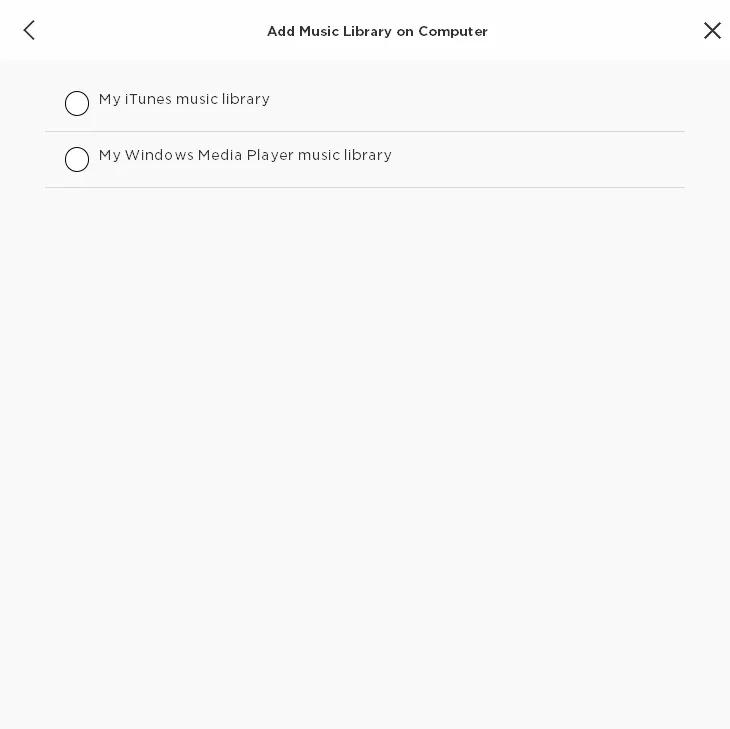
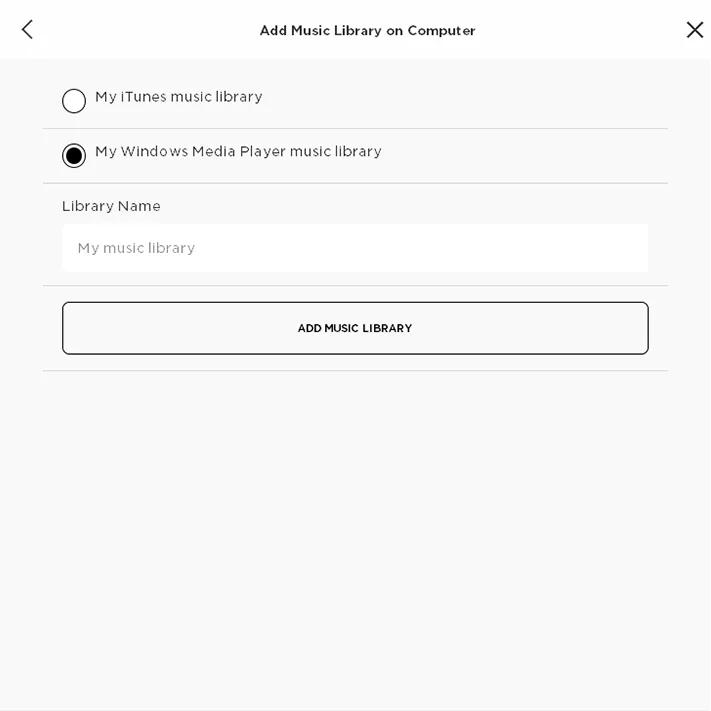
- Select the type of music library to be added by selecting "iTunes" or "Windows Media Player" (Note: Only libraries available on the computer and accessible by the app are selectable)
- Enter a name for the library and choose "Add Music Library".
A black banner stating "Service added" will briefly appear at the top of the screeen to indicate the process is complete.
Windows Media Player selected screen is shown below on the left; iTunes selected screen is shown on the right
Music stored on connected external drives, non-default hard-drive locations or separate internal hard-drives will be found by the app as long as the computer is turned on and the program managing the library (Windows Media Player or iTunes) can find its own files. For music stored on separate drives, .xml and .itl files must be in the default music drive and directory.
Note: The larger the library size, the longer it can take before it is indexed and becomes available via SoundTouch.- For iTunes:
- Open iTunes > Edit > Preferences > Advanced. Be sure "Share iTunes XML with other applications" is checked
- Open iTunes > Edit > Preferences > Sharing. Be sure "Share my library on my local network" is checked. Then, check either "Share entire library" or "Share selected playlists" to share selections
- For information of choosing an iTunes music library, see Creating or choosing iTunes music library location
- A restart of the computer (and peforming the steps above again) may be needed for these iTunes settings changes to take affect
- For Windows:
- Open Media Player > Stream. Select both "Allow remote control of my player" and "Automatically allow devices to play my media"
- Once enabled, if desired, select which devices can access the library by choosing "More Streaming Options"
- For iTunes:
Music Library on a NAS drive
Create a NAS music library.
WD MyCloud and Synology NAS drives are recommended. However, SoundTouch systems are not fully DLNA complaint and may not have full functionality with all NAS drives—including some variants of recommended drives, such as MyCloud Home.- Open the SoundTouch app on a computer or mobile device connected to the same network as the NAS drive
- In the app, tap the Menu icon in the upper-left
- Tap Add Service
- Tap Music Library on NAS
- Tap your NAS drive to select it
Note: Only drives accessible by the app can be selected. If the NAS drive doesn't appear, open the NAS drive settings menu, then look for and enable any media sharing options. After, go back to the Bose app and tap REFRESH to re-scan for available drives - Enter a name for your music library
- Tap Add Music Library.
Tip: The larger the library size, the longer it can take before it is indexed and becomes available via the SoundTouch app.