Was this article helpful?
Using Amazon Alexa | Bose Portable Smart Speaker
Setting up the Amazon Alexa voice assistant:
Note: If you have multiple products in your household, we recommend setting up the same Alexa account for each product.
Initial setup is completed in the Bose app. However, further configurations may require the Amazon Alexa app. iOS / Android

- In the Bose app
, tap the Settings icon
in the upper-right corner.
Tip: If a different product is shown, tap the My Bose iconin upper-left corner then select the desired product.
- Select Voice Assistant then select Alexa.
- Follow the app instructions to link your Alexa account
- During setup, signing in to your Amazon account links your Alexa voice assistant to your Bose account for Alexa features (e.g. "Alexa, what's the weather?" or "Alexa, set a timer for 10 minutes")
- During setup, signing in to your Bose account links your Bose products to your Alexa voice assistant so it can control your products (i.e "Alexa, play jazz on [Bose product name]" or "Alexa, mute [Bose product name]")
- In the Amazon Alexa app, your Bose product appears twice under Alexa Devices. Do not remove either entry: One entry is for Alexa functionality and the other is for Bose product functionality. Additionally, if your product is renamed after initial setup, both entries will have different names in the Alexa app
To use the Amazon Alexa voice assistant with your product:
Note: Some Alexa features that are available with Alexa devices made by Amazon are not available with Alexa devices made by other brands.
Talking to Alexa
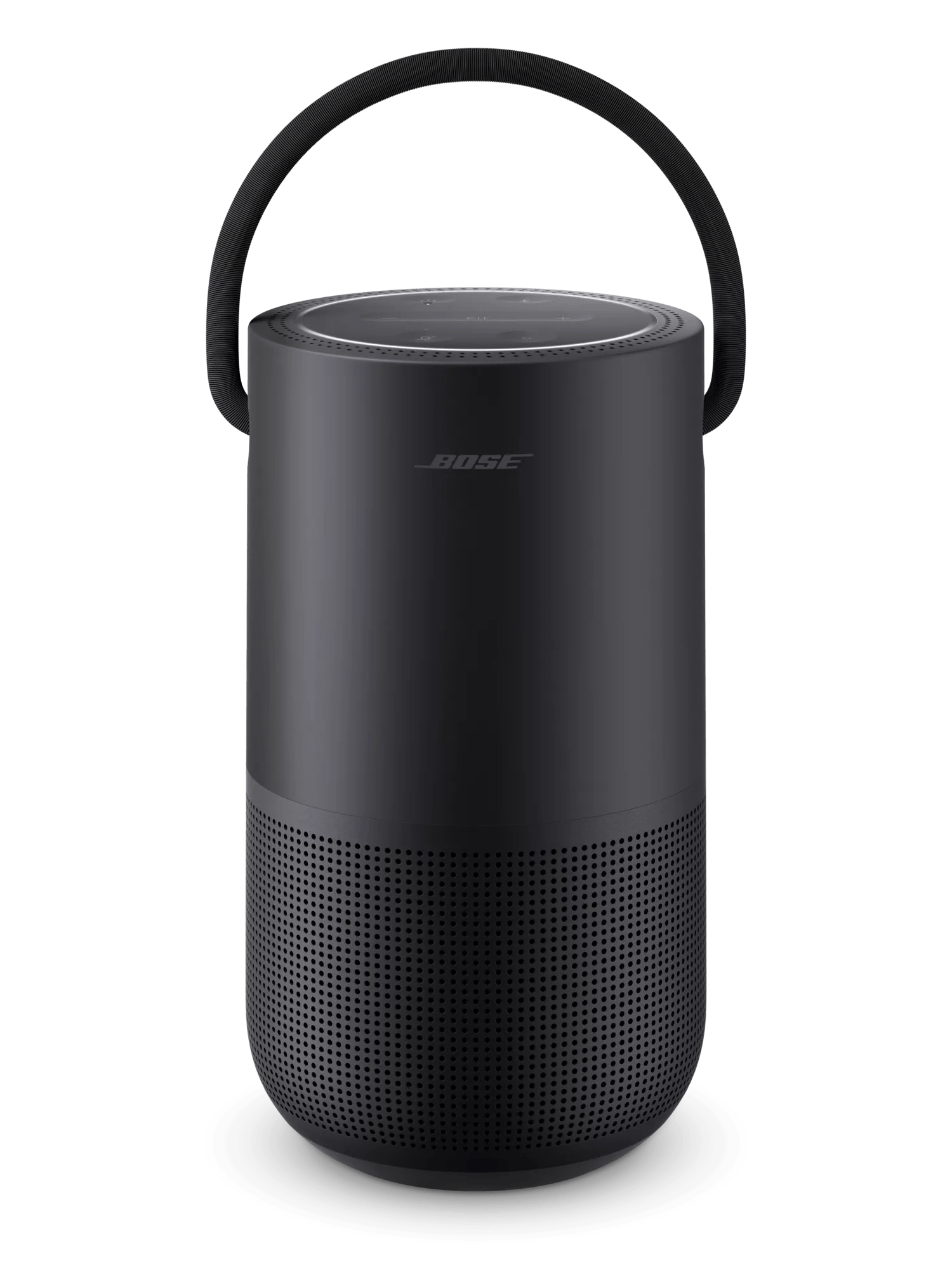
- Say, "Alexa," to wake your product. While Alexa is listening, the light on the front of your product glows white. You can now make a request. For example:
Alexa, play funk
Alexa, set the volume to 5 (or a number between 1 and 10)
Alexa, next song
Alexa, set a timer for 5 minutes
Alexa, what's the weather?
Alexa, watch channel 25 (soundbars only)
- If you have multiple products, control a specific one by saying the name you gave your product in the Bose app. For example, if you named your product “Kitchen,” say "Alexa, play funk in the kitchen."
Playing music services
Alexa can only play music services (i.e. Pandora or Deezer) that have been linked to your Amazon account. To link a service, open the Alexa app, go to Menu > Settings > Music & Media and add the music services you want to use. Once added, you can ask Alexa to play those services.
Features not available with Alexa
Amazon Alexa can be integrated with select non‑Amazon devices, such as Bose smart speakers. However, some features available on Amazon Echo and other Amazon‑branded Alexa devices are not supported on non‑Amazon devices.
When you make a voice request to Alexa using your Bose smart speaker, the features listed below may be unavailable or only supported in certain regions, as noted.
- Alexa Kindle eBooks
- Ring Doorbell
- Changing the wake word from Alexa to something else
- Setting a music service as an alarm tone
- Creating multi-room groups made up of Bose and non-Bose speakers
- Phone calls to mobile phones or land lines are only available in these regions: Canada, United Kingdom, United States
- Audible is only available in these regions: Australia, Canada, France, Germany, Japan, United Kingdom, United States
- Amazon Shopping is not available in Belgium, Netherlands, Poland and Sweden
- Upgrading or purchasing additional content for an Amazon Skill is not available in Belgium, Netherlands, Poland and Sweden
- Additionally, voice requests to Alexa cannot control the features of your Bose product listed below.
- Playing and setting Bose presets
- Playing on all Bose smart speakers
- Grouping two or more Bose smart speakers
Alexa+
Alexa+ is the latest generation of Amazon’s Alexa, now powered by generative AI, and Bose is the first premium speaker brand to support it.
See Meet Amazon Alexa+ with Bose for more information.
Currently only available to US Customers and requires an Amazon Prime membership.
*Staggered rollout between 20 April and 1 May 2026.
How to use Alexa+
If Alexa is already enabled on the Bose device in the Bose app, customers can say “Alexa, let's get started” or “Alexa, upgrade”, to begin using Alexa+.
Once you've enabled Alexa+ say “Alexa, what can you do?”
To revert to original Alexa, say “Alexa, exit Alexa+” or visit your Alexa+ account settings page.
Frequently Asked Questions
How do I remove Amazon Alexa from my speaker?
To remove the Alexa voice assistant:
- In the Bose app
, tap the Settings icon
in the upper-right corner.
Tip: If a different product is shown, tap the My Bose iconin upper-left corner then select the desired product.
- Select Voice Assistant then select Alexa.
- Tap Remove Acccount.
- Select Remove.
Amazon Alexa cannot carry out command
In the Alexa app, disable and re-enable the Bose (Not for SoundTouch) skill.
Please note: These steps align with the most current, up-to-date version of the Alexa app (IOS Version 2.2.581276.0 / Android Version 2.2.546320.0).
Remove and re-add Alexa in the Bose app.
Open the Bose app , access the Settings menu of the speaker you are currently using and remove the Alexa voice assistant. Then, re-add the same Alexa account. This re-links Alexa to your Bose account and can correct any issues that may have occurred between the two accounts.