Loading
Connecting headphones using an audio cable | Custom QuietComfort® 35 wireless headphones II
custom-quietcomfort®-35-wireless-headphones-ii
Custom QuietComfort® 35 wireless headphones IISold from 2017 - 2021

Connecting headphones using an audio cable | Custom QuietComfort® 35 wireless headphones II

When connecting to an in-flight entertainment system, determine if an airline adapter is needed.

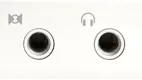
Notice the jack configurations shown below. Instructions below each image tell you how to connect to each type of jack

A single 1/8-inch (3.5 mm) jack, found on most portable sources: Use the single plug on the audio cable. No adapter needed


One 1/8-inch (3.5 mm) jack and one power jack: Use the single plug on the audio cable in the 1/8-inch jack (the larger jack). No adapter needed. The smaller, power jack does not need a connection

Regardless of adapter position or use nothing should be connected to the 2.5 mm power jack, including any adapters for various phones. Doing so may cause damage to the headset. There is also the possibility of personal injury


Two 1/8-inch (3.5 mm) jacks: Use the dual plug adapter


One power jack and two 1/8-inch (3.5 mm) jacks: Use the dual plug adapter for the two 1/8-inch jacks. The smaller, power jack does not need a connection

When removing a jack or adapter, grab it at its base and gently pull it away from the connection (do not pull the cord)

Regardless of adapter position in use nothing should be connected to the 2.5 mm power jack, including any adapters for various phones. Doing so may cause damage to the headset. There is also the possibility of personal injury.

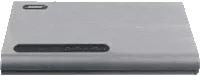
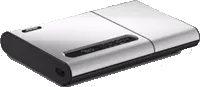
Connecting headphones to a Lifestyle multi-CD system.

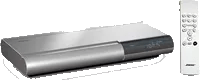
If the system is operated by a white remote control:
  • Insert the headphone connector into the 1/8-inch headphone input on the right side of the music center
  • Connecting headphones mutes the speakers
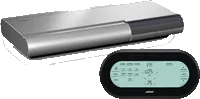
If the system is operated by a touch-screen controller:
  • Headphones cannot be connected to this system

In the computer and application sound settings, turn off any audio processing.

If the computer and your system are both processing audio, sound quality could be affected. Try turning off any audio processing in the computer and application sound settings (i.e. bass, treble, compression or other sound adjustments). Then, if needed, make slight adjustments.

Disable the bass-boost feature on your audio device.

Many portable audio devices have a bass-boost feature which electronically alters the audio signals (particularly bass frequencies) that are sent to the headphone jack. These bass-boost features are designed to overcome certain limitations of conventional headphones. For the best audio performance, disable the bass boost on the portable audio device

Bose headphones have patented technology that delivers full-range sound without any type of artificial electronic signal coloration. Leaving bass boost on may result in exaggerated bass and potential distortion at loud volumes.

Connecting headphones to a Lifestyle system with an MC-1 media console.

Insert the headphone connector into the 1/8-inch headphone jack on the right side of the media console. Connecting headphones mutes the speakers.

The airline adapter might not work with all in-flight audio systems.

Since the audio connections on in-flight entertainment systems can vary, the dual-plug airline adapter for your product might not plug-in. However, 1/8" (3.5 mm) connections are common and don't require an adapter. (Note: The quality of audio provided in-flight can vary.)

Connecting your headphones to a portable audio device.

Insert the headphone connector into the 1/8-inch (3.5 mm) headphone input on the portable audio device. For more information refer to the device manufacturer.

Connecting your headphones to a computer.

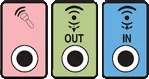
Insert the headphone cable connector into the 1/8-inch (3.5 mm) audio output jack on the computer. Here are some tips for finding the correct jack:
  • It might be labelled Audio Out, Line Out or Headphones. It could also have a headphones icon or an icon of an arrow pointing out of a circle
  • On PCs, it is typically a green colored jack
  • On Macs, it is typically a jack labelled with a headphones icon

Connecting headphones to a Lifestyle DVD system.

Insert the headphone connector into the 1/8-inch headphone jack on the right side of the media center. Please note: connecting headphones mutes the speakers

Connecting headphones to a Wave system

Insert the headphone connector into the 1/8-inch headphone input on the back of the radio. Note: Connecting headphones mutes the speakers.

Connecting headphones to an Acoustic Wave music system II.

  1. Insert the headphone connector into the 1/8-inch headphone input on the back of the radio
  2. Using the system control panel, set the audio output to "Headphones"
    1. Press and hold Menu until "–SETUP MENU–" is displayed
    2. Press Options until "HEADPHONES JACK:" is displayed
    3. Press Adjust to change the setting to HEADPHONES
    4. Press any button other than Menu or Play Mode to exit the setup menu. The system will automatically exit the setup menu after 10 seconds of inactivity
Note: Connecting headphones mutes the speakers

Connecting headphones to a Lifestyle single-CD system.

Entire Top of Music Center Opens

If the entire top of the music center console opens:

  • Insert the headphone connector into the 1/8-inch headphone jack on the right side of the music center
  • Connecting headphones mutes the speakers

Right Side of Music Center Opens

If only the right top of the music center console opens:

  • Insert the headphone connector into the 1/8-inch headphone input on the left side of the music center
    • With a CD5 or CD5V:
      • Connecting headphones mutes the Speakers A output but not the Fixed or Speakers B outputs
    • With a CD5V2:
      • Connecting headphones mutes the Speakers A and Fixed outputs but not the Speakers B output
Loading
Connecting headphones using an audio cable | Custom QuietComfort® 35 wireless headphones II