Was this helpful?
Noise cancellation is not working | QuietControl™ 30 wireless headphones
Do you hear static or distorted audio while in noisy environments?
In very loud settings—such as airplane takeoffs, concerts, emergency sirens, or construction zones—your headphones' noise-cancelling microphones can become overwhelmed, which may cause brief crackling or distortion. This can happen even in Quiet or Aware mode.
It’s similar to when someone talks too loudly into a phone—the sound gets distorted until they lower their voice. Your headphones react in the same way to intense external noise.
This is normal and doesn’t damage the product. To reduce it, try moving away from the loud source when possible. For example, on a plane, sitting farther from the engines can help.
Move away from any hard surfaces.
Reflected sound (caused by using the headset close to a hard surface – like a wall) will negatively affect noise cancellation.
See if the light next to the power button is lit.
If the battery indicator next to the power button on the inside right of the neckband is not lit, the headphones are off. (Note: It is normal for the Bluetooth® light to be off while the headset is on and in use.)
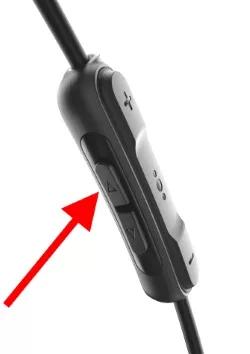
Use the inline remote buttons to adjust the noise reduction level.
The arrow buttons on the side of the inline remote turn up or down the amount of noise cancellation from 1 (lowest) to 12 (highest). Press or hold the Up and Down arrows to set the desired noise reduction level.

Check for and install any available product updates.
Visit btu.bose.com and follow the instructions to ensure your product has the latest features and enhancements. (Note: Regardless of the issue you are experiencing with your product, try updating.)
As of firmware version 1.1.9, CNC (Controllable Noise Cancellation) does not automatically change when a phone call is placed using HFP (Hands-Free Profile). CNC is still user-adjustable, however.
Prior to version 1.1.9, CNC automatically changed to step 4 when a phone call was placed using HFP. (Tip: CNC is adjustable from 1 - 12.)
As of firmware version 1.1.9, CNC (Controllable Noise Cancellation) does not automatically change when a phone call is placed using HFP (Hands-Free Profile). CNC is still user-adjustable, however.
Prior to version 1.1.9, CNC automatically changed to step 4 when a phone call was placed using HFP. (Tip: CNC is adjustable from 1 - 12.)
Check for and install any available product updates.
On a computer, visit btu.bose.com and follow the instructions to ensure your product has the latest features and enhancements. See Checking the software or firmware version and Updating the software or firmware of your product.
Make sure you are using the correct eartip size to ensure a proper and secure fit.
Using an eartip that is too big or small for your ears will affect audio quality and noise cancellation.
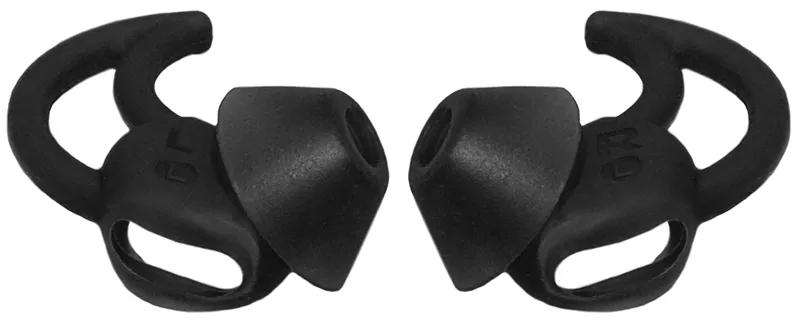
Make sure you are using StayHear+ eartips.
These headphones are designed specifically for use with StayHear+ eartips. Use of any other eartips, including original StayHear tips, will result in low audio, poor sound quality and/or reduced noise cancellation.
Your StayHear+ Tips should look like this:

Your StayHear+ Tips should look like this:
Be sure the openings on your headphones are clean and free of debris.
Check if anything is blocking any openings on your headphones, ear tips or the mesh grilles under the ear tips (i.e. ear wax, dust or other debris). For more info, see Cleaning ear tips and mesh grilles.
Reset your product.
Much like rebooting a smartphone, your product might need to be reset on occasion to correct minor issues. For more information, see Resetting your product.
Check if the battery is charged.
Be sure the battery is not depleted. For more info see, Checking the remaining battery charge and Charging your headphones.