Loading
Audio Artifacts | Bose QuietComfort Earbuds
bose-quietcomfort-earbuds
Bose QuietComfort EarbudsSold from 2024

Audio Artifacts | Bose QuietComfort Earbuds

How to reboot the QuietComfort Earbuds

  1. Insert the earbuds into your ears
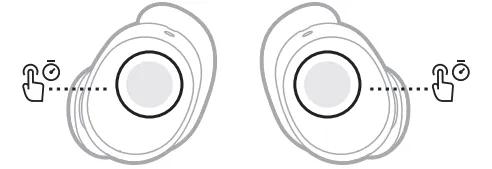
  2. Touch and hold each earbud for 15 seconds until you hear a tone.
    The earbuds power off.
    NOTE: Each earbud must be powered off individually.
    where to touch
  3. Hold each earbud for 1 second to power them on. Each earbud must be powered on individually.

Reboot the Bluetooth device you are trying to connect.

Electronics might need to be reset on occasion to correct minor issues. This is typically done by turning the device off, then powering it on again.

Determine whether the issue is with the earbuds or your source device

Before troubleshooting further, check that the problem is with your earbuds—not your phone or other Bluetooth device.

  • Stay within Bluetooth range
    Keep your earbuds within 33 feet (10 meters) of your device. If you're hearing distorted or choppy audio, try moving them closer together. Keep in mind that walls, doors, appliances, and other wireless devices can reduce this range.
  • Check your phone's signal (for call issues)
    If you're only having trouble during phone calls, check your phone's signal strength. Turning on Wi-Fi calling while connected to your home Wi-Fi can help. Or, wait until you have a better signal and try again.
  • Reduce wireless interference
    Other nearby wireless devices may interfere with your Bluetooth connection. Try turning off other devices one at a time to see if things improve. If that helps, try moving either your earbuds or the device to a different location.
  • Try a different app
    If the issue only happens in one app, try using another to see if the problem persists. Some apps may handle audio differently or have their own settings that affect playback quality.
  • Try playing audio that is stored locally
    If the audio is stored on the device, that can rule out a connection or buffering issue.
  • Try a different Bluetooth device
    If you're still having problems, try connecting your earbuds to another Bluetooth-enabled device. This can help confirm whether the issue is with the original device.

How would you describe the noise?

Squealing sound in one or both ears

Remove any form of headgear

Remove any form of headgear

Be sure you're wearing the earbuds correctly.

A proper fit is important for comfort and sound quality. If the earbuds are not worn properly or positioned incorrectly, audio and microphone performance may be affected. See Wearing and adjusting your earbuds for more details.

Remove the earbuds, place them in the case and then reinsert them into your ears.

Remove the earbuds, place them in the case and then reinsert them into your ears.

Hissing/static noise

Make sure you are in "Quiet" mode.

Check your settings in the app to make sure you are in "Quiet" mode not "Aware" mode. In "Aware" mode, external mics on the headset feed outside sounds into the headset and therefore can make other noises or the noise floor seem louder.
See Setting the adjustable Active Noise Cancellation mode.

A slight hiss from your product is normal.

A faint hum or hiss—often called a “noise floor”—can be present when using earbuds with built-in batteries and active electronics. This is a normal part of how this type of audio equipment works and is not a sign of a defect.

You may only notice it in very quiet environments, especially when the earbuds are powered on but no audio is playing. Since this is expected behavior, replacing the product will not eliminate the sound.

It is normal to have some intermittent crackling in excessively noisy environments.

In very loud settings—such as airplane takeoffs, concerts, emergency sirens, or construction zones—your headphones' noise-cancelling microphones can become overwhelmed, which may cause brief crackling or distortion. This can happen even in Quiet or Aware mode.

It’s similar to when someone talks too loudly into a phone—the sound gets distorted until they lower their voice. Your headphones react in the same way to intense external noise.

This is normal and doesn’t damage the product. To reduce it, try moving away from the loud source when possible. For example, on a plane, sitting farther from the engines can help.

Static or Distortion

Try disconnecting other nearby wireless devices that might interfere with Bluetooth® signal.

Some wireless devices can cause interference with a Bluetooth signal. 
Common examples include:-
  • 2.4 GHz router
  • cordless phone
  • wireless speaker adapters
  • home security motion sensors
  • fluorescent lights
  • microwaves
  • wireless mice and keyboards
If there are such devices, disconnect one at a time and check if the issue improves. If so, consider relocating your product or the device.

Check the equalizer settings in the Bose app.

Be sure the bass and treble adjustments are not set too high or too low for your preferences. For more info, see Using the Equalizer settings.

Check the EQ settings of the connected device.

Many devices (i.e. smartphones, tablets, laptops, etc.) have audio adjustments, like Bass, Treble or Loudness. In the device menu, look for audio or sound options. The, turn off or select the neutral setting for any related adjustments. This allows your Bose product to apply it's own audio processing. After, if you want to adjust audio further with the device audio options, try small adjustments.
Loading
Audio Artifacts | Bose QuietComfort Earbuds