Loading
Poor Sound Quality | Bose QuietComfort Ultra Headphones
bose-quietcomfort-ultra-headphones
Bose QuietComfort Ultra HeadphonesSold from 2023

Poor Sound Quality | Bose QuietComfort Ultra Headphones

In the Bose App, toggle multi-point on and off

If you have a multi-point connection, the secondary device could interrupt the audio stream on the primary device causing crackling, distortion or even pauses in audio.
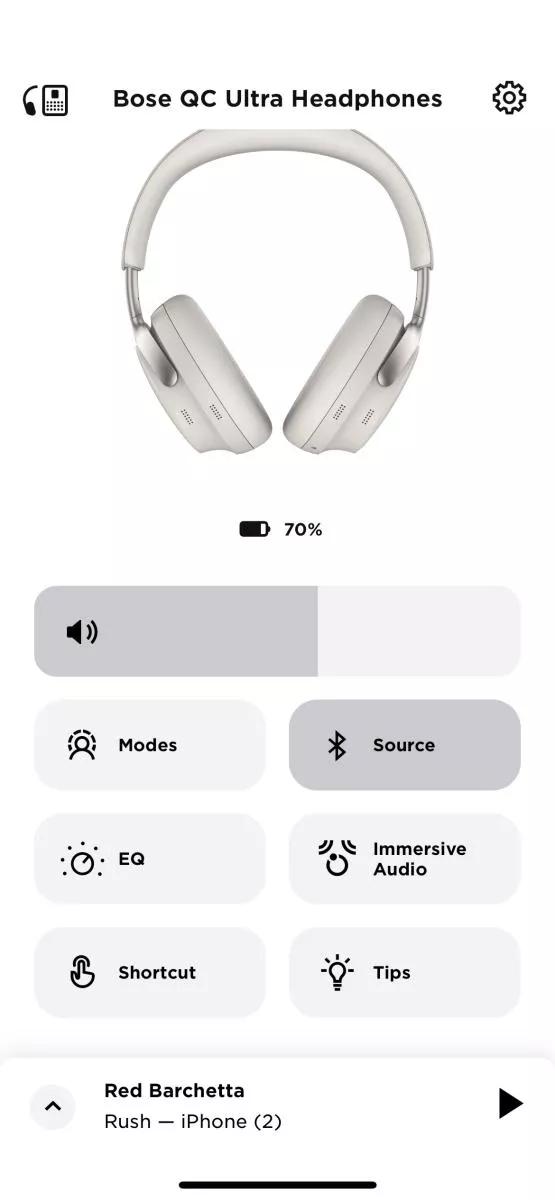
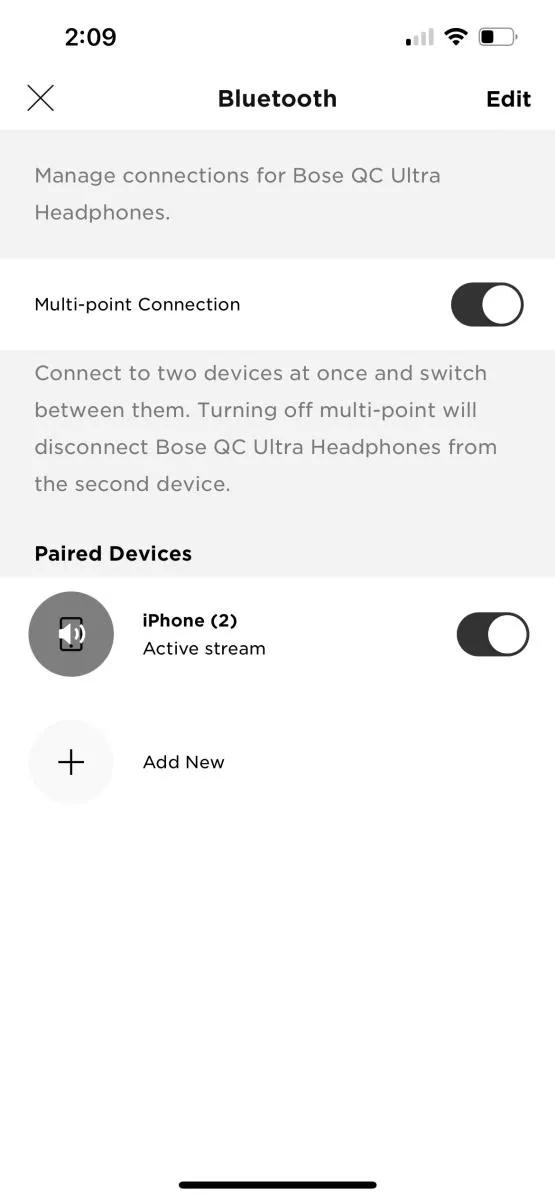
  1. In the Bose App, on the product main screen, tap Bluetooth Source.
  2. Toggle the Multi-point Connection on and off. 

Determine if the problem is specifically related to bass performance.

If there is too little bass, see Too little bass or too much treble from product.
If there is too much bass, see Too much bass or too little treble from product.

Do you hear static or distorted audio while in noisy environments?

In very loud settings—such as airplane takeoffs, concerts, emergency sirens, or construction zones—your headphones' noise-cancelling microphones can become overwhelmed, which may cause brief crackling or distortion. This can happen even in Quiet or Aware mode.

It’s similar to when someone talks too loudly into a phone—the sound gets distorted until they lower their voice. Your headphones react in the same way to intense external noise.

This is normal and doesn’t damage the product. To reduce it, try moving away from the loud source when possible. For example, on a plane, sitting farther from the engines can help.

Reboot your headphones.

This reset will not erase your product settings.
  1. If the USB charging cable or audio cable is connected to your headphones, disconnect it.
  2. Connect a USB charging cable and charger to a power outlet. You can also connect the USB cable to a USB port on a computer that is powered on.
    Note: Do not connect your headphones to the USB cable yet.
  3. On your headphones, press and hold the Power/Bluetooth® button.
  4. While continuing to hold the button, connect the USB cable to the left earcup. The Power light on your headphones will quickly blink twice.
  5. Once connected, wait two seconds and then release the Power/Bluetooth button.
    Tip: If your headphones don't respond after this, reset them a second time.

Try a different app.

If the issue only occurs with a particular app, it is likely related to the app or app settings.

Reboot the Bluetooth® device.

Electronics, such as cell phones, tablets or computers, might need to be reset on occasion to correct minor issues. This is typically done by shutting down the device, then powering it on again.

Check the EQ settings on your Bluetooth® device.

The EQ settings of your Bluetooth device can affect sound. On the device, try setting the EQ to "off" or "flat" and disabling any other sound playback adjustments (i.e. loudness, compression, reverb, etc.). These settings are commonly found in the device's audio settings or in the settings of the app being used to play audio.

If connected, bypass any adapters or extension cables.

If your product connects to the device using an extension cable or adapter, disconnect the extension cable or adapter to determine if the issue is related to it.

Check the condition of the headphone cable.

If the plug or any part of the cable is damaged, replace the headphone cable.
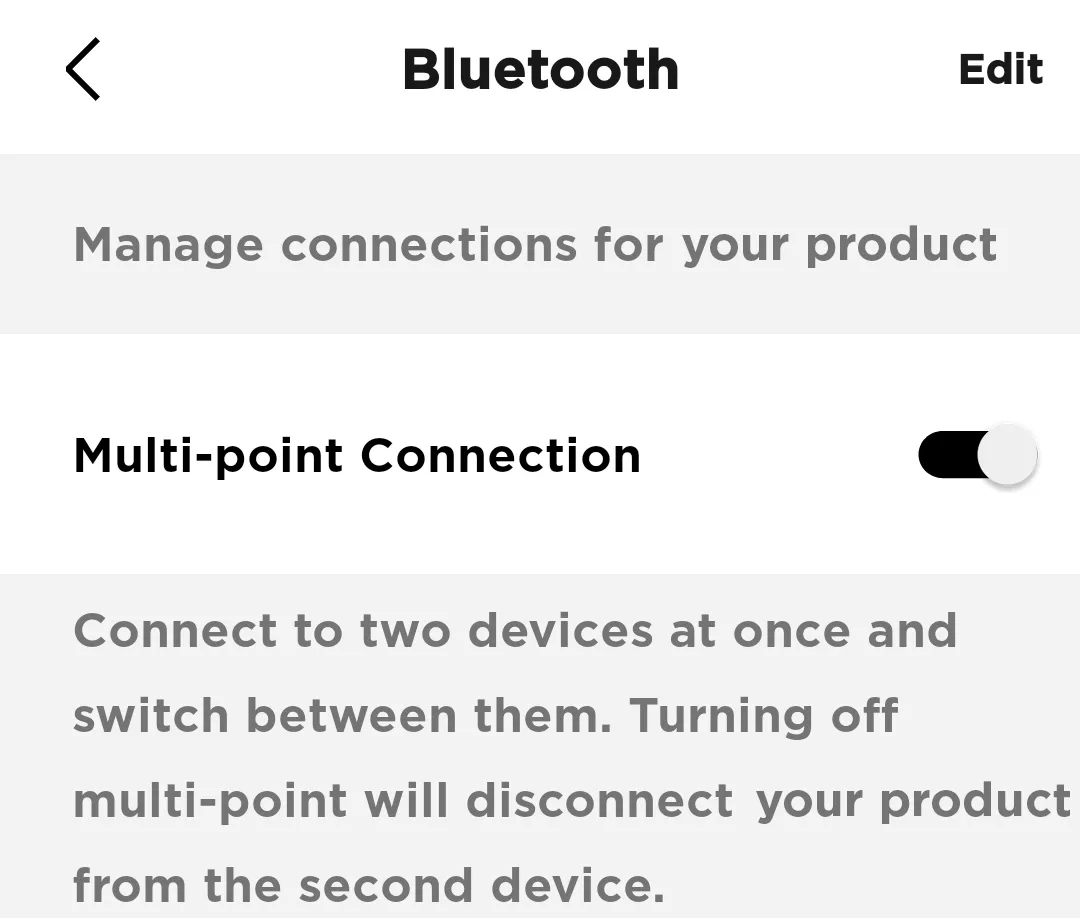
Try disabling the Multi-point connection in the app

If you find that notifications from your secondary device interrupt your listening experience on your primary device, you can turn off Multi-point.
In the Bose app, go to Settings>Bluetooth Connections and toggle Multi-point connection to 'off'. This will disconnect your secondary device.
Note: You will only be able to connect to one device at a time. If you want to connect to two devices simultaneously, toggle Multi-point connection back to 'on'
Loading
Poor Sound Quality | Bose QuietComfort Ultra Headphones