Loading
No picture from a connected video device | SoundDock® 10 system
sounddock®-10-system
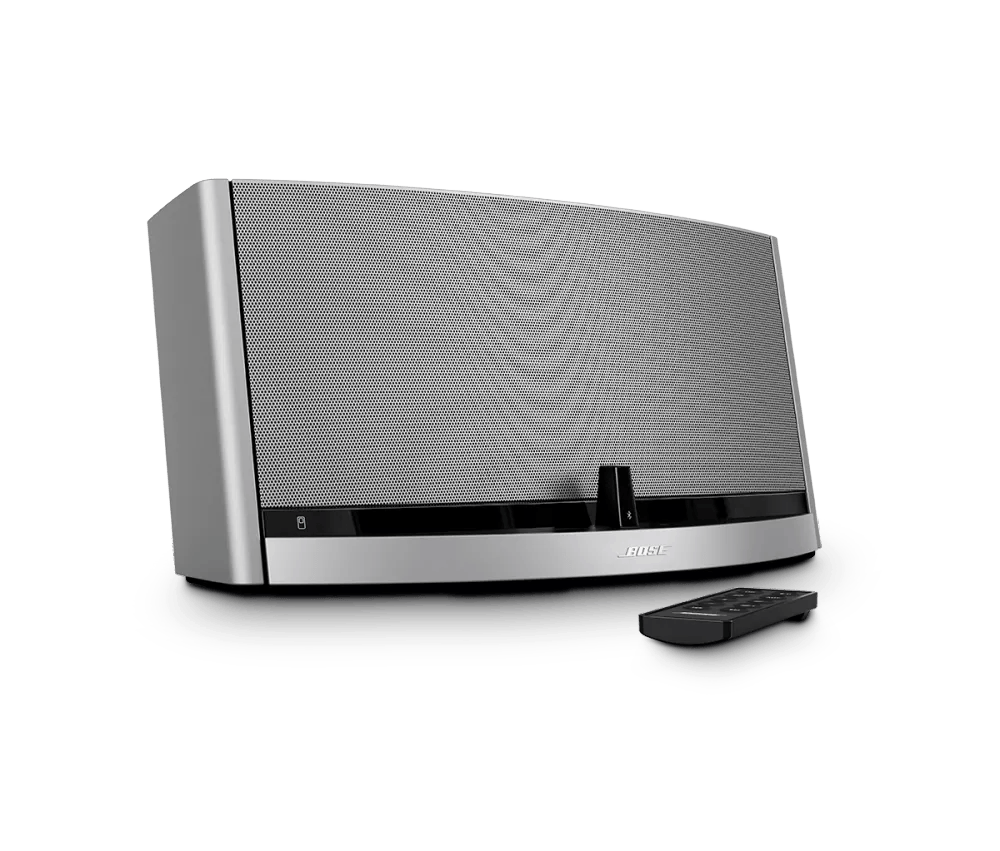
SoundDock® 10 systemSold from 2009 - 2013

No picture from a connected video device | SoundDock® 10 system

Which device is being used?

Cable box

Replace the video cable used to connect your product.

Try replacing the video cable that connects your product. If no issue occurs with the new cable, there was a problem with the original video cable.

Try connecting a different audio device.

If available, connect another audio device using the same cables and connections to determine if the issue is related to the first device or its settings.
Docked iPod

Dock the iPod/iPhone, then start playing the video.

When you iOS device is docked, it identifies the connected device and adjust settings as necessary (i.e. video settings). To avoid playback issues, dock your device before playing content on it.

Be sure a video file is playing on the iPod.

The docked iPod can only transmit video files stored on the iPod. iPhone 4 and iPod Touch 4th Generation (and newer models) will output Netflix videos and some third party apps in addition to stored videos. However, other iPod and iPhone versions will not send the image of the iPod menu or video played from a streaming source or application. For information on setting video output, see Setting iPod video output . For information on which third party apps will output video, see the information screen for that app

Note: A docked iPod Touch or iPhone will only display video though the Bose system. The video will not display on the device itself.

Make sure the iPod is compatible with the system.

Some iPod models are not compatible. See iPod/iPhone Compatibility and Functionality Information for information on compatible iPod models

If there is a case on your iPod/iPhone, try removing it.

A case or sleeve could prevent your device from docking securely. If using a case, remove it, re-dock your device, then try again.

Make sure the iPod or iPhone is firmly seated in its dock.

To produce audio and charge, the iPod or iPhone must be securely seated in the dock. Remove it and reseat it in the dock to ensure a secure connection. Some models will make a confirmation tone indicating that it has been docked properly.

Disconnect the iPod or iPhone from your product for 60 seconds.

Remove the iPod or iPhone from your system for 60 seconds, then re-dock it and try again.

Reset the iPod or iPhone.

Electronics might need to be reset from time-to-time—much like rebooting a computer. Power off the iPod or iPhone, power it back on, then try again.

Try a different iPod/iPhone.

If available, connect another iPod/iPhone to the dock to determine if the issue is related to the first iPod/iPhone.

If available, try a different iPod/iPhone dock.

If available, try the iPod/iPhone with another docking system to determine if there is an issue with the connector on the iPod/iPhone. If the same issue occurs on another dock, the issue is with the iPod/iPhone or its audio settings.
DVD or Blu-ray player

Replace the video cable used to connect your product.

Try replacing the video cable that connects your product. If no issue occurs with the new cable, there was a problem with the original video cable.

Try connecting a different audio device.

If available, connect another audio device using the same cables and connections to determine if the issue is related to the first device or its settings.
DVR

Replace the video cable used to connect your product.

Try replacing the video cable that connects your product. If no issue occurs with the new cable, there was a problem with the original video cable.

Try connecting a different audio device.

If available, connect another audio device using the same cables and connections to determine if the issue is related to the first device or its settings.
Game console

Replace the video cable used to connect your product.

Try replacing the video cable that connects your product. If no issue occurs with the new cable, there was a problem with the original video cable.

Try connecting a different audio device.

If available, connect another audio device using the same cables and connections to determine if the issue is related to the first device or its settings.
Satellite box

Replace the video cable used to connect your product.

Try replacing the video cable that connects your product. If no issue occurs with the new cable, there was a problem with the original video cable.

Try connecting a different audio device.

If available, connect another audio device using the same cables and connections to determine if the issue is related to the first device or its settings.
VCR or DVD recorder

Replace the video cable used to connect your product.

Try replacing the video cable that connects your product. If no issue occurs with the new cable, there was a problem with the original video cable.

Try connecting a different audio device.

If available, connect another audio device using the same cables and connections to determine if the issue is related to the first device or its settings.
Other connected video device

Replace the video cable used to connect your product.

Try replacing the video cable that connects your product. If no issue occurs with the new cable, there was a problem with the original video cable.

Try connecting a different audio device.

If available, connect another audio device using the same cables and connections to determine if the issue is related to the first device or its settings.

Was this article helpful?

YES
NO
START A REPAIR OR REPLACEMENT
Loading
No picture from a connected video device | SoundDock® 10 system