Loading
Cannot connect to Wi-Fi network during set up | SoundLink® Air digital music system
soundlink®-air-digital-music-system
SoundLink® Air digital music systemSold from 2012 - 2014

Cannot connect to Wi-Fi network during set up | SoundLink® Air digital music system

Close the Wi-Fi Setup Application and start over.

Restarting the setup application may resolve some connection issues. Close the application and disconnect the system from the computer and power. Wait 30 seconds, then open the setup application again and follow the on-screen instructions.

Be sure the correct network password is entered.

For secured wireless networks, check that the password is entered correctly (i.e. capital letters and spaces). If a computer is connected wirelessly to the network, it may be able to show the wireless network password. Try an internet search for your computer operating system to see if this is possible (i.e. search "how to view wi-fi network password on windows 10").

Determine if the network name or password contains non-alphanumeric characters.

Some early versions of the setup application did not accept special characters (~!@#$%^&)< or >. If non-alphanumeric characters are being entered, download the latest version ofthe Bose SoundLink Air Wi-Fi Setup Application for Windows or Mac, then try again.

Check to see if other devices on your network are using too much bandwidth.

When a device is active on your network, they use some of the available bandwidth of your router. Some tasks use more bandwidth than others—like video streaming, gaming, video calls, data backups, etc. If devices are performing these tasks, bandwidth can decrease for other devices. Turn off any device or app that might be using a lot of bandwidth, then check if performance improves. If possible, use an Ethernet cable instead of Wi-Fi to connect high-bandwidth devices to your network. This frees up wireless bandwidth for devices that need to be connected wirelessly.

Be sure the system is within range of the wireless router.

Regardless how close the streaming audio source is to the system, the SoundLink Air must be in range of the wireless router to receive a Wi-Fi signal. A successful connection is indicated by a solid blue Wi-Fi indicator on the front of the SoundLink Air. If the Wi-Fi indicator is not solid blue, move the system closer to the router to increase the Wi-Fi signal strength and establish connectivity.

Reboot your router.

Routers may need to be reset from time to time—much like rebooting a computer. Disconnect power from the router for 30 seconds, then wait for it to start up and connect. (Note: Any device connected to the Internet will be interrupted during the reset.)

MAC filtering may be in use on the network.

If MAC filtering has been enabled, the MAC address of the SoundLink Air will need to be added to the list of devices that are allowed to connect to the network. See Determining the MAC address for more information.

On Apple routers, such as the AirPort Extreme, AirPort Express and Time Capsule, the Airport utility refers to MAC filtering as "access control" - to avoid confusion with the term Mac computer.

.

Do not set your router to N / 5 GHz-only mode.

In N / 5 GHz mode, the router will not connect G / 2.4 GHz devices. In the router settings, select Wireless N (B/G compatible) or Mixed mode (or something similar).

In the router settings, try selecting a different channel.

If multiple wireless devices on the network are communicating on the same channel, it could affect how effectively those devices can transmit and receive data. Log in to the router and, in the settings menu, select a different channel—like 1, 6 or 11 since these channels do not interfere with one another. If you don't notice a difference, you can always change back the channel.

Determine the DHCP server / Dynamic IP / Automatic IP configuration setting of the router.

The DHCP server in the router manages IP addresses of connected devices. Typically DHCP is enabled so devices can easily connect to the network and avoid trying to use an IP address already in use. If DHCP is disabled in the router settings, enable it and try again. (Note: If devices on the network are set to a specific / static IP address, they also may need to be set to obtain a dynamic IP address before they reconnect.)

If using WEP for wireless security on your router, temporarily disable security and check if performance improves.

WEP is an older protocol that could affect performance. If your disable WEP in the router settings and the issue improves, switch the router to a different security type. After, you'll likely need to reconnect all of your wireless devices (i.e. smartphones, compuer, smart TV, etc.) to your network. To reconnect your Bose system, see Connecting to a Wi-Fi network.

Determine if a limit has been set for the number of devices that can connect to your router.

In the router settings, check if the router is set to only allow up to a certain number of devices to connect to the network (this setting is often labelled DHCP Limit/Range). If there is a limit, remove or increase it to accommodate the number of devices that will be on the network.

Install any updates for your router.

In the router settings menu, there is typically an option to check for updates. If updates are available, install them to ensure the router is running with the latest available enhancements.

If the router settings were changed during troubleshooting, be sure to reboot the router.

Some routers may not apply certain changes until they are rebooted. Unplug the router for 30 seconds, wait for it to start up, then try again.

Reset the system and restart the set up process

  1. Close the Wi-Fi Setup Application
  2. Remove the USB cable connection between the SoundLink Air and computer
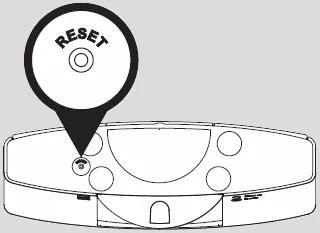
  3. Press and hold the Reset button on the bottom panel until the Wi-Fi LED changes from solid amber to off; this will take 10 to 15 seconds

    Reset button on the on bottom of the SoundLink Air
  4. When the reset is complete, the Wi-Fi indicator should blink amber. If it does not, the reset was not performed successfully
  5. Reopen the Wi-Fi Setup Application
  6. Only reconnect the USB cable between the SoundLink Air and computer when instructed by the application
  7. In the 'Select your Wi-Fi network' portion of the application, be sure the correct network name is being selected. If SoundLink Air is appearing in this list, do not select it
  8. Complete the set up as normal

If you are unable to connect to Wi-Fi using the Bose app, try an alternate connection method.

If your product cannot connect to your network using the normal setup method in the Bose app, try an alternate method. For more info, see Connecting to a Wi-Fi network.

If a a Wi-Fi network extender or repeater is in use, try bypassing it.

If your system is connected to a network range extender, unplug the extender so your system connects directly to the router. (Note: The extender is likely connected because your system is not within range of the router. So, to test, you might need to move the system closer to the router.) When the Wi-Fi light on your system glows solid white to show it is connected, check if the issue is resolved. If so, the issue is related to the extender or its settings.

Check for sources of wireless interference.

It's possible that interference from other wireless devices are affecting the wireless functionality of your product. Check for other wireless devices in the area of your product (i.e. another router, cordless phone, wireless printer, smart TV, etc.). To determine if a device might be interfering, try unplugging its power cord or disabling Wi-Fi on the device. If the issue is resolved when a particular device is removed, try placing that device farther away from your product, if possible. Additionally, if the device has a wireless channel setting, try a different channel.

Reposition your speaker.

Wireless signal range from your router can be reduced by obstructions, like walls and door. Try relocating your speaker—or just rotating it—then check if reception improves.

Try connecting to another network.

If available, try connecting the system to another wireless network. This might require bringing the system to another location. Doing so will help determine if the cause of the issue is related to the network hardware (or its settings), or to the hardware of your Bose system. If the issue is not with your Bose system hardware, having the system serviced will not resolve the issue.
Loading
Cannot connect to Wi-Fi network during set up | SoundLink® Air digital music system