Loading
Intermittent or poor signal from connected Wi-Fi network | SoundLink® Air digital music system
soundlink®-air-digital-music-system
SoundLink® Air digital music systemSold from 2012 - 2014

Intermittent or poor signal from connected Wi-Fi network | SoundLink® Air digital music system

Determine if the either the Setup Application or the Alternative Setup Method was attempted.

If the system was never configured to connect to the Wi-Fi network, see Connecting to a Wi-Fi network.
If the process using the application was attempted but the system could not connect, see Cannot connect to Wi-Fi network during set up.

Be sure the system is within range of the wireless router.

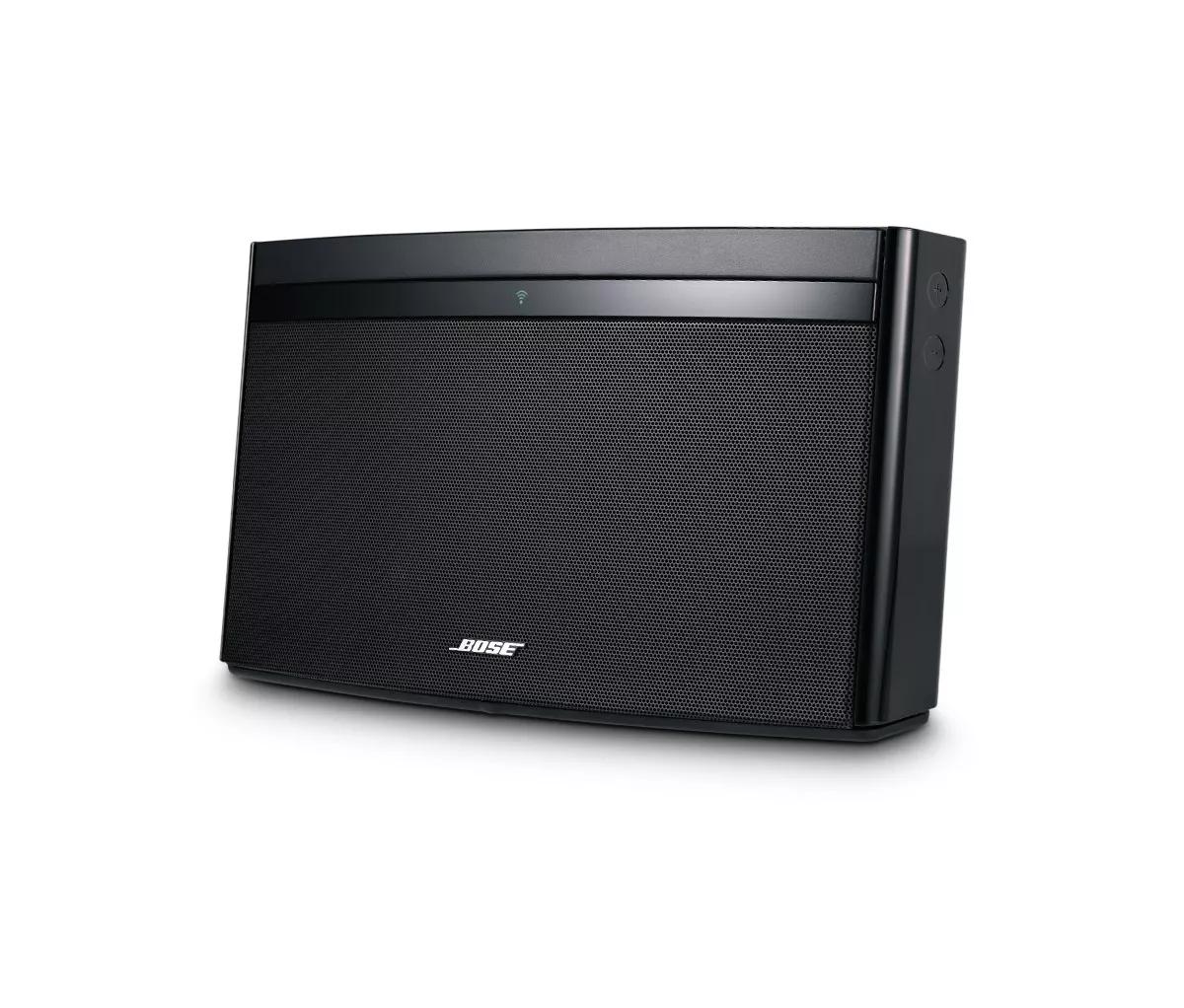
Regardless how close the streaming audio source is to the system, the SoundLink Air must be in range of the wireless router to receive a Wi-Fi signal. A successful connection is indicated by a solid blue Wi-Fi indicator on the front of the SoundLink Air. If the Wi-Fi indicator is not solid blue, move the system closer to the router to increase the Wi-Fi signal strength and establish connectivity.

Reposition your speaker.

Wireless signal range from your router can be reduced by obstructions, like walls and door. Try relocating your speaker—or just rotating it—then check if reception improves.

Determine if there are more than four AirPlay destinations on the same network.

If more than four devices are being used for AirPlay on the same network, the number of destinations will need to be reduced to four or less in order to preserve AirPlay system performance.

Do not use AirPlay product in the same location as a Bose AL8 system.

Due to the fact that the AL8 system and AirPlay are both wireless audio transmission services operating in the 2.4GHz frequency range, using these products together is not recommended. If use of these two products together cannot be avoided, place them as far apart as possible, or disconnect the power to the system not in use if it presents an issue.

Check to see if other devices on your network are using too much bandwidth.

When a device is active on your network, they use some of the available bandwidth of your router. Some tasks use more bandwidth than others—like video streaming, gaming, video calls, data backups, etc. If devices are performing these tasks, bandwidth can decrease for other devices. Turn off any device or app that might be using a lot of bandwidth, then check if performance improves. If possible, use an Ethernet cable instead of Wi-Fi to connect high-bandwidth devices to your network. This frees up wireless bandwidth for devices that need to be connected wirelessly.

Reboot your router.

Routers may need to be reset from time to time—much like rebooting a computer. Disconnect power from the router for 30 seconds, then wait for it to start up and connect. (Note: Any device connected to the Internet will be interrupted during the reset.)

Install any updates for your router.

In the router settings menu, there is typically an option to check for updates. If updates are available, install them to ensure the router is running with the latest available enhancements.

In your router settings, try disabling DHCP Leasing.

DHCP Leasing limits the amount of a time a device can connect to the network. When enable, a device can connect to your network and, after a set amount of time, it will be disconnected from the network. To prevent this, go into the router settings and increase the DHCP lease time, or disable DHCP Leasing.

In the router settings, try selecting a different channel.

If multiple wireless devices on the network are communicating on the same channel, it could affect how effectively those devices can transmit and receive data. Log in to the router and, in the settings menu, select a different channel—like 1, 6 or 11 since these channels do not interfere with one another. If you don't notice a difference, you can always change back the channel.

Determine if a limit has been set for the number of devices that can connect to your router.

In the router settings, check if the router is set to only allow up to a certain number of devices to connect to the network (this setting is often labelled DHCP Limit/Range). If there is a limit, remove or increase it to accommodate the number of devices that will be on the network.

If the router settings were changed during troubleshooting, be sure to reboot the router.

Some routers may not apply certain changes until they are rebooted. Unplug the router for 30 seconds, wait for it to start up, then try again.

Check for sources of wireless interference.

It's possible that interference from other wireless devices are affecting the wireless functionality of your product. Check for other wireless devices in the area of your product (i.e. another router, cordless phone, wireless printer, smart TV, etc.). To determine if a device might be interfering, try unplugging its power cord or disabling Wi-Fi on the device. If the issue is resolved when a particular device is removed, try placing that device farther away from your product, if possible. Additionally, if the device has a wireless channel setting, try a different channel.

If in an area of poor Wi-Fi signal, try a network range extender to improve signal.

Wi-Fi extenders and power line adapters can help to extend network range into areas of poor connectivity. Wi-Fi extenders connect to the Wi-Fi network and are placed about halfway between the router and the area where connectivity is desired. Power line extenders are a pair of adapters that allow connectivity using existing electrical wiring in a home: One adapter connects to the router and a nearby power outlet; the other adapter connects to an outlet in the area where connectivity is desired and, depending on the adapter, provides either Ethernet or wireless connectivity.

Try connecting to another network.

If available, try connecting the system to another wireless network. This might require bringing the system to another location. Doing so will help determine if the cause of the issue is related to the network hardware (or its settings), or to the hardware of your Bose system. If the issue is not with your Bose system hardware, having the system serviced will not resolve the issue.

Was this article helpful?

YES
NO
START A REPAIR OR REPLACEMENT
Loading
Intermittent or poor signal from connected Wi-Fi network | SoundLink® Air digital music system