Was this helpful?


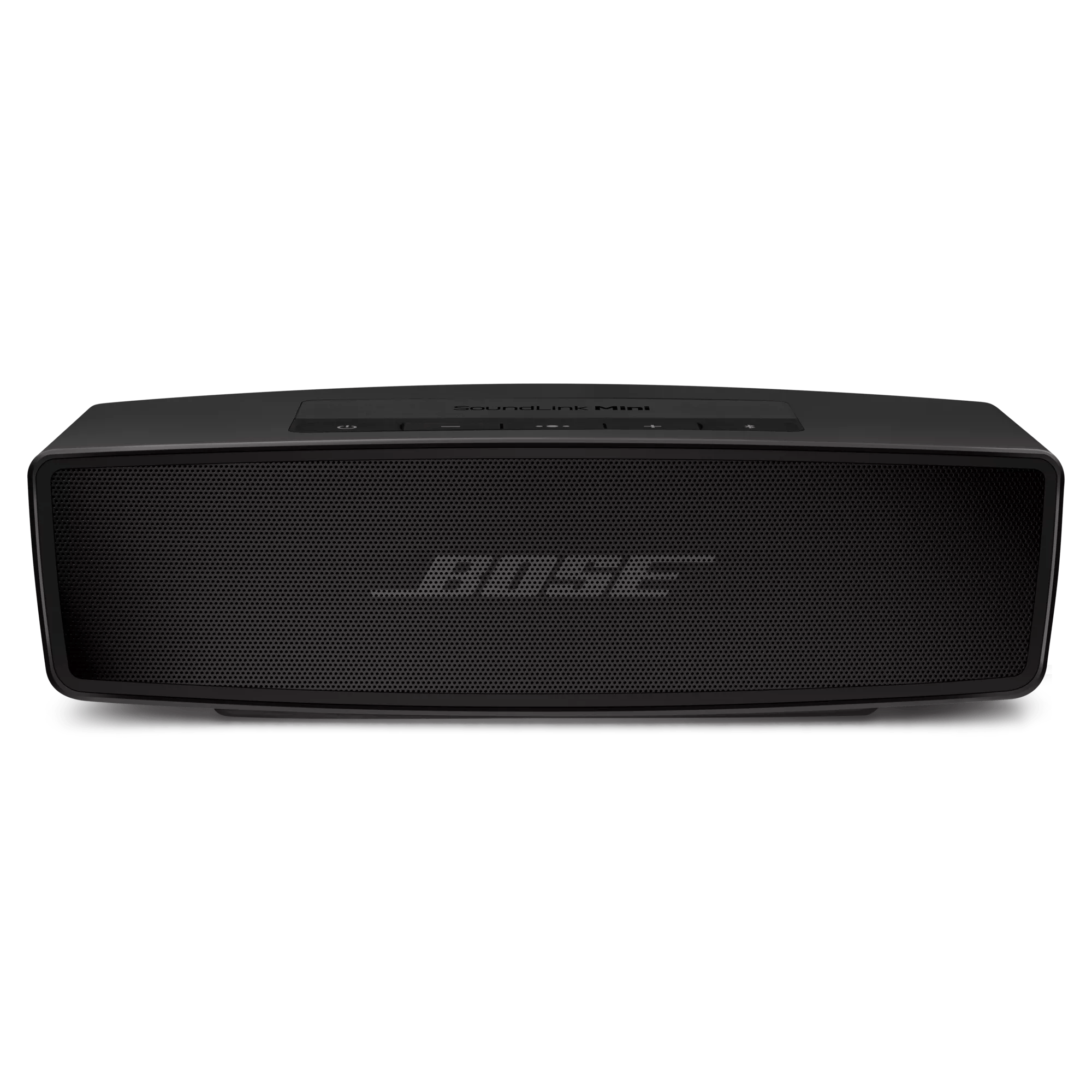
To turn your product on or off, quickly press and release the Power button 
Using the original Bose power supply is recommended to ensure your speaker receives adequate power. In some cases—such as after a long period of non‑use—the speaker may enter protection mode and require the full 5 V DC, 1.6 A output to power on. Verify that the power supply you are using meets these requirements.
Check the text on the USB charger for its amp (A) or milliamp (mA) rating, as this varies between chargers, including those supplied with different Bose products. Chargers with higher amp ratings (up to the product’s maximum) will recharge the product more quickly. If the charger’s output is too low, the product may recharge slowly or not at all.
Refer to the product specifications or owner’s guide for the required power rating. Some products need a minimum of 1 amp to recharge, while many computer USB ports provide only 0.5 amps, which may be insufficient.
Always use a safety‑agency‑approved power supply that meets local regulatory requirements (such as UL, CSA, VDE, or CCC).
Disconnect and reconnect the USB charging cable at both ends, making sure it is firmly seated. After reconnecting, allow at least one hour for the speaker to charge.
If the issue continues, try a different USB cable to determine whether the original cable is faulty.
The bottom of the speaker may not be connecting properly with the metal contacts on the charging cradle. Try removing the speaker and inspect the metal contacts. If you suspect the contacts may be dirty, disconnect the speaker and cradle from power, then clean the contacts using a cloth with a small amount of isopropyl alcohol.
When reconnecting the speaker, do your best to align the metal contacts on the bottom of the speaker with those on the charging cradle. This will ensure the speaker is sitting correctly in the cradle.Disconnect the charging cable from the charging cradle then connect the cable directly to the speaker. If the speaker begins charging, there may be an issue with the cradle. Determine the Warranty or Rapid Response status and see Service Options for details.
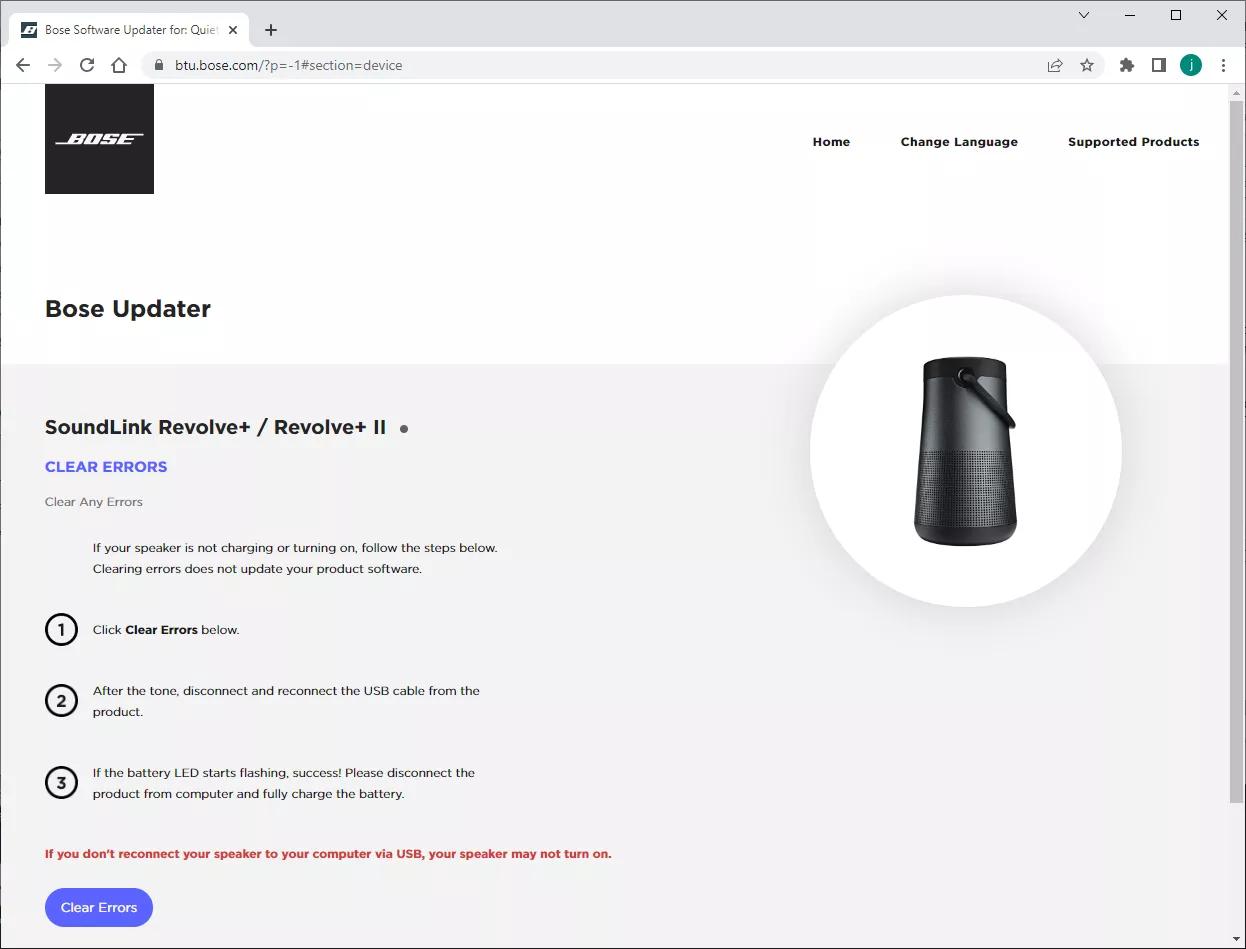
If these steps do not resolve your issue, please click Start Repair or Replacement below to explore your available options.
Note: If you are unable to provide a valid Serial Number or Date of Manufacture code for your product, we are not able to process any repair, exchange or trade in transactions.
Bose Customer Support can still provide troubleshooting support if required.
If you need help locating your serial number, please refer to the Serial Number Location article for your product, which provides instructions on where to find it.
.png)


