Was this article helpful?
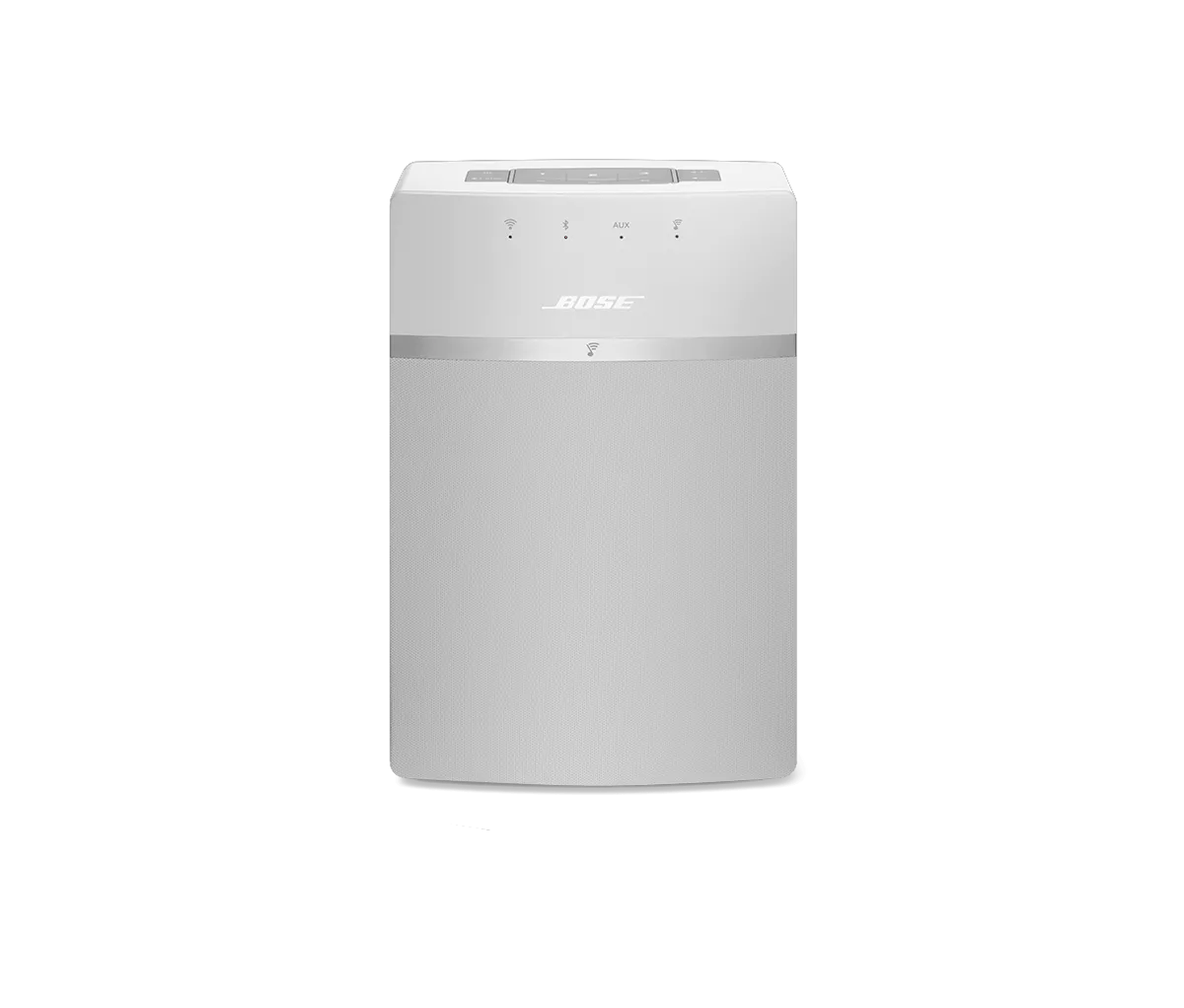
Cannot connect to network during set up | SoundTouch® 10 wireless speaker
Be sure the correct network password is entered.
For secured wireless networks, check that the password is entered correctly (i.e. capital letters and spaces). If a computer is connected wirelessly to the network, it may be able to show the wireless network password. Try an internet search for your computer operating system to see if this is possible (i.e. search "how to view wi-fi network password on windows 10").
Make sure the network name does not have any spaces or other extra characters.
Determine the name of the network (SSID). If there are extra spaces or other characters in the name, go to your router settings and delete the spaces or characters. For more info, see Determining the connected Wi-Fi network of a computer. If the network name is changed, you will need to reconnect all devices to the new network name.
Be sure the system is close to a strong Wi-Fi signal.
To connect to your network, your system must be within the range a wireless router or access point. The Wi-Fi indicator on your system glows solid white when connected. If it's not white, try moving the system closer to the router or in a different area where the Wi-Fi signal may be stronger.
Note: Obstructions, like walls, metal, doors, etc., can reduce Wi-Fi signal strength.
Disable any network connection assistance features on the mobile device.
Some mobile devices will automatically switch to cellular data if they determine the Wi-Fi connection is weak or is not connected to the Internet.
On iOS 9.0.1 or newer:
- Go to Settings.
- Select Cellular.
- Turn off "Wi-Fi Assist".
- Go to Settings.
- Select Wi-Fi & internet (or Network & internet).
- Select Wi-Fi.
- At the bottom of the network list, select Wi-Fi preferences.
- Turn off the setting that 'switches to mobile data when Wifi is not available'. This may be called "Smart network switch", "Smart Wi-Fi switcher", or something similar as the name of this feature varies by manufacturer and Android version.
Reboot your router.
Routers may need to be reset from time to time—much like rebooting a computer. Disconnect power from the router for 30 seconds, then wait for it to start up and connect. (Note: Any device connected to the Internet will be interrupted during the reset.)
If your router broadcasts more than one network (i.e. 2.4 GHz, 5 GHz, Guest), give the networks different names.
Many routers broadcast multiple networks, like a 2.4 GHz network, a 5 GHz network, and a guest network. If you see multiple networks with the same name when connecting a device to Wi-Fi, some devices might not be connected to the expected network.
In your router settings, try temporarily disabling the 5 GHz network and guest network. If the issue is resolved by using only the 2.4 GHz network, rename he 5 GHz network and guest network to something different than the 2.4 GHz network (i.e. MyNetwork2G, MyNetwork5G. and MyNetworkGuest). This will help you and your devices identify the correct network. (Tip: If you rename a network, any devices that were connected to the previous network name will need to be reconnected to the new network name in the device settings menu.)
If using the PC/Mac app, add exceptions for SoundTouch in any antivirus or firewall software.
If the firewall or security software on your computer prompts you to allow access to SoundTouch, allow access. If you deny access, SoundTouch system and software functaionality will be limited. If you already denied access, you can try uninstalling the SoundTouch app, reinstalling it, and then allowing accessing when prompted after opening the app again. If you are not prompted, go to the settings of your security software and add the SoundTouch app and SoundTouch music server as programs that the software should not block.
In the router settings menu, look for and adjust the following settings as noted:
Note: Before making any changes to the configuration of your router, note the current settings in case you need to revert changes that are unsuccessful.
Recommended router settings for Bose product compatibility
- UPnP: Enable
- Multicast: Enable
- IGMP: Enable
- Wireless Isolation: Disable
- IGMP Proxy: Disable
- IGMP Snooping: Disable
- Wi-Fi Radio or Radio Mode: Mixed or B/G/N
- Stealth mode: Disable
- MAC Filtering/Access Control: Disable, or add the Bose system MAC address to allowed devices list
- WPS: Disable
- WAN IP Blocking: Disable
Recommended router settings for Bose product performance
- Wireless channel: Fixed (select a specific channel); Auto-Channel selection is not recommended
Standard Wi-Fi uses 11 channels. Selecting the best channel might require trial and error. Choose channel 1 or 11 and observe the system to see if performance improves. If it does not, try the other channels until performance does improve
- Security type: WPA-2(PSK) with AES Encryption
Some routers offer a mixed security mode of WPA (TKIP)/WPA-2 (AES) for compatibility with older products. Choose WPA-2 only if no networked devices depend on WPA or mixed mode. If unsure whether or not other networked devices will be affected, note the current security setting, switch to WPA-2 and try all other networked devices. If necessary, return to the previous security setting
- WMM: Disable
This setting is intended to optimize streaming services but typically gives priority to voice or video streaming, which can negatively impact audio streaming or reserve bandwidth for voice or video devices even if they are off. Although disabling WMM is recommended, on some routers, enabling WMM improves performance. If WMM is disabled on the router and issues are experienced with your Bose product, enable WMM and check for improvement
- Dual-Band (2.4 GHz and 5 GHz) SSID: Name both differently.
With routers that broadcast more than one network, give the networks distinct names. If your networks have the same name, products on the networks might not know the difference with the identical names. This can cause them to intermittently disconnect and reconnect while trying to switch between networks. To prevent this, for example, if the router offers a 2.4 GHz network and a 5 GHz network, name one "MyNetwork2.4" and name the other "MyNetwork5.0."
In the router settings, try selecting a different channel.
If multiple wireless devices on the network are communicating on the same channel, it could affect how effectively those devices can transmit and receive data. Log in to the router and, in the settings menu, select a different channel—like 1, 6 or 11 since these channels do not interfere with one another. If you don't notice a difference, you can always change back the channel.
Restore the system to its factory defaults and restart the set up process.
For more info, see Resetting your product.