Loading
Music service is unavailable | SoundTouch® 30 Wi-Fi® Music System
soundtouch®-30-wi-fi®-music-system
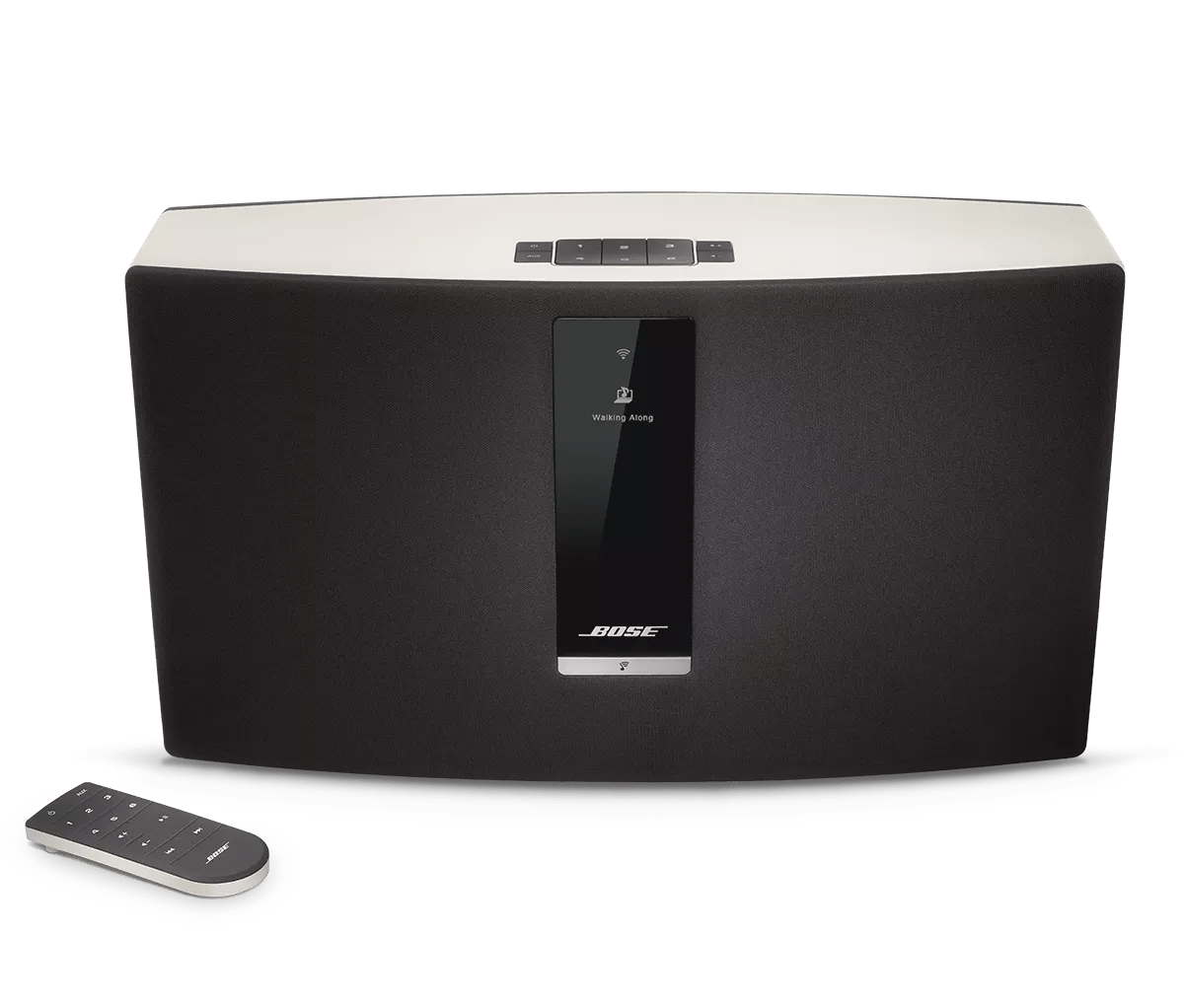
SoundTouch® 30 Wi-Fi® Music SystemSold from 2013 - 2014

Music service is unavailable | SoundTouch® 30 Wi-Fi® Music System

Close and re-open the Bose app.

Closing an app varies by device and operating system. Common methods for mobile devices are shown below:

On iOS devices:
  1. Depending on your iOS device, either double-tap the Home button or swipe up from the bottom center of the screen to view active apps
  2. Swipe left or right to find the app you want to close
  3. Swipe up on the app to close it.
On Android devices:
  1. On the home screen, press and hold the app icon
  2. Tap App info from the pop-up that appears
  3. On the App Info screen, tap Force Stop.

Reset your product.

Much like rebooting a smartphone, your product might need to be reset on occasion to correct minor issues. For more information, see Resetting your product.

Determine if the issue occurs with the service's own app or website and check the service's website for alerts.

The issue may be due to a problem with the music service itself. Close the Bose app and open the music service's app or website to determine if the issue is present using the service directly, without Bose. Additionally, check the service's website for information on maintenance or other 'service unavailable'-related messaging.

Refer to the website of the radio station to determine if they do provide streaming.

  • If they do, try searching for the station using other names, slogans or abbreviation found on the website; station call letters and frequency are not always used as the title of a station's internet equivalent
  • If there is no reference to internet radio or to the ability to 'listen online', it is likely the station does not have an internet streaming equivalent

Determine if the station is located outside of your country or region.

Station availability can vary from location to location. Some stations may only provide their content to users within their country or region. Location restrictions may be detailed on the station's website.

Only Deezer Premium+ accounts are supported.

Note: After upgrading to Deezer Premium+, if can take up to 18 hours for the upgraded account to activate.
  • Free non-premium accounts within the US can browse Deezer content but cannot play it. Content shown for free accounts will appear grayed out and be unselectable.
  • Free non-premium accounts outside the US can access personalized radio and 30-second track preview.

Not all stations that provide streaming are available in the app.

Due to licensing restrictions or quality of service issues, some stations are not available for streaming through the SoundTouch App. Restrictions such as these apply to stations owned by Townsquare Media.

Try playing the station using the music service website or app.

Get the app for the music service or go to the music service web site, then search for the station. If you cannot find or cannot play the station from the music service website or app, there is an issue with that station stream.

Temporarily disable any security/anti-virus or firewall software running on the computer.

Depending on the configuration of the security and/or firewall settings, the service's access may be blocked. To determine if this is the issue, temporarily disable any security or firewall software and retest. Note which firewalls have been disabled.

If this resolves the issue, inform the customer that they will need to allow the service access through the firewall. For more information, see the Firewall Information site.

Re-enable the firewalls that were noted as disabled before continuing.

If using the PC/Mac app, add exceptions for SoundTouch in any antivirus or firewall software.

If the firewall or security software on your computer prompts you to allow access to SoundTouch, allow access. If you deny access, SoundTouch system and software functaionality will be limited. If you already denied access, you can try uninstalling the SoundTouch app, reinstalling it, and then allowing accessing when prompted after opening the app again. If you are not prompted, go to the settings of your security software and add the SoundTouch app and SoundTouch music server as programs that the software should not block.

Reboot your router.

Routers may need to be reset from time to time—much like rebooting a computer. Disconnect power from the router for 30 seconds, then wait for it to start up and connect. (Note: Any device connected to the Internet will be interrupted during the reset.)

If the router settings were changed during troubleshooting, be sure to reboot the router.

Some routers may not apply certain changes until they are rebooted. Unplug the router for 30 seconds, wait for it to start up, then try again.

Determine if the issue is related to the router firewall configuration.

IMPORTANT: Firewalls provide protection between a network and the Internet. Before trying this suggestion, consider whether or not it is safe to temporarily disable the firewall. If there are no concerns, try the following.
Log in to your router and, in the router settings, disable the router firewall. If performance improves while the firewall is disabled, the issue could be related to the firewall configuration. Re-enable the firewall, then review the available firewall settings in your router menu.

Log into the router's setting menu and Enable UPnP. If it is already enabled, turn the setting off and then back on.

UPnP needs to be enabled for networked devices to communicate with one another.

Was this article helpful?

YES
NO
START A REPAIR OR REPLACEMENT
Loading
Music service is unavailable | SoundTouch® 30 Wi-Fi® Music System