Loading
Updating the software or firmware of your product | Bose Music Amplifier
bose-music-amplifier
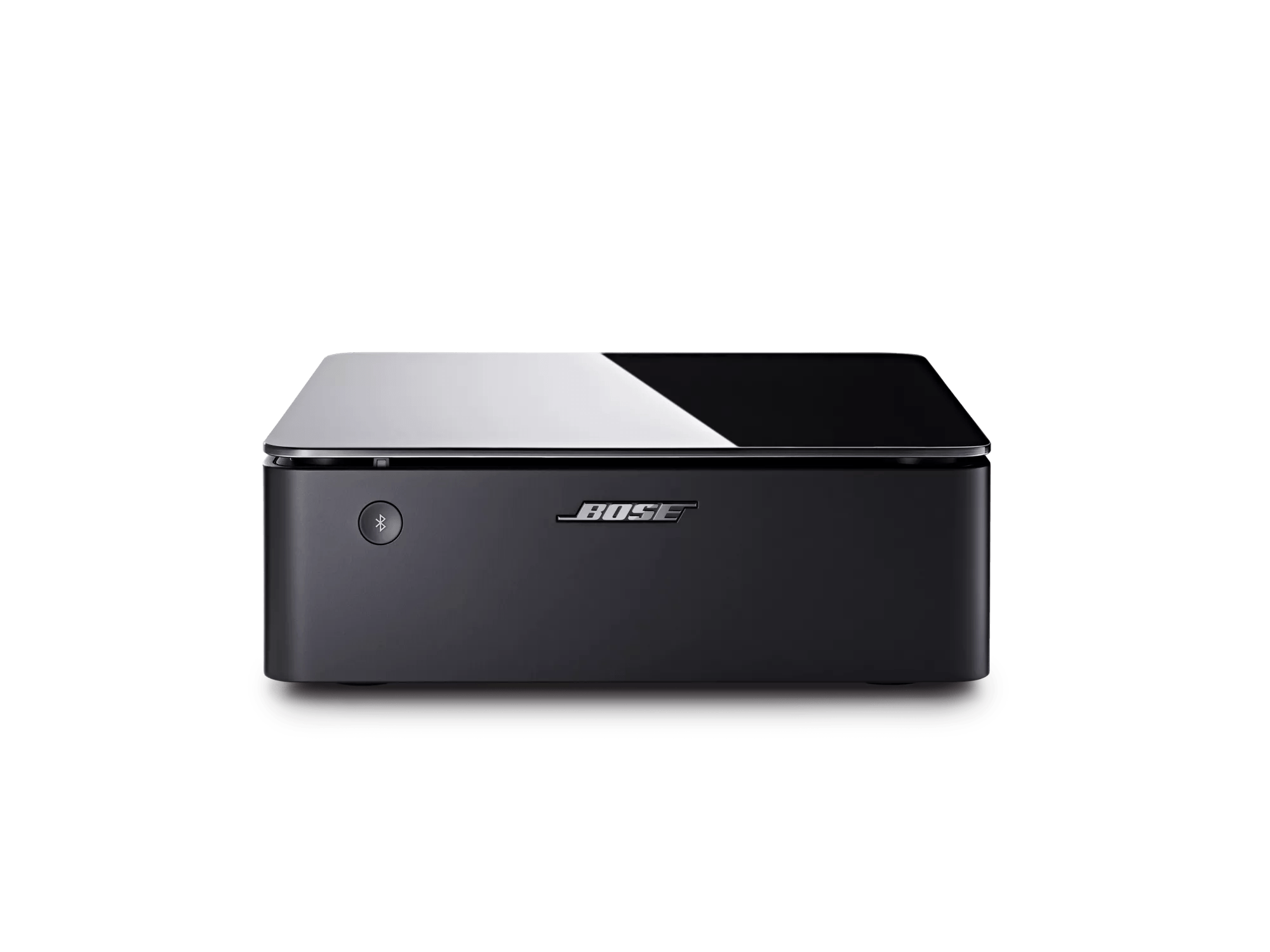
Bose Music AmplifierSold from 2022

Updating the software or firmware of your product | Bose Music Amplifier

When an update is available, the amplifier updates itself automatically overnight when it is not in use.

  • Software updates to the amplifier occurs in two phases: 1) Download and 2) Install
  • An update will be designated by Bose as either a) deferred or b) mandatory
  • A mandatory update is installed as soon as it is downloaded
  • A deferred update may download at any time but it will only install on an amplifier that is not in use between 2 AM and 5 AM local time. The local time is obtained from the device running the Bose app that set it up.
  • When an amplifier connected to the Internet checks for an update, it will determine if the update is mandatory or deferred. It is possible for the same firmware release to be mandatory for some products, while deferred for another.

The Download Phase

An amplifier will do an over-the-air software availablity check once every 24 hours. The 24-hour timer begins from the time it was last connected to power. If an update is available, regardless of whether its mandatory or deferred, the amplifier will download the update in the background. There will be no interruption of amplifier operation during the download phase.

The Install Phase

  • If an update is designated as mandatory, the amplifier will install it immediately after completing the download. If the amplifier is in use during this time, it will stop playing sound, the status LED on the back of the amplifier will blink white (indicating an update is installing), and the amplifier may not be useable for up to 25 minutes (depending on the size of the update).
  • If an update is designated as deferred, the update will begin the next time the amplifier is idle (no audio playback, no active signals from a connected source, and no use for 30 minutes) between 2 AM and 5 AM local time. For an amplifier that was not idle during this window of time for two days, the update will install five minutes after the amplifier has been turned off. During this time, the Bose app will show the product as "Offline" in the My Bose screen.

Troubleshooting

If an amplifier has not installed an update 24 hours after it was made available, make sure it is on a network connected to the Internet and not in use during early morning hours.

Additional Update Methods

Updating using a computer and USB cable

To update your amplifier using a computer and a USB cable:

  1. On a computer, open an Internet browser and go to support.bose.com/BoseMusicAmpFW
  2. When prompted, save the product_update.zip file to your computer. Do not rename or open/unzip the file
    Tip: If the prompt does not appear, the file may have downloaded automatically. Look for the file in a browser notification or in the computer Downloads folder
  3. Connect a USB-C cable from a computer to the SERVICE jack on the back of your amplifier
  4. Reboot your speaker by disconnecting the power cord for 30 seconds: While rebooting, the light bar on the front of the speaker pulses white; once rebooted, the light bar turns off
  5. Press and hold the Bluetooth and Reset button until the LED on the back of the unit blinks 3 times to enter Service mode.
  6. In a separate web browser or tab, enter and go to the following address: http://203.0.113.1:17008/update.html
    IMPORTANT: This address will not work until you connect a computer, reboot your product and enter Service mode as described in the steps above
  7. Select Choose File, and select the update file downloaded earlier
  8. Click UPLOAD, then wait while the update is installed
Updating using the Direct IP method

To update your amplifier using the Direct IP method:

  1. On a computer, open an Internet browser and go to support.bose.com/BoseMusicAmpFW
  2. When prompted, save the product_update.zip file. Do not rename or open/unzip the file.
    Tip: If the prompt does not appear, the file may have downloaded automatically. Look for file in a browser notification or in the Downloads folder.
  3. Unplug the power cord from the amplifier for 30 seconds.
  4. Once the amplifier finishes rebooting, determine its IP address. For more info, see Determining the IP address.
    Tip: Be sure to check the IP address after rebooting since your router might assign a new address.
  5. In a web browser, type the IP address followed by :17008/update.html into the address bar (i.e. 10.0.0.6:17008/update.html), the press Enter.
  6. Select Choose File, then select the update file downloaded earlier.
  7. Select Upload, then wait while the update is transferred and installed:
    • UPLOAD COMPLETE appears in the browser once the file has been transferred to your amplifier.
    • While updating, a white light blinks on the back of the amplifier.
    • The update is complete when the light stops blinking and glows steadily.

Check the firmware version of your product.

For instructions, see Checking the software or firmware version.
To determine if it is the latest version or if a newer version is available, refer to Software and firmware versions.

Loading
Updating the software or firmware of your product | Bose Music Amplifier