Loading
Updating the software or firmware of your product | Bose Videobar VB-S
bose-videobar-vb-s
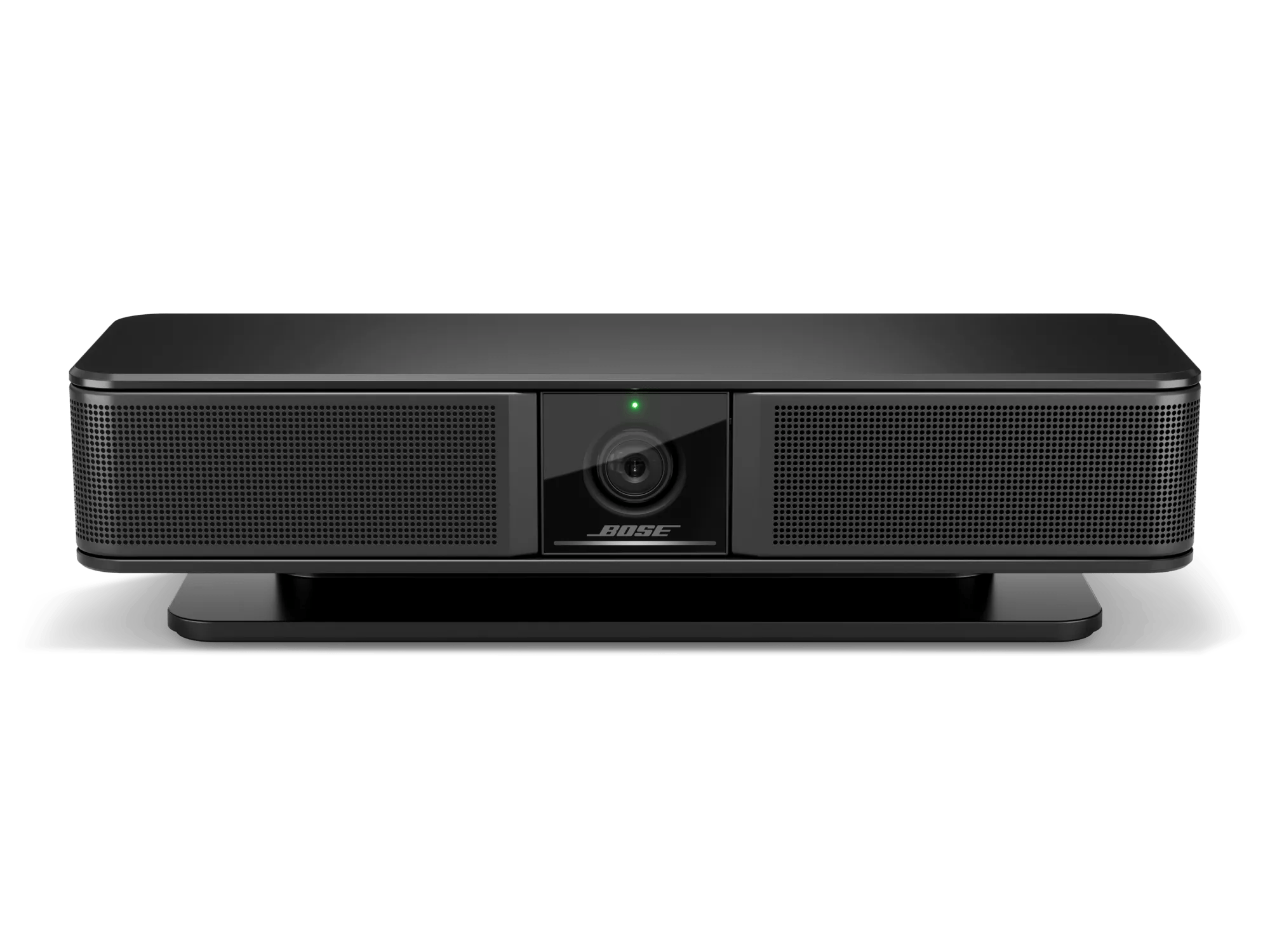
Bose Videobar VB-SSold from 2022 - 2023

Updating the software or firmware of your product | Bose Videobar VB-S

Check the firmware version of your product.

For instructions, see Checking the software or firmware version.
To determine if it is the latest version or if a newer version is available, refer to Software and firmware versions.

Select one of the update methods below:

Using the Videobar Configuration application

To update the system using the Videobar Configuration application:

  1. Connect your computer to the USB-C to PC port on the Videobar.
  2. Open the Videobar Configuration application.
  3. Click on the Administration icon in the lower-left corner.
  4. Enter the administrator password and click on the Sign In button. The factory default administrator password is Bose123!.
  5. Click on the Configuration tab on the left.
  6. The Firmware screen provides the currently installed firmware version number. If a newer version of firmware is available, a message is provided on the screen.
  7. Click on the Install button to initiate the install of the firmware.
    • A pop-up window within the Videobar Configuration application will display the progress of the update
    • The light bar will show a white light progressing from left to right (indicating an update is installing)
    • When complete the system will reboot automatically
Using the Videobar Configuration Web User Interface

To update the system using the Videobar Configuration Web User Interface:

  1. Determine the IP address for your product.
  2. On a computer, open an Internet browser and type the IP address for your product.
  3. Enter the administrator password and click on the Sign In button. The factory default administrator password is Bose123!.
  4. Click on the Configuration tab on the left.
  5. The Firmware screen provides the currently installed firmware version number. If a newer version of firmware is available, a message is provided on the screen.
  6. Click on the Install button to initiate the install of the firmware.
    • A pop-up window within the Videobar Configuration application will display the progress of the update
    • The light bar will show a white light progressing from left to right (indicating an update is installing)
    • When complete the system will reboot automatically
Using the Videobar Administration application

To update the system using the Videobar Administration application:

The Videobar Administration application allows you to update the firmware in a single device or simultaneously in multiple devices.
  1. Open the Videobar Administration application.
  2. All VB1 systems that are connected to the same network as the computer will be displayed in the Device List.
  3. Select the check box to the left of the device name for the system(s) you want to update, and then click the Update FW button.
  4. An Update Firmware dialog box will appear and indicate the currently installed firmware version and the version that is available for installation.
  5. Click the Install x button (where x is the version number of the firmware to be installed)
    • If the currently installed firmware version is the most recent, the dialog box will not include the Install x button or indicate that there is a version available.
  6. A Confirm Firmware Update dialog box will appear. Click on Install x to proceed with the firmware update or click Cancel to exit.
    • A firmware progress window will appear in the bottom left portion of the Videobar Administration application
    • The light bar will show a white light progressing from left to right (indicating an update is installing)
    • When complete the system will reboot automatically
Loading
Updating the software or firmware of your product | Bose Videobar VB-S