Was this helpful?
Updating the software or firmware of your product | Bose Smart Soundbar
When an update is available, the speaker updates itself automatically overnight when it is not in use.
Your speaker checks for updates every day. If an update is available and the speaker is connected to the Internet, it will automatically be downloaded and installed. This typically happens overnight or when your system is idle.
To check for an update:
- Be sure your soundbar is connected to a network with a working Internet connection
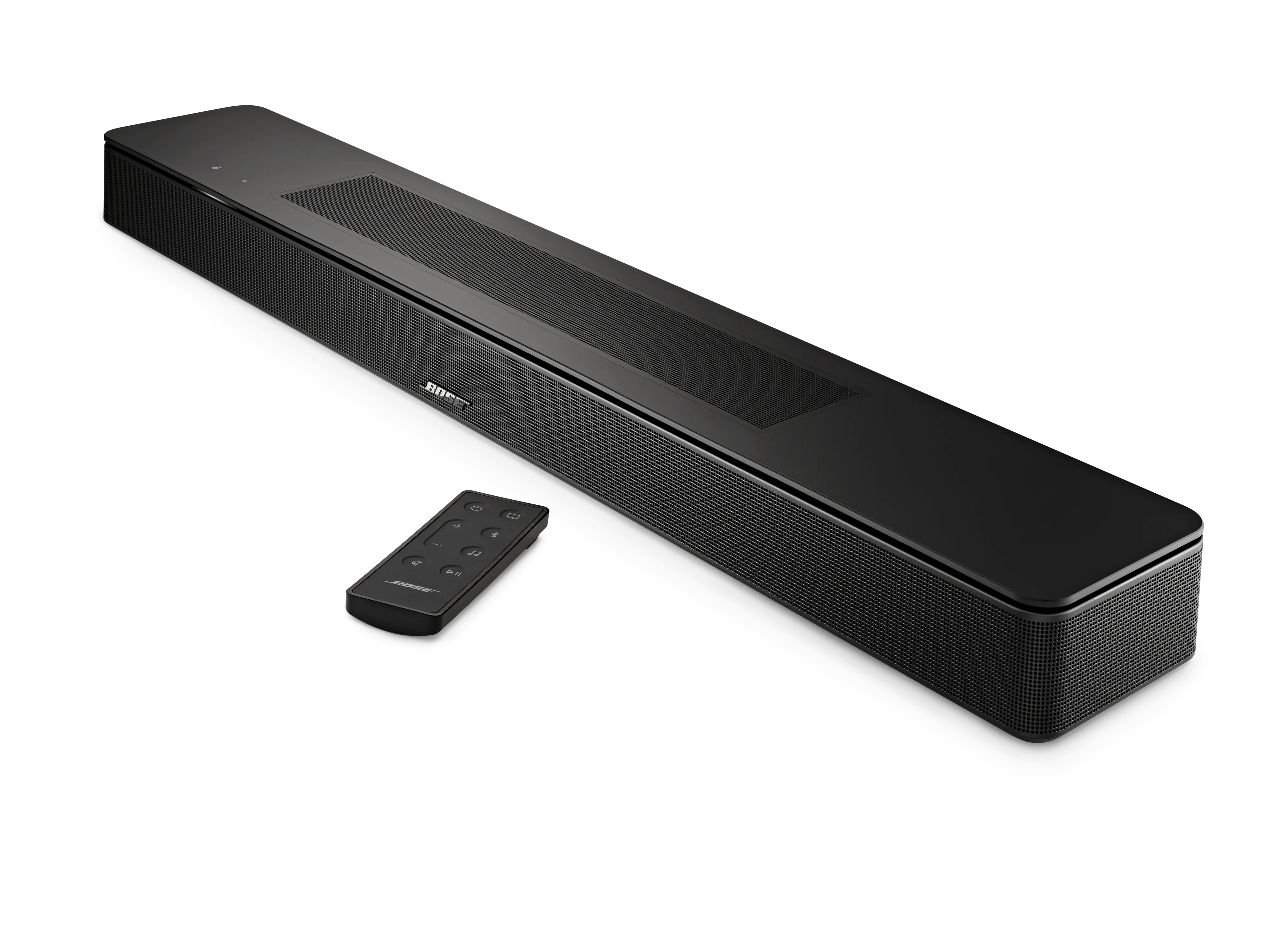
Tip: You can try streaming a music service or asking a voice assistant a question (if configured) to determine if there is a working Internet connection - On the remote control, simultaneously press and hold the Volume + and Music
buttons for 10 seconds:
- If an update is available, a white light will scroll across the light bar while it is updating. Once complete, the soundbar will reboot
- If no update is available, the product will reboot without any scrolling light bar activity
The additional methods below can be used if the standard update methods do not work
The processes above are the easiest way to update your Bose Smart product. It does require that your Smart Product is connected to the internet and you are using the Bose app. If the standard system update methods are inaccessible or not working, you can try an alternative update method.
Additional Update Methods
Updating using a computer and USB cable
To update your soundbar using a computer and a USB cable:
- On a computer, open an Internet browser and go to support.bose.com/bssb-fw to download the latest firmware update for your soundbar.
- When prompted, save the product_update.zip file. Do not rename, open, or unzip the file.
If a prompt to download the file does not appear, your browser may have downloaded the file automatically. Look for the file in a browser notification message or in the Downloads folder. - Connect a USB-A-to-Micro-USB cable from the computer to the SERVICE jack on the back of the soundbar.
- Reboot the soundbar by disconnecting its power cord for 30 seconds.
- While waiting, verify it was unplugged by tapping the Microphone Off icon on the top of the soundbar. No tone should be heard after tapping the icon.
- After reconnecting the power cord, the light bar pulses white for about 30 seconds as the soundbar reboots.
- Once rebooted, the light bar turns off
- On the remote control, simultaneously press-and-hold the Mute and Music buttons for 5 seconds to enter Service mode. The light bar on the soundbar glows white then turns off when you release the buttons.
- In a separate web browser or tab, go to the following address: http://203.0.113.1:17008/update.html
IMPORTANT: This address will not work until you connect a computer, reboot your product then enter Service mode as described in the steps above - Select Choose File then select the update file downloaded earlier
- Click UPLOAD then wait for the file transfer to complete.
Updating using the Direct IP method
To update your soundbar using the Direct IP method:
- Go to support.bose.com/bssb-fw to download the latest firmware update for your soundbar.
- When prompted, save the product_update.zip file. Do not rename, open, or unzip the file.
If a prompt to download the file does not appear, your browser may have downloaded the file automatically. Look for the file in a browser notification message or in the Downloads folder. - Reboot the soundbar by disconnecting its power cord for 30 seconds.
- While waiting, verify it was unplugged by tapping the Microphone Off icon on the top of the soundbar. No tone should be heard after tapping the icon.
- After reconnecting the power cord, the light bar pulses white for about 30 seconds as the soundbar reboots.
- Once rebooted, the light bar turns off
- Once the soundbar finishes rebooting, determine its IP address. For more info, see Determining the IP addressDetermining the IP address.
Be sure to check the IP address of the soundbar after rebooting since your router might assign it a new address. - In a web browser, type the IP address followed by :17008/update.html into the address bar (e.g. 10.0.0.6:17008/update.html) then press Enter.
- Select Choose File then select the update file downloaded earlier
- Click UPLOAD. The update file will begin to transfer and install.
- "UPLOAD COMPLETE" will appear in the browser once the file has been transferred to your soundbar.
- While the speaker is updating, a white light scrolls across the light bar on the front of the soundbar
- The update is complete when the light bar stops scrolling.
Updating using the built-in setup network
To update your soundbar using the built-in setup network:
- Go to support.bose.com/bssb-fw to download the latest firmware update for your soundbar.
- When prompted, save the product_update.zip file. Do not rename, open, or unzip the file.
If a prompt to download the file does not appear, your browser may have downloaded the file automatically. Look for the file in a browser notification message or in the Downloads folder. - Restore the factory settings of the soundbar. For more info, see Resetting your product
- On your device that downloaded update file, open its Wi-Fi menu then connect to the network name that begins with Bose followed by the name of your soundbar.
If you are prompted that the connection has no Internet access, choose to connect to the network anyway. - In a separate web browser or tab, go to the following address: http://203.0.113.1:17008/update.html
IMPORTANT: This address will not work until you restore your product to the factory settings then connect to its built-in network as described in the steps above. - Select Choose File then select the update file downloaded earlier
- Click UPLOAD. The update file will begin to transfer and install.
- "UPLOAD COMPLETE" will appear in the browser once the file has been transferred to your soundbar.
- While the speaker is updating, a white light scrolls across the light bar on the front of the soundbar
- The update is complete when the light bar stops scrolling.