Was this helpful?
Configuring your Lifestyle System | Bose Lifestyle Ultra Speaker
If you are trying to connect Lifestyle Ultra products to other systems
This article shows how to connect your Lifestyle Ultra products together.
If you are trying to connect the Lifestyle Ultra speaker to other Airplay or Google Cast compatible speakers, see Grouping Systems
Configuring Lifestyle Ultra speakers in the Bose app
There are two ways to group the Bose Lifestyle Ultra Speaker in the Bose app
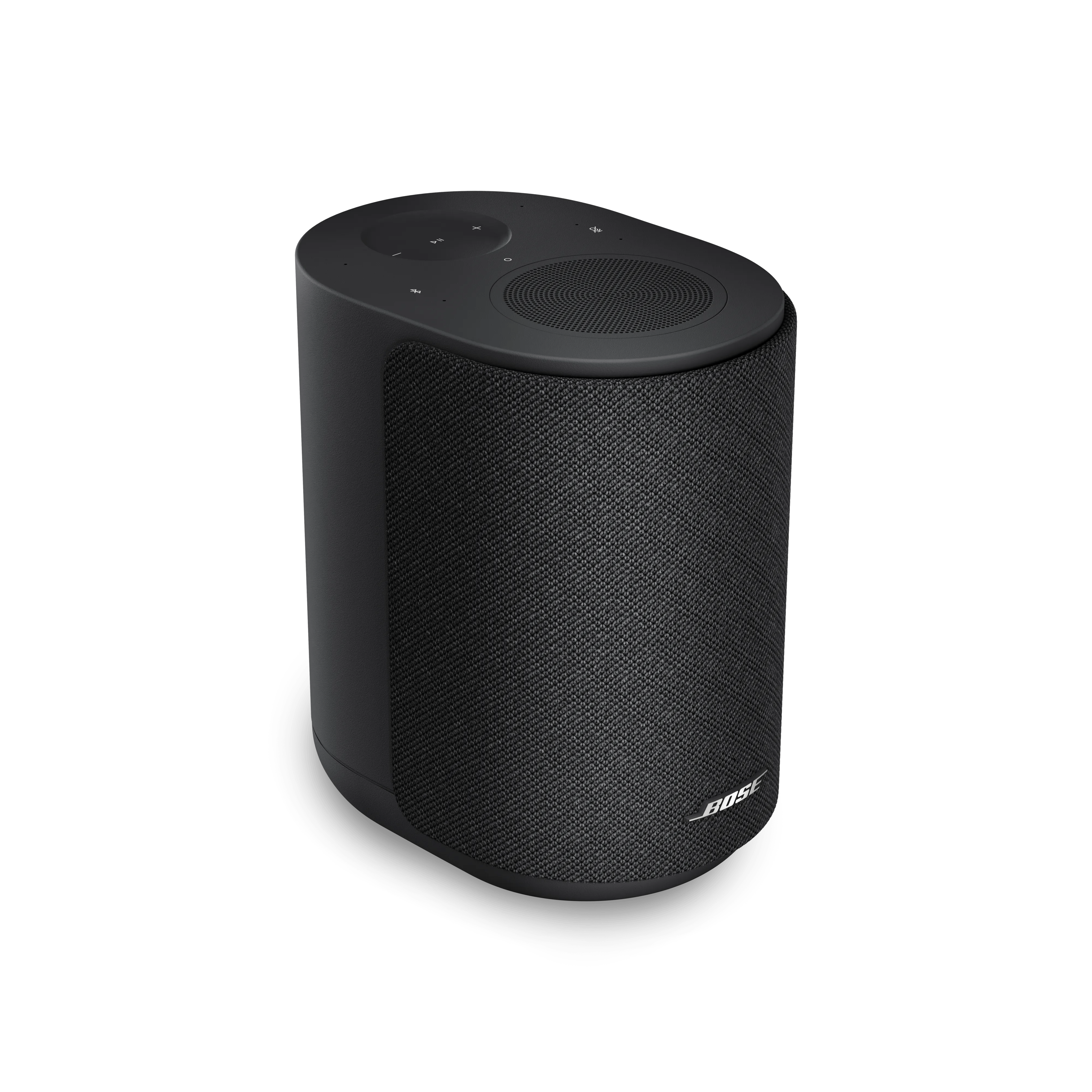
- As a Stereo pair - Requires two Bose Lifestyle Ultra Speakers.
- As part of a a Bose Lifestyle Collection home theater system. - Requires Bose Lifestyle Ultra Soundbar, Two Bose Lifestyle Ultra Speakers and (Optional) Bose Lifestyle Ultra Subwoofer
Note - You cannot group the Bose Lifestyle Ultra Speaker with previous Bose-app compatible speakers such as the Smart Ultra Soundbar or Smart Speaker 500 within the Bose app. Instead set up grouping through Airplay 2 or Google Cast.
Creating a Stereo Pair
- In the Bose app, tap the Configure button. If this button is not shown, tap the Product Control icon
in the lower-left corner.
Tip: If you have more than one Bose app-compatible speaker, tap the My Bose iconin upper-left corner, select a speaker (which will be the primary speaker) then tap the Configure button.
- Press the <> button to switch the position of the speaker
- Press the Left/Right + button and select your second speaker.
- Press Save on the top right-hand side.
- On the product control screen, a Group Volume level bar appears above volume level bars of the grouped products. The volume level of grouped Bluetooth headphones cannot be adjusted within the app. The controls on the headphones must be used.
See this video for more detail
Creating a Home Theater system
To set up a home theater system, start with the Lifestyle Ultra Soundbar. See here for more details.Frequently Asked Questions
What do I do if I get no/intermittent sound?
Resolving no or intermittent audio in a stereo pair
- Check software versions
Make sure both speakers are updated to software version 2.0.20 or later. - Confirm Wi‑Fi connection
Ensure both speakers are connected to a 5 GHz Wi‑Fi network.
If your router uses the same network name (SSID) for both 2.4 GHz and 5 GHz, move the speakers closer to the router and restart them. This helps them reconnect to the 5 GHz band. - Test the audio source
Try playing audio from a different source, or turn the speakers off and back on using the Bose app. - Rename and reselect the stereo pair
In the Bose app, rename the stereo pair. Then, reselect the newly named pair from AirPlay, Google Cast, or Spotify Connect. - Power cycle the speakers
If the issue continues, unplug both speakers, wait 15 seconds, then plug them back in and test again.
My stereo pair does not show in AirPlay, Google Cast, or Spotify Connect
Stereo pair not available in AirPlay, Google Cast, or Spotify Connect
If your stereo pair appears online in the Bose app but does not show up as a playback option:
- Check software versions
Make sure both speakers are updated to software version 2.0.20 or later. - Verify Wi‑Fi connection
Ensure both speakers are connected to a 5 GHz Wi‑Fi network. - Rename and reselect the stereo pair
In the Bose app, rename the stereo pair, then reselect it from AirPlay, Google Cast, or Spotify Connect. - Restart the speakers
If the issue continues, unplug both speakers, wait 15 seconds, then plug them back in and try again.
Stereo pair appears offline in the Bose app
If your stereo pair shows as offline in the Bose app:
- Check other playback options
See if the stereo pair appears in AirPlay, Google Cast, or Spotify Connect. - Refresh the Bose app
If the stereo pair appears in another app, close and reopen the Bose app to refresh the connection status. - Restart the speakers
If the stereo pair does not appear anywhere, unplug both speakers, wait 15 seconds, then plug them back in and check again.
Second speaker not found during setup
If you can’t find the second speaker while setting up a stereo pair:
- Follow the in‑app guidance
Continue with the troubleshooting steps shown in the Bose app during setup. - Let the app locate the speaker
The app will guide you through resolving connection issues and help identify any available nearby speakers so setup can continue.