Was this helpful?
No audio | T1 ToneMatch™ audio engine
Be sure the system is set up properly and all connections are secure.
Be sure the other device is set up properly.
Be sure the channel is not muted.
Check the volume level of the Bose system.
Be sure the levels are set properly.
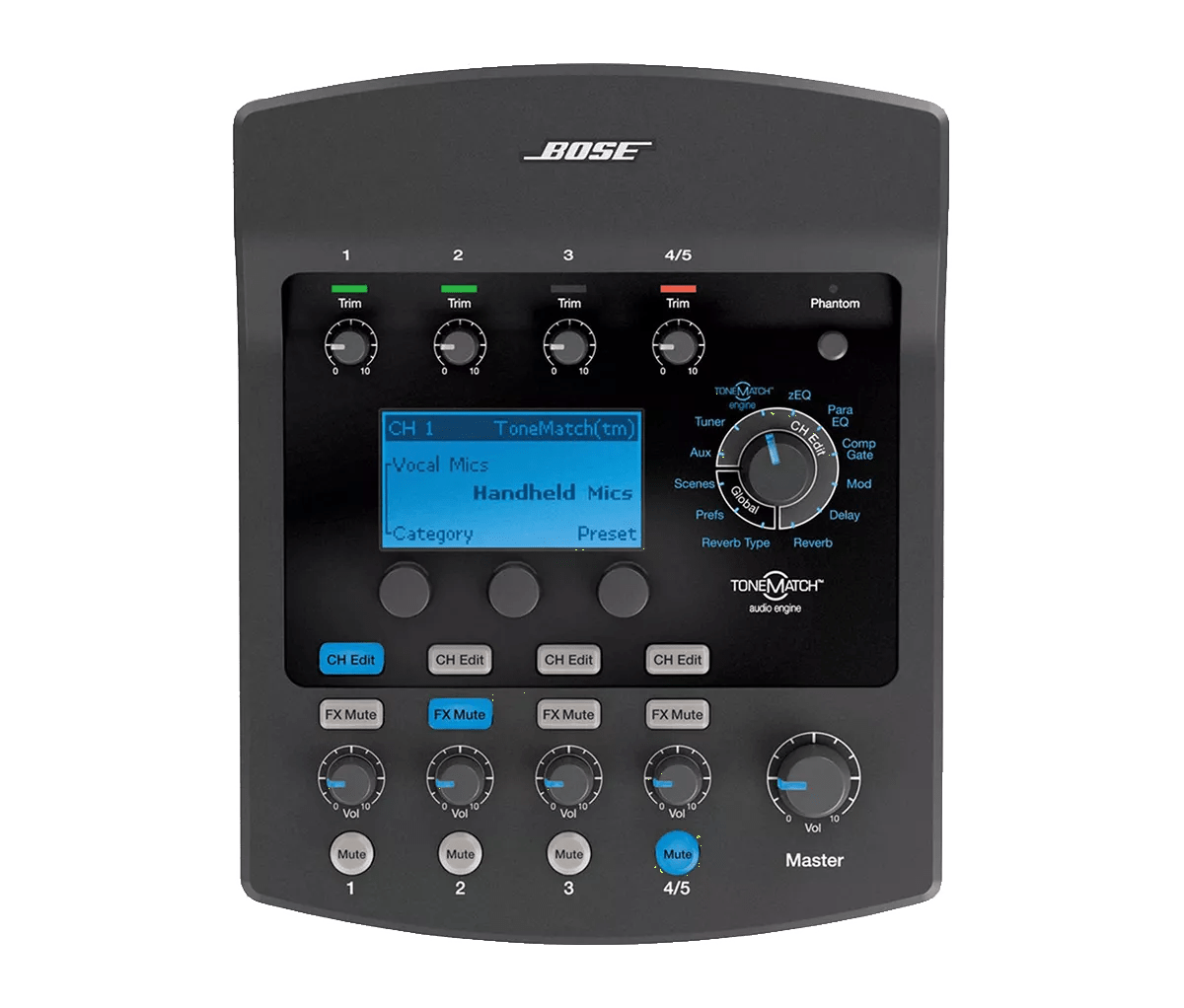
- Check the signal LED to be sure the input trim level is sufficiently set. The LED should be solid green, indicating a strong signal
- If the LED is not solid green, increase the input trim level, stopping before the LED is red
- When the input trim level is correct, increase channel volume and master volume to the desired levels
Be sure the input is assigned properly.
It is possible that the USB input is assigned to the incorrect channels. For information on assigning the USB input, see Assigning USB inputs.
Reset your product.
Much like rebooting a smartphone, your product might need to be reset on occasion to correct minor issues. For more information, see Resetting your product.
Check the input signal of the ToneMatch mixer.
Check the output signal of the ToneMatch Mixer
If there is no signal at the outputs, try the following:
Check that the gate setting is not restricting audio.
Rotate the knob on your ToneMatch mixer to Comp/Gate. If gating is enabled, disable it. If the issue is resolved, either turn off gating or reduce its intensity. For more information, see Turning on or off audio gate.
Be sure the levels are set properly.
If levels are not properly set, system performance will suffer. Follow these guidelines:
- Check the signal LED to ensure the input trim level is sufficient. The LED should be solid green, indicating a strong signal.
- If the LED is not solid green, increase the input trim level—stop increasing before the LED turns red.
- Once the input trim is set, adjust the channel volume and master volume to the desired levels.
If using the USB jack, be sure audio is routed properly.
In the system menu, you can select which audio is output through the USB jack. For more information, see Assigning USB outputs.
For information on checking input levels, see Checking T1 input and output levels.
Replace the input cables.
Try connecting to the mixer with a different cable.
Plug in a different audio source.
For condenser microphones, turn on phantom power.
Plug in to a different input on your product.
Plug in the mixer to a different input on the sound system.
Remove all other USB audio or video devices that are connected.
Try the AUX output jacks on the back of the mixer
In the mixer menu, route audio to the AUX output jacks. For more info, see Assigning inputs to the Aux output. Connect the AUX jacks to your powered speaker and check it sound is heard as expected. If so, the mixer may need to be serviced.