Loading
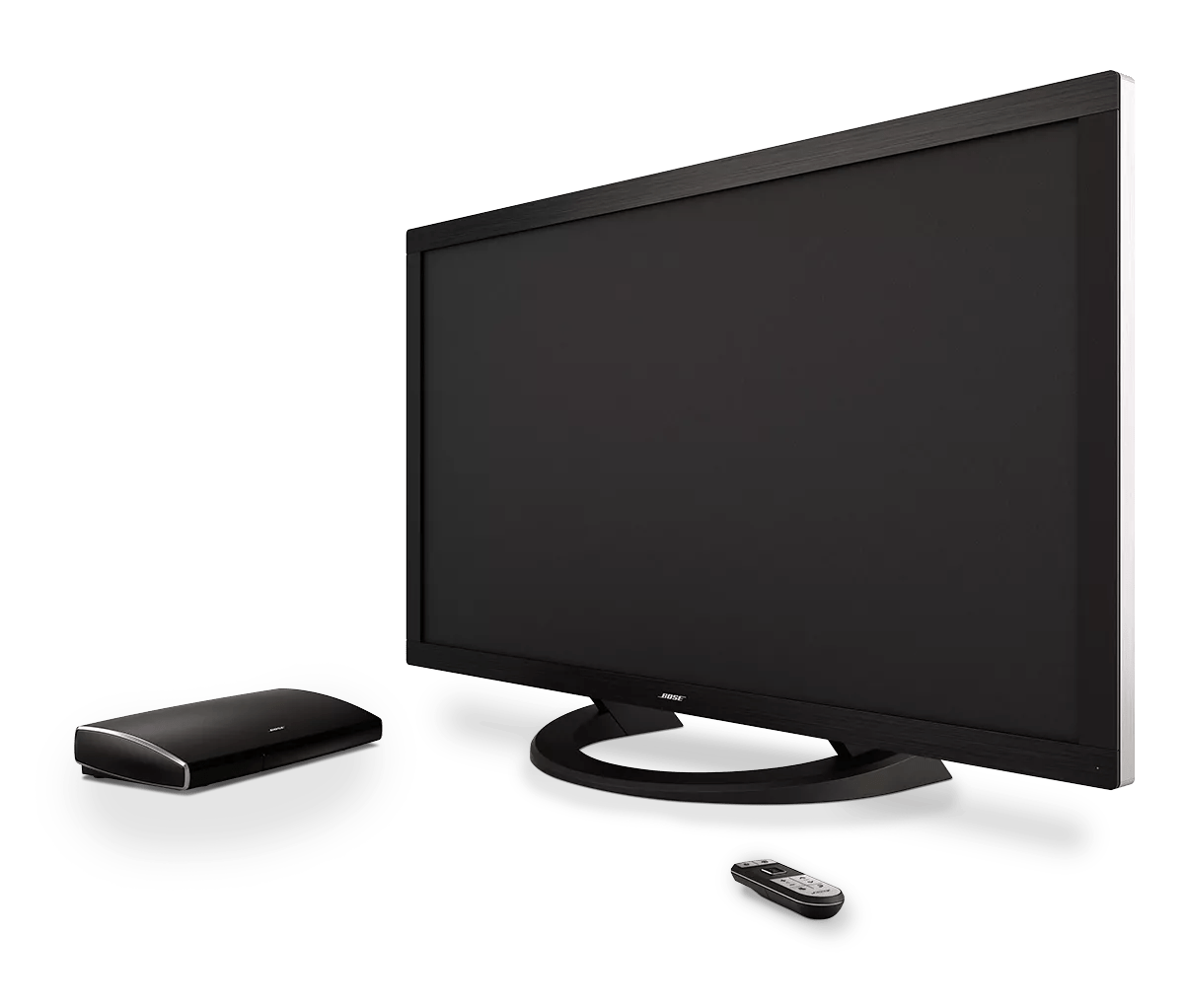
No audio | VideoWave® III entertainment system - 55''
videowave®-iii-entertainment-system---55''
VideoWave IIISold from 2013 - 2015

No audio | VideoWave® III entertainment system - 55''

Be sure the A/V monitor cable is connected properly.

The A/V monitor cable that connects between the control console and monitor may have come loose or may be connected incorrectly. For more information on system connections, see Setting up your product.

Be sure the system is set up properly and all connections are secure.

A connection may have come loose or may be connected incorrectly. For more info, see Setting up your product.

Check the volume level on the Bose system.

When the system is turned on, its volume slowly ramps from zero to the last level used. If the system was turned off at an extremely low volume, it ramps to a moderate volume level. Pressing the volume button during this process sets the volume and stops if from ramping. If a higher level is desired, increase the volume gradually.

Check that the correct audio source is selected.

Since there is more than one audio source built-in to your system (i.e. FM and AM radio), be sure the source you want to hear is selected on the system.

Reset the HDMI connection by resetting both devices and the cable connected between them.

  1. Turn off the Bose system and the source device.
  2. Unplug the Bose system and the source device.
  3. Disconnect HDMI cable at both ends and reseat them ensuring a secure connection.
  4. Reconnect the source device and the Bose system to power.
  5. Turn on the source device.
  6. Turn on the Bose system.
The connection may have come loose. It is possible that some elements of the signal may pass through the cable, but others may not. The connected device may store misinformation received through the HDMI cable. Resetting it should clear its memory of this data.

Reset your product.

Much like rebooting a smartphone, your product might need to be reset on occasion to correct minor issues. For more information, see Resetting your product.

See if the Wi-Fi indicator is solid white.

When connected to your network wirelessly, the Wi-Fi light on the back of the adapter should be solid white. If the Wi-Fi light is not solid white, see Understanding LED indicator status lights and information. (Note: When using a wired connection, the Wi-Fi light remains unlit.)

Try another input on the Bose system.

The input may be defective; try another input (it is ok to use a different type of input, for example analog instead of digital or digital coax instead of digital optical). If the problem only occurs on one input, that input may be defective. Follow the link below for more information on how to service your product. Depending on your product and region, you will be provided a contact number or the ability to setup service online.

Click here to start service

Try the audio input.

Try one of the inputs on the back of the control console. If the system produces audio through one of the audio inputs, determine the Warranty or Rapid Response status and see Service Options for the control console and include the iPod dock.

Explain Service Options for the Control Console.

Determine the Warranty or Rapid Response status and see Service Options for details.

Explain Service Options for the Control Console and monitor.

Determine the Warranty or Rapid Response status and see Service Options for details.

Restore the system to its factory defaults and restart the set up process.

For more info, see Resetting your product.

Was this article helpful?

YES
NO
START A REPAIR OR REPLACEMENT
Loading
No audio | VideoWave® III entertainment system - 55''